


Search for a dictation software app and you get a wall of choices: the tool already built into your operating system, a handful of free browser notepads, and a growing field of AI-powered desktop apps. They all turn speech into text, so on the surface they look interchangeable. They are not. The gap between them shows up the moment you try to do real work: a 2,000-word report, a client email in a second language, a document full of names your computer has never heard.
This guide is not a ranked list of apps to install and forget. It is a decision framework. We will walk through the three categories of dictation software, the questions that actually separate them, and the trade-offs that matter for your specific workflow, whether you write for a living, juggle a packed inbox, or work across both Windows and Mac. By the end you will know which category fits you and what to look for inside it.
Key takeaways
- Dictation software apps fall into three categories: built-in OS tools (Apple Dictation, Windows Voice Typing), free browser tools, and dedicated AI apps. Each makes a different trade-off between price, accuracy, and features.
- Built-in tools are genuinely good for short, casual dictation but hit hard ceilings: no custom vocabulary, limited punctuation intelligence, and platform lock-in.
- The questions that actually separate apps are accuracy on your vocabulary, what happens after the transcript appears, cross-platform support, and language coverage, not raw speech-to-text alone.
- ParrotKey sits in the AI app category and adds the layer built-in tools skip: instant translation across 50+ languages, one-press grammar correction, and AI text transformation, all working system-wide on both Windows and Mac.
What is a dictation software app, exactly?
A dictation software app converts your spoken words into written text in real time. You talk, it types. That much is shared across every option on the market. The differences begin with what the app does around that core function.
The simplest tools stop at transcription: they write down what you say, word for word, including the false starts and filler. More capable apps treat the raw transcript as a starting point and add layers on top, cleaning up spoken-language patterns, fixing grammar, adding punctuation intelligently, translating, or reshaping the text into a polished email or summary. That extra layer is the whole reason the dedicated app category exists.
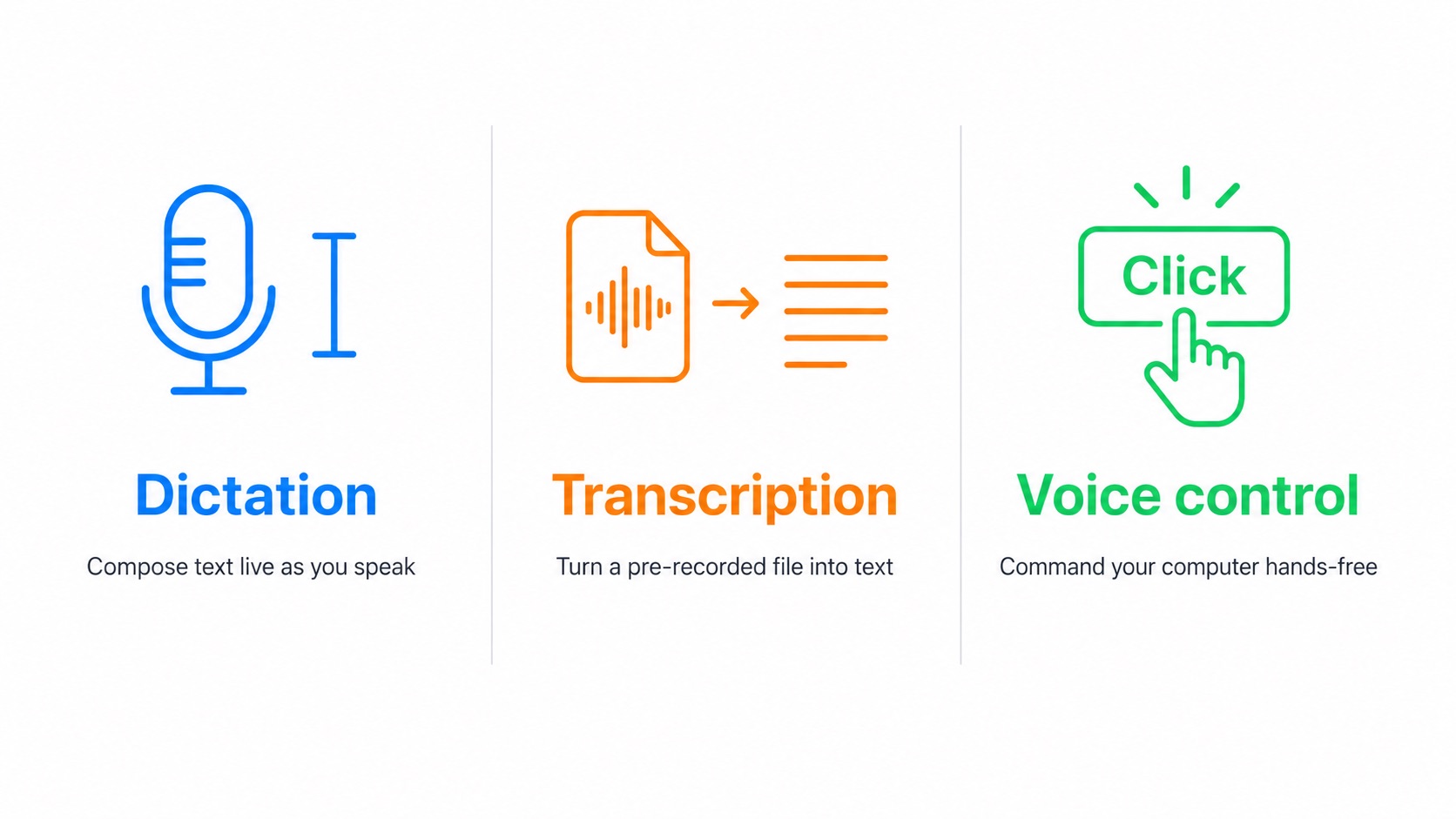
It also helps to separate dictation from a few neighbours. Voice control (or voice access) is about commanding your computer hands-free, clicking buttons and navigating menus by voice, which is an accessibility feature, not a writing tool. Transcription usually refers to converting pre-recorded audio, like an interview or a meeting, into text after the fact. Dictation is the live, as-you-speak case: you are composing text, not narrating a recording. This guide focuses on that live writing workflow, though it is worth knowing that some apps handle both jobs. ParrotKey, for instance, does live dictation and includes a built-in file transcription feature for turning existing audio or video recordings into text, all processed locally on your machine.
The three categories of dictation software
Almost every dictation software app you will encounter belongs to one of three groups. Knowing the group tells you most of what you need to know before you read a single review.
Built-in OS tools
Both major desktop platforms ship a dictation feature for free. On Mac it is Apple Dictation; on Windows it is Voice Typing, launched with the Windows + H shortcut. Apple Dictation is built into macOS, works system-wide in any text field, and runs entirely on-device on Apple Silicon, so your audio stays on your Mac. Windows Voice Typing takes the opposite approach: all speech processing happens on Microsoft's cloud servers, meaning no offline capability for the standard toolbar.
These tools are the right answer for a lot of people. They cost nothing, require no installation, and handle quick messages and short notes well. Their limits are real but predictable, and we will get to them.
Free browser and web tools
The second category is free web-based tools, typically a browser notepad with a microphone button, plus Google Docs Voice Typing for people who live inside Google Docs. They are zero-cost and zero-install, which makes them an easy starting point. The catch is that they are tied to a single environment: a specific browser or a specific document. Google Docs Voice Typing works inside Google Docs in a supported browser, but it is not system-wide dictation. If you need to dictate into Slack, email, or any other app, this won't help.
Dedicated AI dictation apps
The third category is purpose-built desktop apps that add an intelligence layer on top of transcription. This is where features like custom vocabulary, automatic punctuation and grammar, translation, and AI rewriting live. These apps exist precisely because the first two categories share the same ceilings. Apple Dictation is adequate for basic text entry, but it has significant limitations that affect professional and power-user workflows. These limitations are the primary reason third-party speech-to-text apps exist.
ParrotKey belongs to this third category, and it is built around the workflow that comes after recognition, not just the recognition itself. More on that below.
Where built-in dictation tools hit their ceiling
The fastest way to choose a dictation software app is to understand exactly where the free built-in tools stop, because those gaps are the reason anyone pays for an alternative. Here are the limits that show up most often in real use.
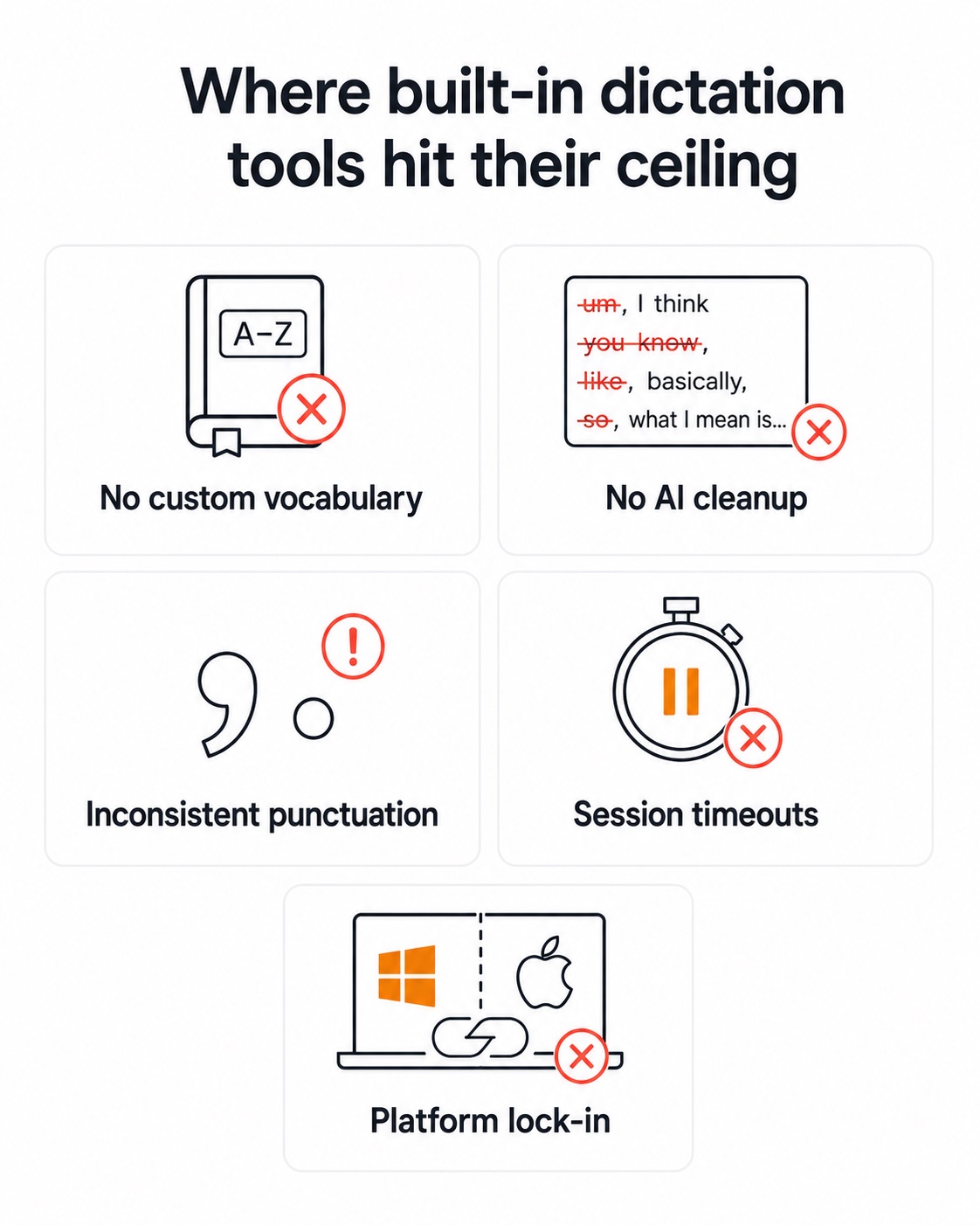
No custom vocabulary. Neither Apple Dictation nor Windows Voice Typing lets you teach it your own terms. You cannot train it on industry-specific terminology, and it does not learn your specific speech patterns over time. Every time you dictate a client name, a product name, a medical term, or a piece of jargon, you risk a mistranscription you have to fix by hand.
Word-for-word output with no cleanup. Built-in tools write down exactly what you say. Everything you say is written literally, including hesitations, filler words, and false starts, and Apple Dictation does not restructure your sentences, so spoken-language patterns remain in the text. You get a rough draft, not finished writing.
Punctuation you often have to speak out loud. Auto-punctuation exists but is inconsistent, and in many situations you are back to saying "comma" and "period" yourself. macOS adds some automatic periods, but it is inconsistent. That breaks the flow of natural speech.
Timeouts and session limits. Apple Dictation in particular cuts off when you pause. Dictation stops automatically when no speech is detected for 30 seconds. For long-form writing, the constant restarting becomes a genuine friction point.
Platform lock-in. This is the big structural one. Apple Dictation only exists on Apple devices. Windows Voice Typing only exists on Windows. If you work across both, you are learning and maintaining two different tools with two different behaviours. The same is true of the free web tools, which are locked to a browser or a single app.
The cloud question. Built-in tools force a privacy trade-off rather than letting you choose. Windows Voice Typing sends audio to Microsoft's servers with no offline mode for the standard toolbar. Apple Dictation runs on-device on Apple Silicon for many cases, but Apple states that Siri and Dictation may process audio or transcripts on Apple servers in some cases. Either way, you take what the platform gives you.
None of this makes built-in tools bad. For a quick reply or a short note, they are perfectly fine. The point is that these are the exact gaps a dedicated app is built to close.
The questions that actually separate dictation apps
When you compare a dictation software app against another, most spec sheets lead with accuracy. Accuracy matters, but on its own it is a weak filter because modern recognition is good across the board for clear, general English. The questions below do more to separate the field.
How accurate is it on your vocabulary, not generic text?
General accuracy is a solved-enough problem. The real test is how an app handles your terms: names, acronyms, technical language, brand words. An app that lets you build a custom dictionary will beat a more "accurate" app that mistranscribes the same proper noun every single time. If your work is full of specialised language, custom vocabulary is the single most important feature to check for.
What happens after the transcript appears?
This is the question that divides categories. A raw transcript still needs editing: filler removed, grammar fixed, tone adjusted, sometimes translated. Ask whether the app stops at the transcript or carries it forward. Tools that fix grammar, rewrite for tone, or translate in the same step save you the second pass entirely. Our guide to using a grammar checker built for dictation goes deeper on why that cleanup step matters so much for spoken text.
Does it work everywhere you write, on every device you use?
A dictation app is only useful where you can actually use it. Two sub-questions matter here. First, is it system-wide, working in any text field across your apps, or confined to one browser or document? Second, does it run on every platform you touch? If you switch between a Windows machine at work and a Mac at home, a cross-platform app means one tool, one set of habits, one subscription, instead of two disconnected experiences. This is a question that quietly rules out most built-in and free options.
How many languages does it handle, and how well?
If you write or correspond in more than one language, language coverage is not a nice-to-have. Check both the number of languages and whether the app can translate between them in the same workflow, rather than just transcribing whichever language you happen to speak.
Do you control where your audio is processed?
Privacy should be a choice you make, not a default the platform imposes. The strongest apps let you run processing locally for sensitive work and use cloud power when you want it, instead of locking you into one mode.
How ParrotKey answers those questions
Run a dedicated AI app through the same questions and the difference becomes concrete. ParrotKey is a dictation software app built for the work after recognition, designed specifically to close the gaps the built-in tools leave open.
On what happens after the transcript, ParrotKey does not stop at words on a screen. It fixes spelling, grammar, and punctuation errors in any text with one button, with 100% inline editing that works everywhere you type. On top of that it offers AI text transformation: make text professional, friendly, shorter, longer, or completely rewrite it with voice commands, using 10 built-in transforms plus unlimited custom prompts. That is the editor layer built-in tools skip entirely. You can shape how it handles your work through custom and built-in AI text transforms rather than living with one fixed behaviour.
On languages, ParrotKey treats translation as a core function, not an afterthought. It translates any text to or from 50+ languages with a single keypress in under 2 seconds, so you can speak in Dutch and get perfect English, or write in your language and send in theirs. If multilingual writing is part of your day, ParrotKey's translation tool for 50+ languages removes the copy-paste-into-another-tool step completely.
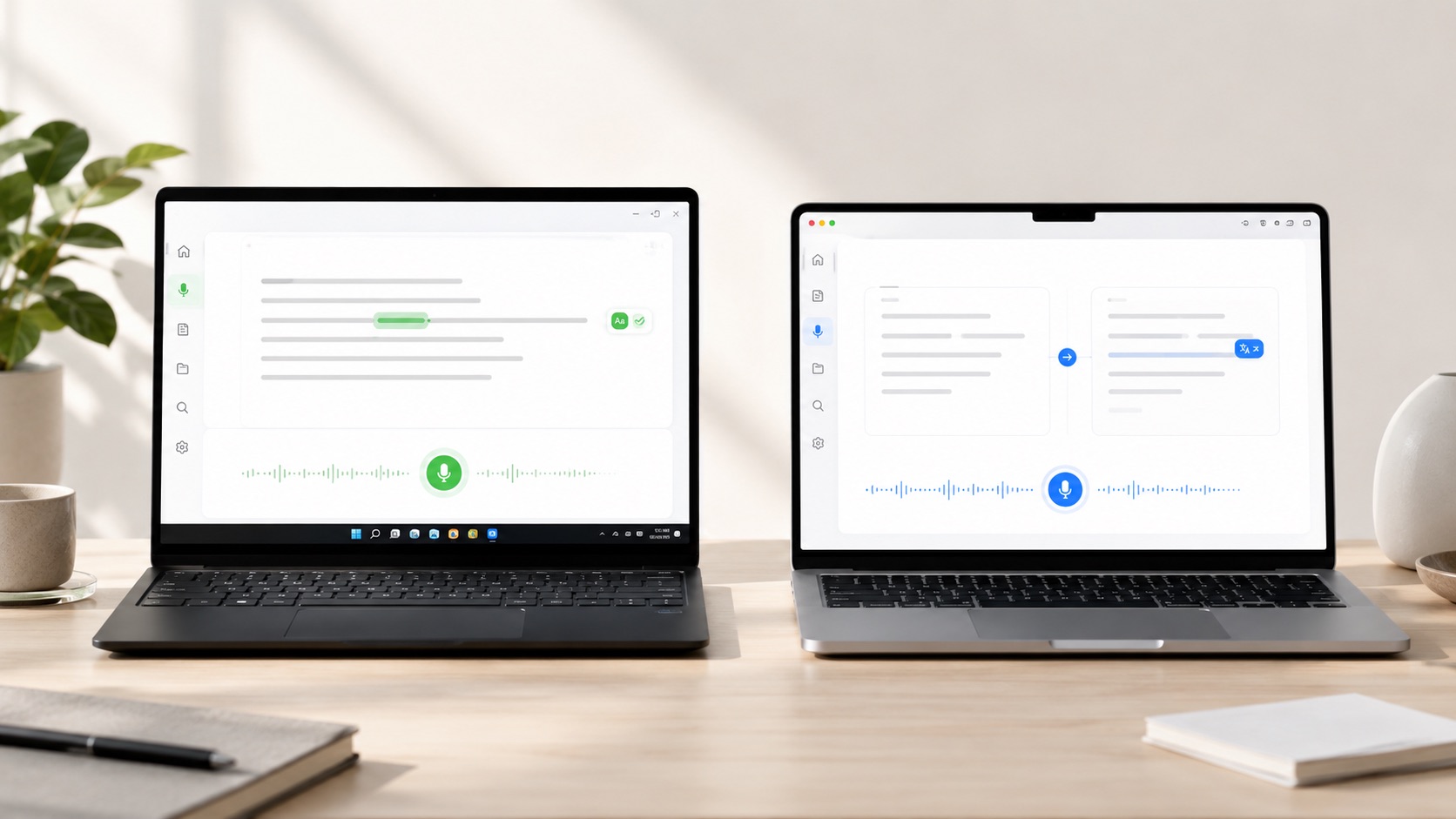
On working everywhere, on every device, this is where the cross-platform point lands hardest. ParrotKey runs on both macOS and Windows with the same app and the same subscription, which is exactly what someone searching for dictation software that spans both platforms is looking for. No learning two tools, no maintaining two habits.
On controlling where audio is processed, ParrotKey gives you the choice the built-in tools withhold. You can run models locally on your machine so it works offline, even in flight mode. Privacy-sensitive work stays on your device; when you want cloud horsepower, it is there.
And on custom vocabulary and adapting to your work, the custom-prompt system lets you tailor how ParrotKey handles your terminology and your formatting needs, which is precisely the adaptation built-in tools cannot offer.
Choosing by who you are
The right category depends on what you actually do. Here is how the decision tends to shake out.
If you dictate occasionally, a few quick messages or short notes a day, the built-in tool on your device is genuinely enough. Turn on Apple Dictation or press Windows + H and you are set. Do not overthink it.
If you write for a living, the picture changes. Long-form work runs straight into timeouts, missing punctuation, and the lack of cleanup. Writers benefit most from a dedicated app that handles formatting and grammar in one pass, which is why this group is the clearest case for upgrading. Our solutions for writers and content creators page covers that workflow in detail.
If you handle a heavy, multilingual workload, answering tickets, sending client emails, or working across time zones, translation and grammar correction in the same step are the features that pay for themselves. For busy professionals, the time saved on the second editing pass is the entire point.
If you switch between Windows and Mac, a cross-platform app is close to non-negotiable. One tool that follows you between devices beats two built-in tools that behave differently every time.
The decision in one table
| What you need | Built-in OS tools | Free web tools | ParrotKey |
|---|---|---|---|
| Cost to start | Free | Free | Free plan, plus paid tiers |
| Works system-wide | Yes (OS-wide) | No (browser/doc only) | Yes |
| Windows and Mac | No (one or the other) | Browser-dependent | Yes, both |
| Custom vocabulary / prompts | No | No | Yes |
| Grammar correction built in | No | No | Yes |
| Translation built in | No | No | Yes, 50+ languages |
| AI text transformation | No | No | Yes |
| Offline option | Partial (Apple only) | No | Yes, run locally |
The pattern is the one this whole guide points to: the free tools win on price and on quick, casual use, and ParrotKey wins on everything that turns dictation from a transcript into finished, send-ready work. ParrotKey has a free plan of its own to start with, so you can download ParrotKey and try it before deciding whether the paid features earn their place in your workflow.
Conclusion
Choosing a dictation software app is less about finding the single "best" tool and more about matching a category to your work. The built-in tools on Windows and Mac are excellent for short, casual dictation and cost nothing. Free web tools add a little flexibility but stay locked to a browser or document. The moment your work involves specialised vocabulary, long-form writing, multiple languages, or two different operating systems, you have outgrown what those free tools were built to do, and a dedicated AI app earns its place.
That is the gap ParrotKey is built for: speak in any of your languages, get clean and grammatically correct text, translate in two seconds, reshape the tone with a custom prompt, and do all of it system-wide on both Windows and Mac. When you are ready to move past the built-in ceiling, the pricing options show exactly what that upgrade looks like.

 Commencez gratuitement