

You typed "speech to text free" into a search box because you want to talk instead of type, and you do not want to pay for the privilege. Fair enough. The good news is that genuinely free speech to text exists, and some of it is already sitting on your computer right now. The less obvious news is that "free" comes in a few different shapes, and the cheapest-looking option is not always the one that saves you the most time.
This guide walks through what you actually get from the free speech to text tools people use most, where the limits tend to bite once you move past quick notes, and how to dictate across every app you use without paying anything. No fluff, no fake rankings. Just what works and what to watch for.
Key takeaways
- Free speech to text falls into three buckets: built into your operating system, free web tools, and free tiers of dedicated dictation apps. Each is "free" in a different way.
- The built-in tools (Apple Dictation, Windows Voice Typing, Google Docs Voice Typing) cost nothing but trade away accuracy, punctuation, and the ability to work everywhere.
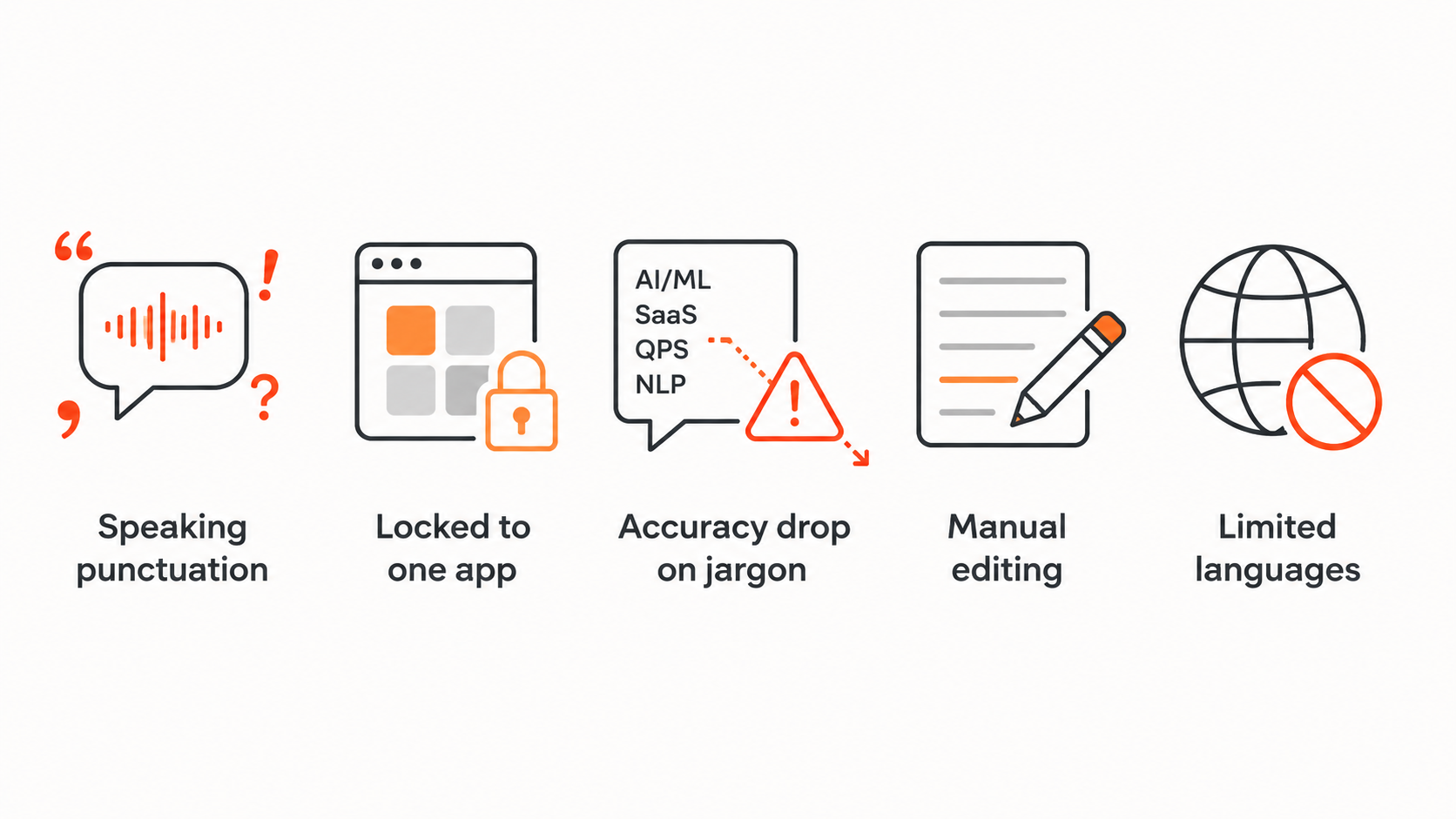
- The most common hidden limits are: you have to speak punctuation out loud, it only works in one app or browser, accuracy drops on names and jargon, and there is no way to clean up the text afterward.
- For dictation that works system-wide and stays free, a dedicated app with a real free tier is usually the better long-term pick.
- ParrotKey has a forever-free plan covering 2,500 words a week across every app on macOS and Windows, which closes most of the gaps the built-in tools leave open.
Is speech to text actually free?
Yes, and in more ways than most people realize. There are three distinct kinds of free, and knowing which one you are looking at saves a lot of frustration later.
The first kind is built in. If you own a Mac, a Windows PC, an iPhone, or an Android phone, you already have a dictation feature included with the operating system. You do not download anything, you do not make an account, and you do not pay. The second kind is the free web tool: a website where you click a microphone, talk, and copy the text out. The third kind is the free tier of a dedicated dictation app, which gives you the polished experience of a paid product up to a certain usage cap.
All three genuinely cost nothing. The difference is in what each one asks of you in return for being free, and that is where the real decision lives.
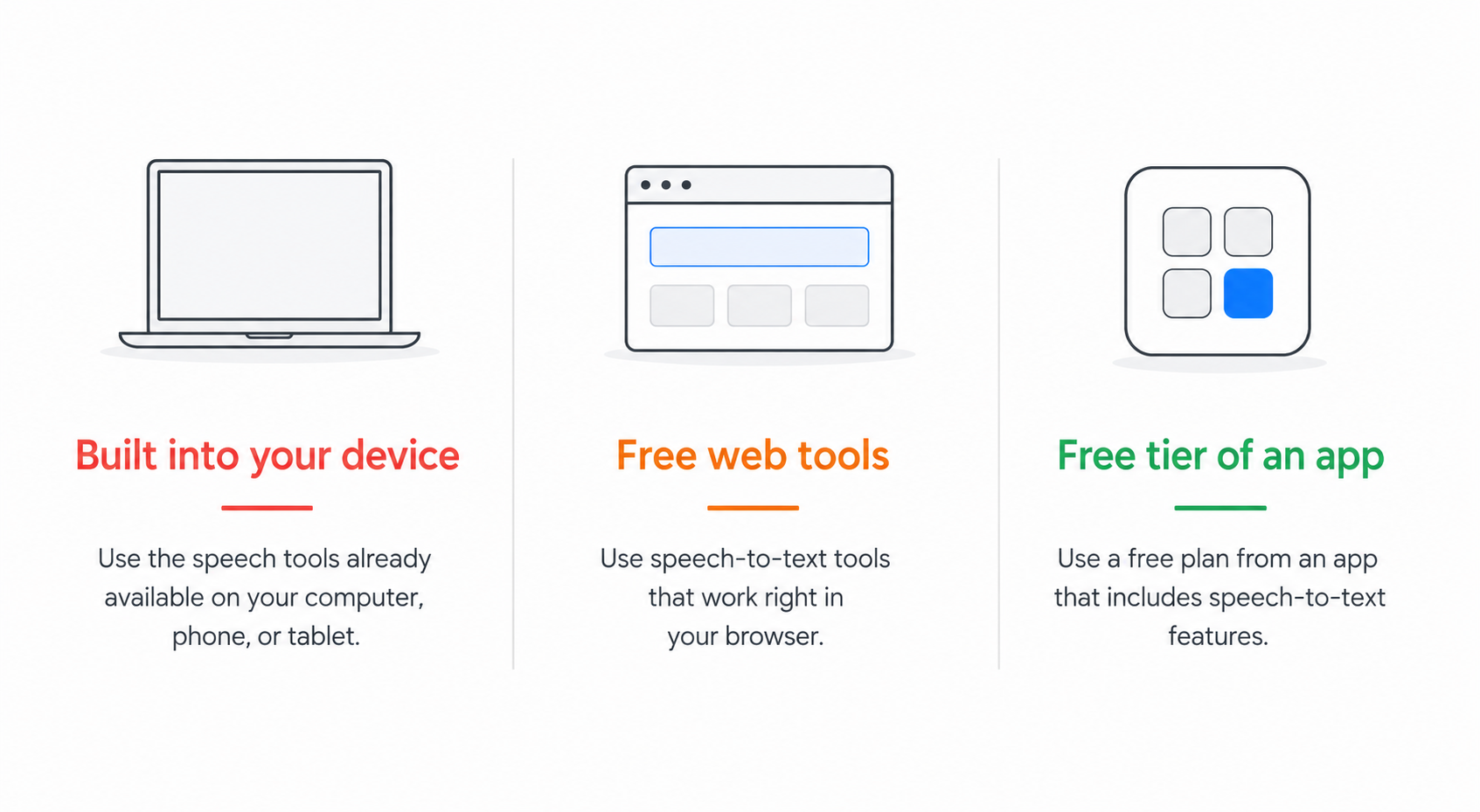
The free speech to text tools already on your device
Before you install anything, it is worth knowing what you already own. For a lot of light use, the built-in tools are all you need, and starting here costs you nothing but a keyboard shortcut.
Apple Dictation (Mac, iPhone, iPad)
Apple's dictation is free, built into macOS and iOS, and it works system-wide, meaning it types wherever your cursor is rather than inside one app. On a Mac you press the dictation key (or set your own shortcut) and start talking. It handles everyday English well. Where it struggles is with code, technical terms, product names, and anything outside plain conversational language, and it does not learn from your corrections, so a word it gets wrong tends to stay wrong.
Windows Voice Typing
On Windows 10 and 11 you press the Windows key plus H and a small voice typing toolbar appears. It uses Microsoft's cloud speech recognition and works across most applications. In real-world testing it lands somewhere around 85 to 90 percent accuracy for conversational English with a decent microphone, which is fine for messages and rough drafts. The catches: it leans on a cloud connection for its best accuracy, it has no way to learn your personal vocabulary of names and jargon, it transcribes filler words like "um" and "uh" exactly as you say them, and it stops listening after a short silence.
Google Docs Voice Typing
Google Docs has a free voice typing feature under Tools, and it is one of the easiest ways to start dictating. The constraint that sends most people looking elsewhere is right there in how it is built: it only works inside Google Docs, and only in the Chrome browser. You cannot use it in Gmail, Slack, Notion, a code editor, or anywhere else. You also have to speak your punctuation out loud ("comma," "new paragraph"), words sometimes merge together, and accuracy tends to drift down over longer sessions and in noisy rooms.
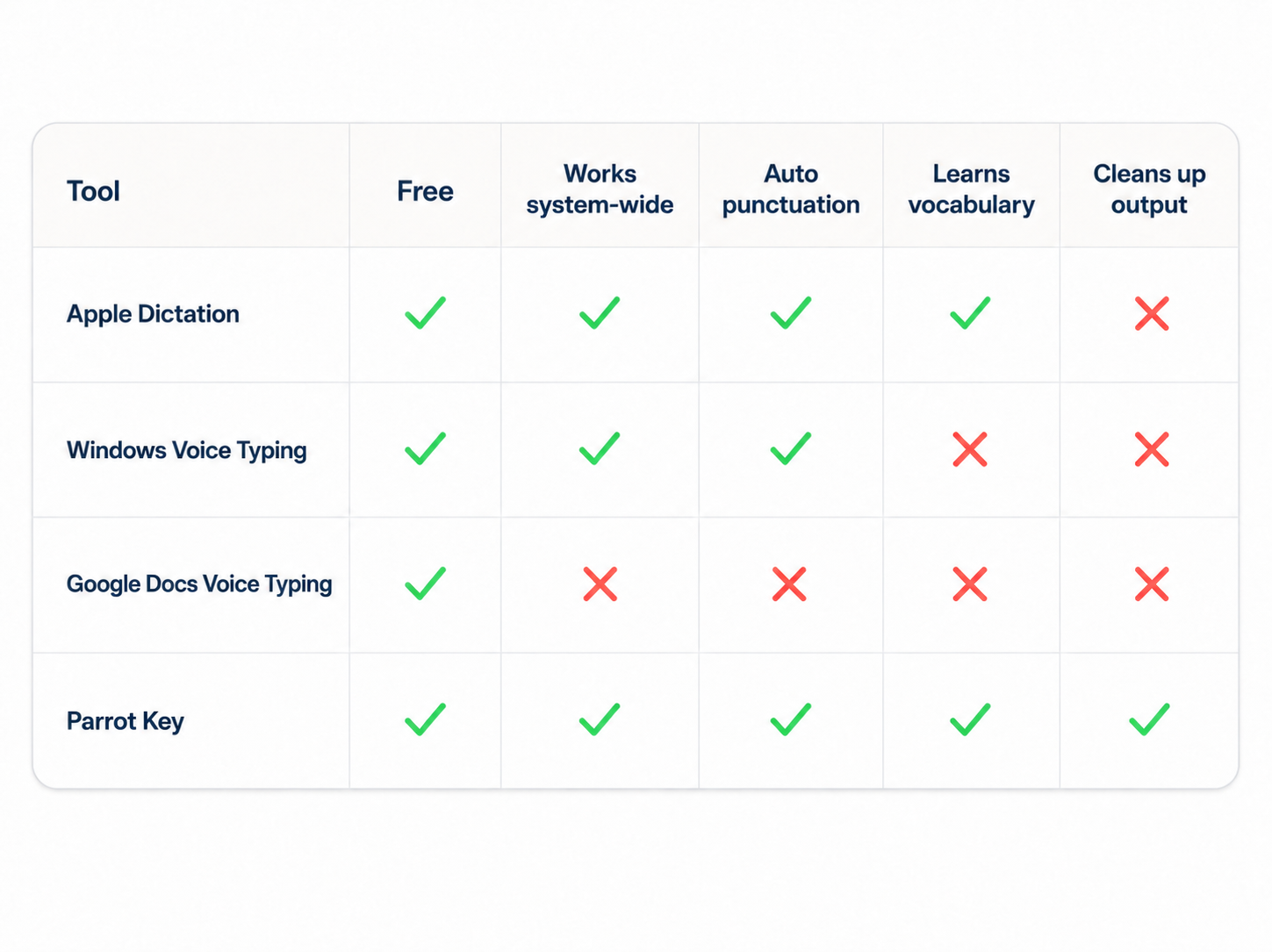
Here is how the most common free options line up at a glance.
| Tool | Cost | Works in every app? | Auto punctuation | Learns your vocabulary | Cleans up output | Best for |
|---|---|---|---|---|---|---|
| Apple Dictation | Free, built in | Yes (system-wide) | Limited | No | No | Casual dictation on Mac and iPhone |
| Windows Voice Typing | Free, built in | Most apps | Optional toggle | No | No | Quick notes and messages on PC |
| Google Docs Voice Typing | Free, built in | No (Google Docs in Chrome only) | No, speak it out loud | No | No | Drafting inside Google Docs |
| Free web tools (Speechnotes, dictation.io) | Free, no install | No (single browser tab) | Varies | No | No | One-off notes with no sign up |
| ParrotKey (free plan) | Free, 2,500 words/week | Yes (system-wide) | Yes | Yes | Yes | Regular cross-app dictation |
A quick read of the table tells the story: the built-in tools are excellent for casual use and cost nothing, but every one of them leaves at least one column unchecked once you dictate seriously.
Free online speech to text tools (no install)
If you do not want to use a built-in feature, a handful of websites let you dictate or transcribe straight in the browser. These are the kind of results that show up for "online speech to text free": tools like Speechnotes, dictation.io, and similar browser-based note pads, plus transcription sites that turn an uploaded recording into text.
They are convenient and many work without an account, which is exactly what people searching for "speech to text free no sign up" want. The trade-offs are worth knowing before you rely on one. Free web tools often cap how much you can transcribe at once, lean on the browser's own speech engine (so accuracy varies by browser and device), and live inside a single tab, which means your dictation does not follow you into the apps where you actually write. For a quick note you will paste somewhere else, they are great. For a daily writing workflow, the copy-paste step adds up fast.
Where "free" starts to cost you
Here is the part most roundups skip. Free speech to text is real, but the price you pay is rarely money. It shows up as time and friction instead, and it tends to appear in the same five places.
You become the punctuation engine. Several free tools, including Google Docs voice typing and Windows in its default mode, expect you to say "comma" and "period" out loud. It works, but it breaks the natural flow of speaking and turns dictation into a stop-start chore.
It only works in one place. Google Docs voice typing is locked to one app in one browser. Many free web tools live in a single tab. The moment you want to dictate an email, a Slack message, or a line of code, you are back to typing. For people who write across many tools all day, this is the limit that bites hardest.
Accuracy slips exactly when you need it. Built-in tools are tuned for general English prose. Start dictating names, medical or legal terms, programming syntax, or industry jargon and accuracy drops, and none of the free built-in options let you teach the system a custom vocabulary.
You still have to clean it up. Free tools transcribe what you said, filler words and all. There is no built-in way to reshape a rambling spoken paragraph into clean, sendable text, so the editing you hoped to skip just moves to the end.
Multilingual support is thin. If you work in more than one language, most free options handle a small set well and the rest poorly, and switching between them is clunky.
None of this makes free tools bad. It makes them right for some jobs and frustrating for others. The trick is matching the tool to how often, and how seriously, you dictate.
So which free option should you actually use?
It depends on one thing: how much you dictate.
If you dictate occasionally, a quick note here, a message there, the tool already on your device is the right answer. Apple Dictation, Windows Voice Typing, or Google Docs voice typing will do the job and you never have to install or sign up for anything.
If you dictate regularly as part of how you work, the built-in tools' limitations start compounding into real lost time. This is the point where a dedicated app with a free tier makes sense, because you get system-wide dictation, automatic punctuation, and cleaner output without the per-session friction, and you still pay nothing until you outgrow the free cap.
The question to ask yourself is simple: are you fighting your free tool more than it is helping you? If you find yourself re-dictating words it keeps getting wrong, copying text out of one tab into another, or manually saying every comma, you have outgrown the built-in option, and there is a free way out.
A free tier that works everywhere: ParrotKey
ParrotKey is a desktop dictation app for macOS and Windows, and its free plan is built to cover exactly the gaps the built-in tools leave open. Where Google Docs voice typing is stuck in one browser tab, ParrotKey works across every app you use, the same way Apple and Windows dictation do, but with the accuracy and cleanup that the built-in tools lack.
The free plan gives you 2,500 words a week, basic grammar and spelling correction, three languages, and it runs in every application on your machine, all for free, with no time limit on the plan itself. You press one key, talk, and clean text appears wherever your cursor is, whether that is an email, a document, a chat, or a code editor.
That covers the two biggest free-tool frustrations at once: it follows you everywhere instead of living in one app, and it tidies up what you said instead of leaving you a transcript full of "ums" to edit. For anyone who has bumped into the ceiling of Google Docs voice typing or Windows' built-in tool, it is a genuine free upgrade rather than a trial that nags you to pay. You can download ParrotKey for free and have it running in a couple of minutes. If you are on a Mac, our guide to AI voice dictation software for Mac goes deeper on getting set up.
When you do need more, the paid tier lifts the word cap and expands translation to 50+ languages, but the free plan stands on its own for everyday dictation. There is no credit card required to start, and you can see exactly what each plan includes on the ParrotKey pricing page.
Free speech to text for specific needs
A quick map for the most common situations behind "speech to text free" searches.
Free speech to text for Windows. Start with Windows Voice Typing (Windows key plus H), which works system-wide and costs nothing. If accuracy on names and jargon or the lack of a custom vocabulary frustrates you, a free-tier dictation app that works across all your apps is the next step. Our guide to dictation on Windows covers the trade-offs in detail.
Free speech to text for Mac. Apple Dictation is built in and works everywhere, which makes it a solid starting point. For cleaner output and better handling of technical language without paying, a dedicated free tier is worth a look, since macOS lets these apps type directly at your cursor in any app.
Free speech to text with no sign up. Browser tools like Speechnotes and dictation.io let you start dictating without an account. Just remember that "no sign up" usually comes paired with "lives in one tab," so plan for the copy-paste step.
Free speech to text for multiple languages. Built-in tools each support a handful of languages, but switching is clunky and quality varies. If multilingual work is central to what you do, this is the area where free tiers of dedicated tools tend to pull ahead.
Free speech to text for transcribing recordings. Most built-in dictation tools handle live speech, not uploaded audio files. For transcribing an existing recording, you will want a transcription-focused web tool rather than a live dictation feature.
When it makes sense to leave free behind
Free is the right answer far more often than paid-tool marketing admits. If you dictate a few times a day and the built-in tool keeps up, there is no reason to spend money.
You have outgrown free when the friction starts costing you more time than the tool saves. The usual signals: you are dictating across many different apps all day and tired of the ones that only work in one place, you handle specialized vocabulary that built-in tools mangle, you work in several languages, or you are spending real time cleaning up transcripts by hand. At that point, a free tier of a dedicated app is the natural next step, and a paid plan only once the free cap is genuinely in your way. The goal is never to pay sooner. It is to stop losing time.
Conclusion
Free speech to text is not a myth, it is just layered. The tools on your device cost nothing and are perfect for quick, casual dictation. Free web tools are handy for one-off notes. And the free tiers of dedicated apps give you the system-wide, cleaned-up experience the built-in options can't, without asking for a card up front.
Match the tool to how you actually work. If you dictate now and then, you already have everything you need. If you dictate seriously and keep running into the same walls (manual punctuation, single-app limits, messy output), a forever-free plan like ParrotKey's closes those gaps for free, and you can always upgrade later if and when you outgrow it.

 Get started for free