

Voice typing in Google Docs is one of those features Google has quietly offered for years, and search interest in it keeps climbing as more writers, students, and professionals look for a faster way to get words onto the page. If you have ever wanted to draft a document while pacing the room, take notes hands-free, or rest your wrists for an afternoon, this guide walks you through every part of it: how to turn it on, the keyboard shortcut, how to handle punctuation, what to do on mobile, and the most common reasons it stops working.
It also covers the part most guides skip: where Google Docs voice typing quietly runs out of road, and what to reach for when you need dictation that follows you into every other app you write in.
Key takeaways
- Google Docs has free, built-in speech to text under Tools, Voice typing on desktop. The shortcut is Ctrl+Shift+S (Windows and Chromebook) or Cmd+Shift+S (Mac).
- It only runs in a supported desktop browser (Chrome, Edge, and Safari, not Firefox), only inside Google Docs and Slides speaker notes, and only with an internet connection.
- You have to speak punctuation out loud, there is no automatic punctuation, no offline mode, and no learning of your personal vocabulary.
- On mobile there is no Voice typing menu at all. You fall back on your phone keyboard microphone, which uses a different engine.
- When you need dictation that works in every app on Mac and Windows, with automatic punctuation and cleanup, a system-wide tool like ParrotKey's voice dictation picks up exactly where Google Docs voice typing stops.
Does Google Docs have speech to text?
Yes. Google Docs includes a free, built-in speech to text feature called Voice typing. It converts your spoken words into document text in real time using Google's cloud speech recognition, the same family of technology behind Google Assistant. There is no plugin to install, no word limit, and no paid plan required, you only need a Google account, a supported browser, and a working microphone.
The catch is in the boundaries. Voice typing is built into Google Docs and the speaker notes of Google Slides, and nowhere else. It does not work in Gmail, Google Chat, or the rest of Workspace, and it does not work outside Google's own apps at all. If you write in more than one place, that limit shows up fast, and it is the thread that runs through the rest of this guide.
How to do speech to text on Google Docs (step by step)
Turning it on takes under a minute. Here is the full process on desktop.
- Open a document at docs.google.com in a supported browser. Chrome is the safest choice, and Edge and Safari work too. Firefox does not.
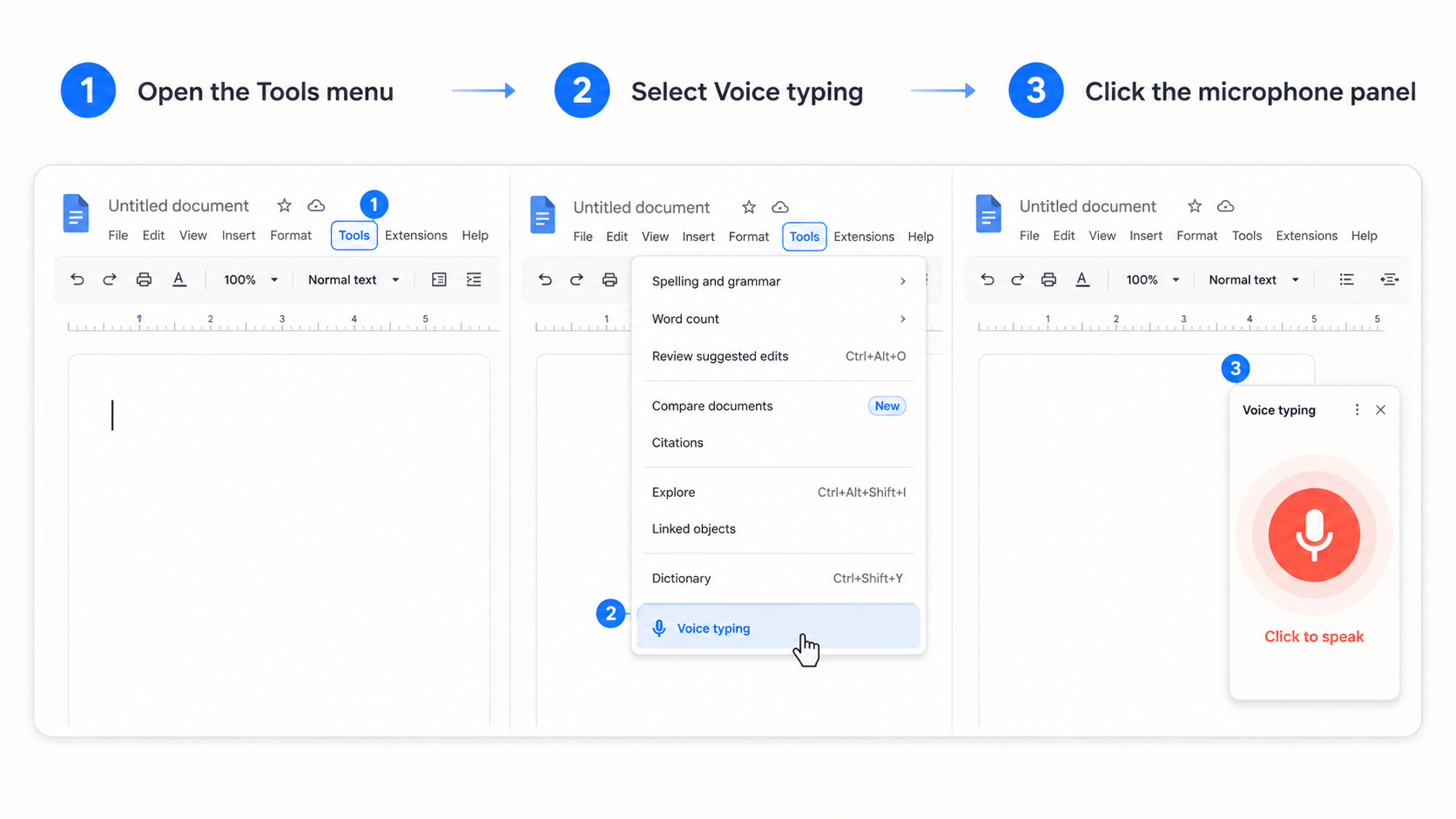
- Click Tools in the top menu bar, then choose Voice typing. A small microphone panel appears, docked to the left margin of your document.
- Click the microphone icon. The first time, your browser asks for microphone permission. Click Allow.
- The icon turns red to show it is listening. Speak naturally and your words appear at the cursor in real time.
- Click the microphone again to stop, or simply say "stop listening." Voice typing also pauses after a few seconds of silence.
That is the entire setup. There is no account upgrade, no extension, and nothing to configure beyond granting microphone access once.
What is the speech to text Google Docs shortcut?
The keyboard shortcut for voice typing is Ctrl+Shift+S on Windows and Chromebook, or Cmd+Shift+S on Mac. It toggles the microphone on and off without opening the Tools menu, which makes it the quickest way to start and pause dictation mid-draft.
One thing worth knowing: Google does not officially document this shortcut on its help page, but it works reliably in current versions of Chrome, Edge, and Safari. If it does nothing when you press it, the cause is almost always that you are in an unsupported browser or a document that is not in native Google Docs format, both covered further down.
How to dictate punctuation and commands
This is where built-in voice typing starts to feel less natural than people expect. Google Docs does not add punctuation automatically. You have to say each mark out loud as you go.
A short dictated sentence sounds like this when spoken:
"Our results improved this quarter comma but costs are still too high period new paragraph Let us review the numbers."
Which becomes:
Our results improved this quarter, but costs are still too high.
Let us review the numbers.
The most common spoken commands are "period," "comma," "question mark," "new line," and "new paragraph." Google also supports formatting and navigation commands such as "bold," "heading 2," and "select paragraph," though these only work when both your account language and your document language are set to English.
It works, but it breaks your rhythm. You end up thinking about punctuation while you are trying to think about your sentence, and for anything longer than a few lines that mental split is the single biggest reason people drift away from dictation. Tools that add punctuation automatically remove that friction entirely, and that gap is worth keeping in mind as your documents get longer.
Speech to text on Google Docs mobile: the honest answer
Here is the part that surprises most people: the Voice typing feature does not exist in the Google Docs mobile app. There is no Tools, Voice typing menu on iPhone or Android.
What you can do instead is open a document in the Google Docs app, tap into the text, and use the microphone button on your phone's own keyboard, Gboard on Android or the iOS keyboard on iPhone. That dictation is handled by your phone's built-in speech engine, not by Google Docs, so accuracy, languages, and behaviour are different from the desktop experience, and the Google Docs voice commands do not apply.
So if you searched for "speech to text google docs mobile" expecting the desktop feature on your phone, the short version is that it is not there. You are using your device's keyboard dictation, which is a separate tool that happens to type into the Docs app like it types into any other.
Why is Google Docs voice typing not working?
When voice typing breaks, Google gives almost no feedback about why. The microphone appears, you click it, and either nothing happens or it transcribes one sentence and goes silent. These are the usual causes, in the order worth checking them.
| Symptom | Most likely cause | Fix |
|---|---|---|
| No Voice typing option in the Tools menu | Unsupported browser, or you are in the mobile app | Open the doc in Chrome, Edge, or Safari on desktop |
| Microphone icon appears but will not start | Microphone permission blocked for docs.google.com | Click the icon in the address bar, allow the microphone, reload |
| It hears nothing even after allowing | Operating system is blocking mic access | Enable mic access in Windows or macOS privacy settings |
| Voice typing greyed out or missing | Document is a .docx file, not native Google Docs | Save as a Google Docs file (File, Save as Google Docs) |
| Commands do not work | Account and document language are not both English | Set both languages to English |
| Stops mid-session | Dropped internet connection (it is cloud-based) | Reconnect, the feature needs to be online |
The recurring theme across every one of these is fragility. Voice typing depends on the right browser, the right file type, the right permissions, the right language settings, and a live connection, all at once. Miss any one and it quietly fails. A dictation tool that runs natively on your computer sidesteps most of these failure points in one move, because it does not care which browser you are in, whether your file is a .docx, or whether you remembered to grant a per-site microprompt.
The real limits of Google Docs voice typing
Setting aside the bugs, voice typing has hard limits by design. They are worth naming clearly, because they are exactly the things that send people looking for something else.
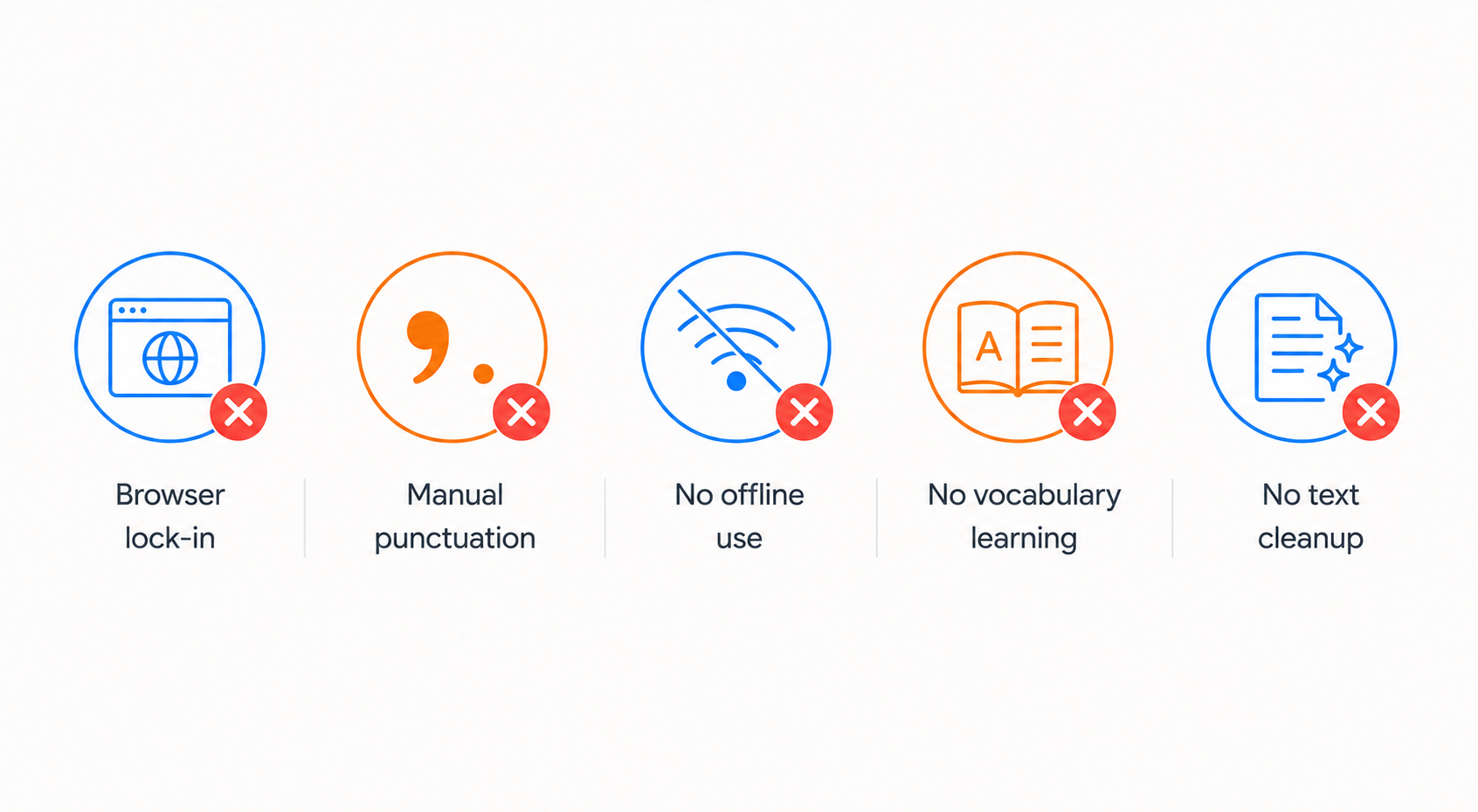
- Browser-bound and app-bound. It works only in a supported desktop browser, and only inside Google Docs and Slides speaker notes. The moment you switch to Gmail, Slack, Word, Notion, or your code editor, it is gone.
- No automatic punctuation. Every comma and period has to be spoken, which makes natural, flowing dictation hard.
- No offline mode. Audio streams to Google's servers, so no internet means no dictation, and your speech always leaves your device.
- No learning. It does not adapt to your vocabulary, names, jargon, or accent over time. Accuracy sits in the rough 90 to 95 percent range and does not improve with use.
- No cleanup. It transcribes what it hears, filler words and all, with no grammar correction or tidying. If clean output matters to you, our piece on using a grammar checker for dictation explains why this step makes such a difference.
None of this makes Voice typing bad. For drafting straight into a Google Doc, on a desktop, in Chrome, with an internet connection, it is genuinely useful and completely free. The problem is that real writing rarely stays inside those lines.
When you need speech to text beyond Google Docs
If you only ever write inside a single Google Doc on a desktop, the built-in feature is all you need. But most people do not work that way. You answer email, message your team, take notes, fill in forms, and write in more than one app over the course of a day. Google Docs voice typing cannot follow you into any of those.
That is the gap ParrotKey is built to close. It is a voice-to-text app for Mac and Windows that works system-wide, in every application where you can type, not just in one browser tab. You dictate into Gmail, Word, Slack, your notes app, your code editor, or a Google Doc, all with the same shortcut, and the text appears wherever your cursor is. It is the kind of setup that suits busy professionals and writers and content creators who draft across a dozen different tools in a day.
It also fixes the friction points that make built-in voice typing tiring. ParrotKey adds punctuation automatically as you speak, so you are not narrating every comma. It cleans up filler words and tidies grammar instead of transcribing your speech verbatim. On top of dictation it can translate your speech into more than 50 languages and reshape text with AI prompts, things Google Docs voice typing was never designed to do. And it has a genuine free tier, so you can test it against your own writing before deciding.
Here is how the two compare on the points that actually matter for daily writing.
| Google Docs Voice Typing | ParrotKey | |
|---|---|---|
| Cost | Free | Free tier, paid plans for more |
| Works in every app | No, Google Docs and Slides only | Yes, system-wide on Mac and Windows |
| Browser required | Yes, Chrome, Edge, or Safari | No, runs natively |
| Automatic punctuation | No, speak it out loud | Yes |
| Cleans up filler and grammar | No | Yes |
| Works offline | No, cloud only | Available depending on mode |
| Translation built in | No | Yes, 50+ languages |
| Mobile | No native feature | Desktop focused (Mac and Windows) |
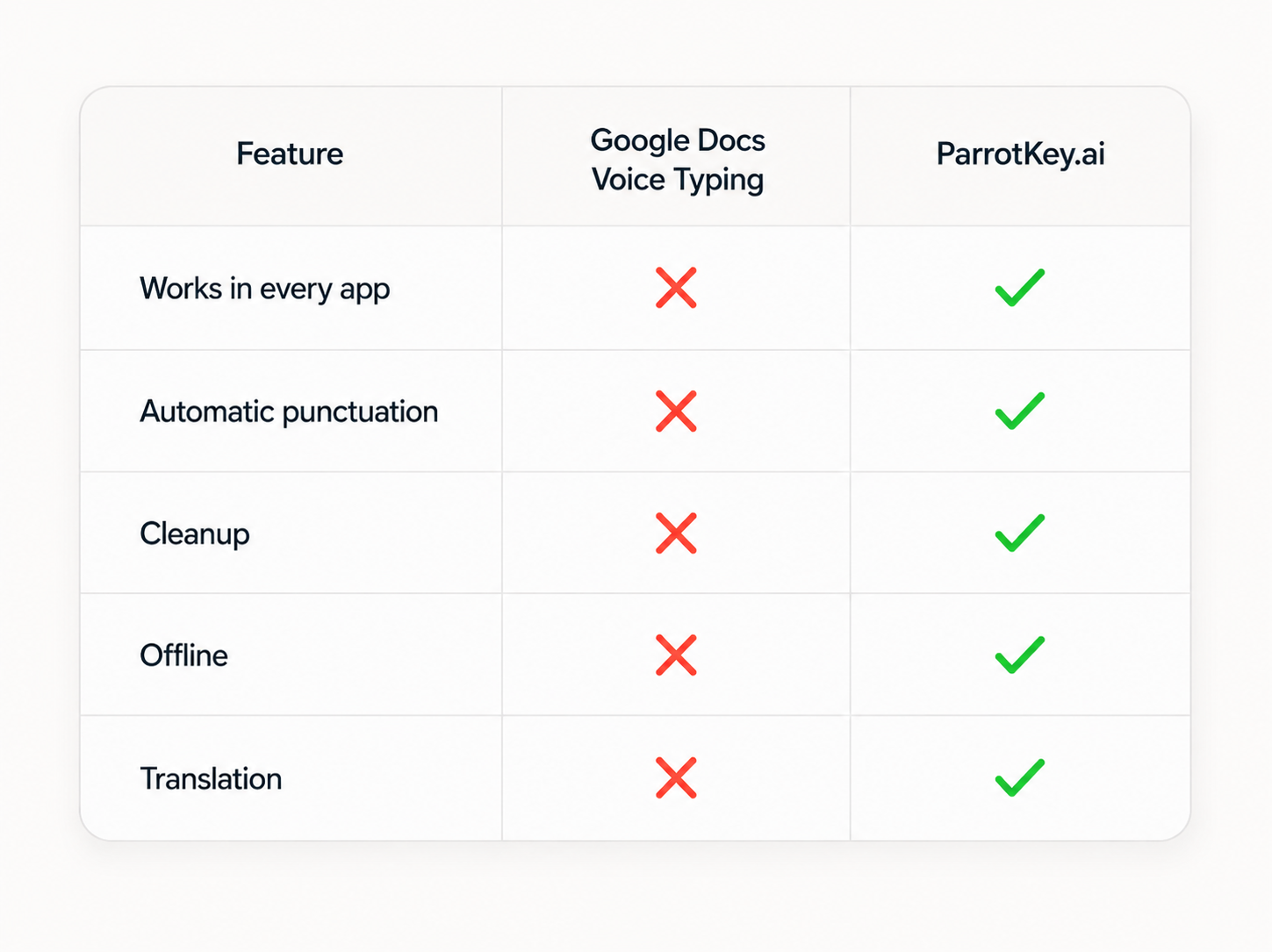
A quick read of the table tells the story. Google Docs voice typing is a fine free starting point that happens to live in one place. The moment your writing spreads across more than one app, or you get tired of saying "comma" out loud, a system-wide tool is the natural next step rather than a luxury.
How to choose between them
The honest decision comes down to where and how you write.
Stick with Google Docs voice typing if your dictation lives almost entirely inside Google Docs, you are always on a desktop in a supported browser, you do not mind speaking punctuation, and free with no install is your priority. It does that job well.
Move to a system-wide tool like ParrotKey if you write across several apps, want punctuation and cleanup handled for you, need dictation that does not depend on the right browser or file type, or want translation and AI text transformation in the same workflow. You are not replacing Google Docs, you are adding dictation that works everywhere Google Docs voice typing cannot reach. The free plan and pricing let you start without committing anything.
Conclusion
Google Docs voice typing is a genuinely useful free feature: open the Tools menu or press Ctrl+Shift+S, allow the microphone, and start talking. It shines for drafting straight into a Google Doc on a desktop. But it is fenced in by design, one browser family, two Google apps, manual punctuation, no offline mode, and no presence on mobile, and those fences are exactly why so many people start looking for something more.
If your writing happens in more than one place, the practical answer is a dictation tool that travels with you. ParrotKey gives you the same hands-free writing Google Docs offers, with automatic punctuation and cleanup, across every app on your Mac or Windows machine, with a free tier to try it on your own work first.

 Get started for free