

If you have ever dictated a message instead of typing it, asked a voice assistant a question, or watched automatic captions appear on a video, you have used speech recognition. The technology has quietly become part of everyday computing, yet most people are still unsure what it actually is, how it works, and whether "speech recognition" and "speech to text" mean the same thing.
This guide answers those questions in plain language. By the end, you will understand what happens between the moment you speak and the moment text appears on your screen, why modern systems are so much more accurate than the ones from a decade ago, and how to start using speech to text on your own Mac or Windows computer.
Key takeaways
- Speech recognition is the broad technology for understanding spoken language; speech to text is the specific task of turning speech into written words.
- Modern systems are AI-powered (deep learning), which is why they handle accents and natural speech far better than tools from a decade ago.
- Speech to text can run in the cloud or fully offline on your device, and the offline option is better for privacy.
- Every Mac and Windows PC has free built-in dictation; dedicated apps add accuracy, grammar correction, and multilingual support.
Speech recognition vs. speech to text: are they the same thing?
In everyday use, the two terms are used interchangeably, but there is a useful distinction worth knowing.
Speech recognition is the broad ability of a computer to identify and process spoken language. That includes converting speech into text, but also recognizing commands ("open Mail," "scroll down") and, in some systems, identifying who is speaking.
Speech to text (also called STT, voice-to-text, or dictation) is one specific job within speech recognition: turning spoken words into written text.
A second term you will run into is voice recognition, which technically refers to identifying a speaker's identity by their voice, the way your phone unlocks when it hears you. In casual writing, though, "voice recognition" is often used loosely to mean speech to text as well.
Here is how the terminology maps out:
| Term | What it actually means | Everyday example |
|---|---|---|
| Speech recognition | Computer understanding of spoken language (broad) | Dictation, voice commands, captions |
| Speech to text (STT) | Converting spoken words into written text | Dictating an email |
| Voice recognition | Identifying who is speaking | Voice-based device unlock |
| Automatic speech recognition (ASR) | The technical name for the underlying technology | The engine inside all of the above |
For the rest of this guide, when we say "speech to text" we mean the everyday task of turning your voice into written words, and we will use ASR (automatic speech recognition) when we talk about the technology powering it.
How does speech to text work?
When you speak into a dictation tool, the words feel like they appear instantly. Behind that simplicity, your voice passes through several stages in a fraction of a second.
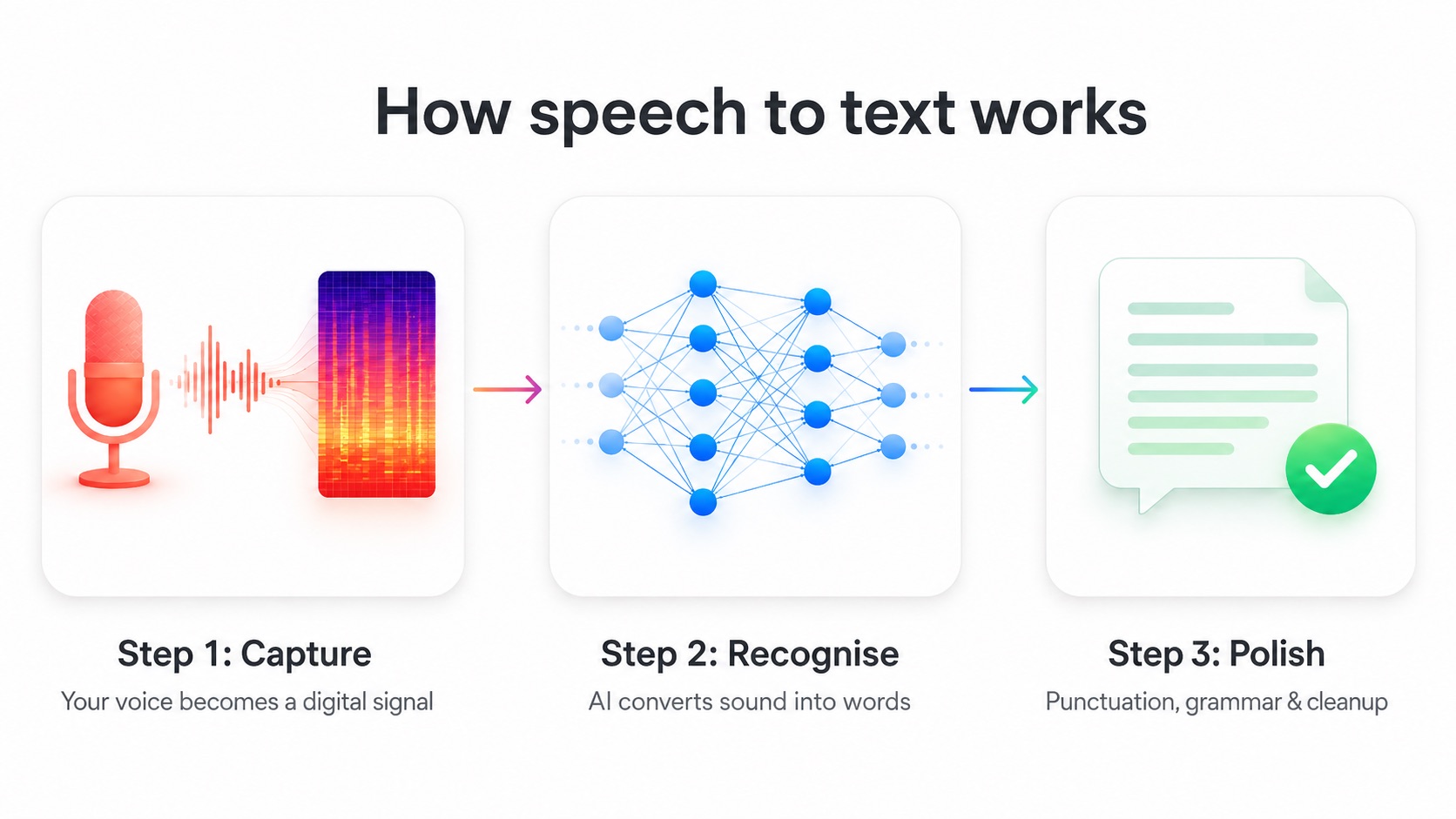
Step 1: Capturing and digitizing sound
Your microphone records the pressure waves your voice creates and converts them into a digital signal, a stream of numbers representing the sound's frequency and amplitude over time. This raw waveform is usually transformed into a spectrogram, a visual-style map of which frequencies are present at each moment. A spectrogram is far easier for a model to analyze than a raw waveform.
Step 2: From sound to words
This is where the real work happens, and it is helpful to understand it in two flavors: the classic approach and the modern approach.
The classic (legacy) pipeline broke the problem into separate components:
- An acoustic model mapped chunks of audio to the basic sound units of a language, called phonemes.
- A language model predicted which word sequences were most likely, so the system could tell "recognize speech" from "wreck a nice beach."
- A decoder combined the two to settle on the most probable transcription.
These systems worked, but they required painstaking, language-by-language engineering and their accuracy plateaued. Word error rates often stayed above 20%, which is too high for serious use.
The modern (end-to-end) approach collapses those separate stages into a single neural network trained on enormous amounts of audio paired with text. One of the foundational moves toward end-to-end systems was introduced in 2014, and the approach now dominates the field. Instead of hand-built acoustic, language, and pronunciation models stitched together, one model learns to map audio directly to text.
The best-known example is OpenAI's Whisper, a Transformer-based model trained on roughly 680,000 hours of multilingual audio collected from the internet. That scale is exactly why today's tools handle accents, background noise, and casual speech far better than the dictation software of ten years ago.
Step 3: Cleanup and formatting
Raw transcription is only half the experience. Modern tools add a layer that inserts punctuation, capitalizes sentences, removes filler words like "um" and "uh," and, in the more advanced apps, rewrites the text to match a tone or fix grammar. This is the difference between a wall of run-on speech and a message you can actually send. Tools that pair dictation with a grammar correction layer handle this final polish automatically, so what lands on the page is already clean.
In short: your voice becomes a digital signal, a neural network turns that signal into words, and a final layer polishes those words into clean, readable text, all in under a second.
Is speech recognition AI?
Yes. Modern speech recognition is a form of artificial intelligence. Specifically, it relies on machine learning and deep learning.
That has not always been true. The earliest systems (more on those below) used fixed rules and pattern matching: they compared incoming sound to a small library of pre-recorded references. They were not "learning" anything. Today's systems are different: they are neural networks trained on millions of examples, and they generalize to voices, accents, and phrasings they have never encountered before.
So if someone asks whether speech to text is "real AI," the honest answer is that it is one of the oldest and most successful applications of AI there is, and one of the few that hundreds of millions of people use without thinking of it as AI at all.
A short history: when was speech recognition invented?
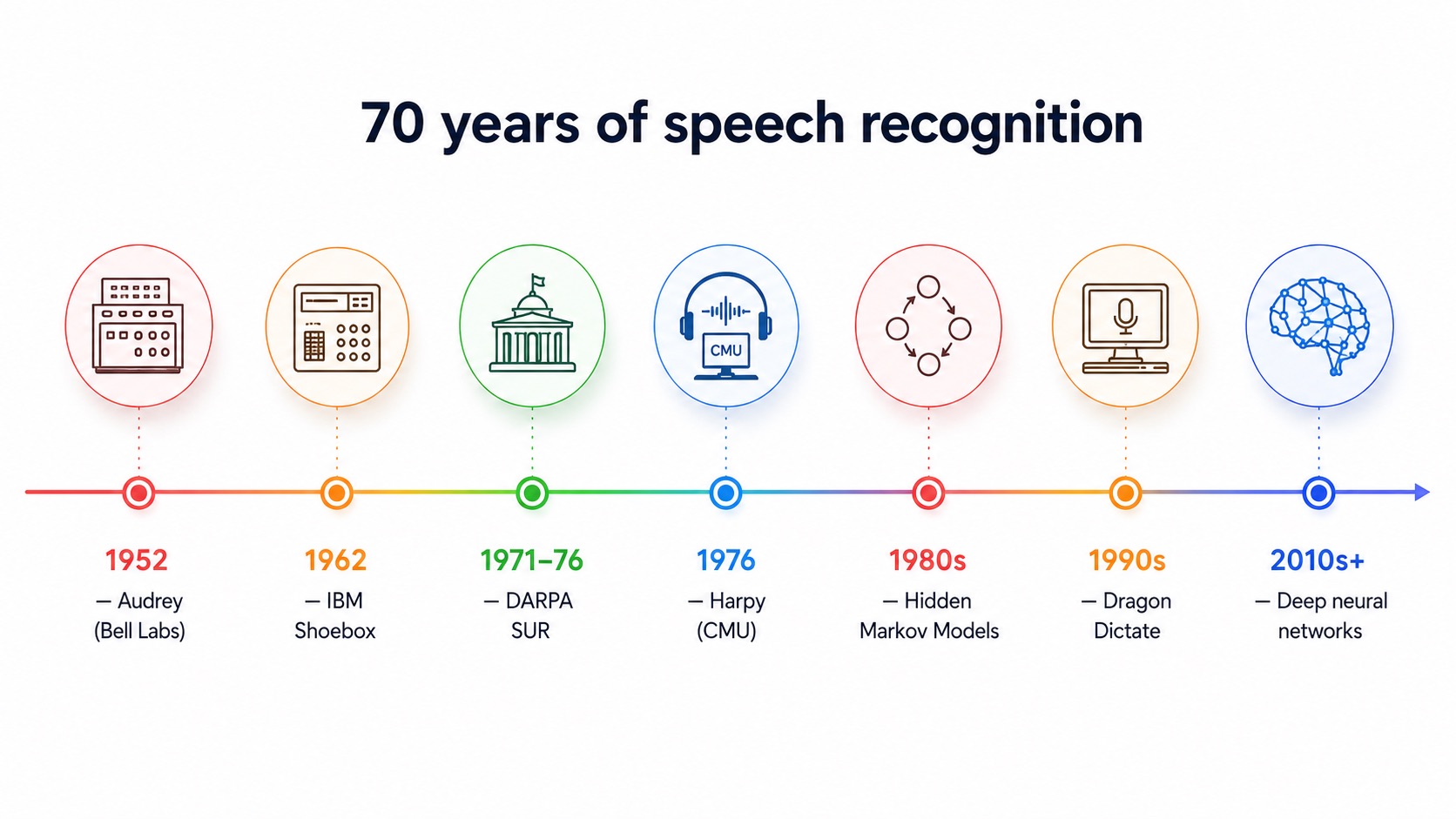
Speech recognition is far older than most people assume. Its roots stretch back more than 70 years.
| Year | Milestone | What it could do |
|---|---|---|
| 1952 | Audrey (Bell Labs) | Recognized spoken digits 0-9 from a single speaker |
| 1962 | Shoebox (IBM) | Understood 16 spoken words, including digits and simple commands |
| 1971-1976 | DARPA SUR program | Funded a major U.S. research push toward 1,000-word recognition |
| 1976 | Harpy (Carnegie Mellon) | Recognized about 1,000 words, roughly a toddler's vocabulary |
| 1980s | Hidden Markov Models | Statistical methods made larger vocabularies practical |
| 1990s | Dragon Dictate / NaturallySpeaking | First consumer dictation products |
| 2010s-today | Deep neural networks | Large-vocabulary, multilingual, near-human accuracy |
The pattern is clear: for decades, progress was slow and incremental. Then deep learning arrived, and accuracy improved dramatically in just a few years. By the late 2010s, the major research labs were reporting word error rates around 5% on benchmark tests, close to the level at which two humans transcribing the same audio will disagree with each other.
What does speech recognition do? Real-world uses
Speech to text is no longer a niche accessibility feature. Here is where people actually rely on it today.
- Dictation and writing. Drafting emails, documents, notes, and messages by speaking instead of typing. Most people speak far faster than they type, which is the core productivity appeal.
- Accessibility. For people with repetitive strain injuries, motor impairments, or dyslexia, voice input can be the primary way they use a computer.
- Transcription. Turning recorded meetings, interviews, lectures, and podcasts into searchable text.
- Captioning and subtitles. Automatic captions on videos and live streams.
- Voice assistants and commands. Controlling devices and apps hands-free.
- Customer support. Routing and transcribing calls, and powering voice-driven help systems.
- Specialized fields. Medical professionals dictating patient notes and legal professionals drafting documents, domains where accurate, fast text entry saves hours.
The common thread is the same in every case: getting words out of your head and into a usable format faster than a keyboard allows.
Speech recognition without internet: on-device vs. cloud
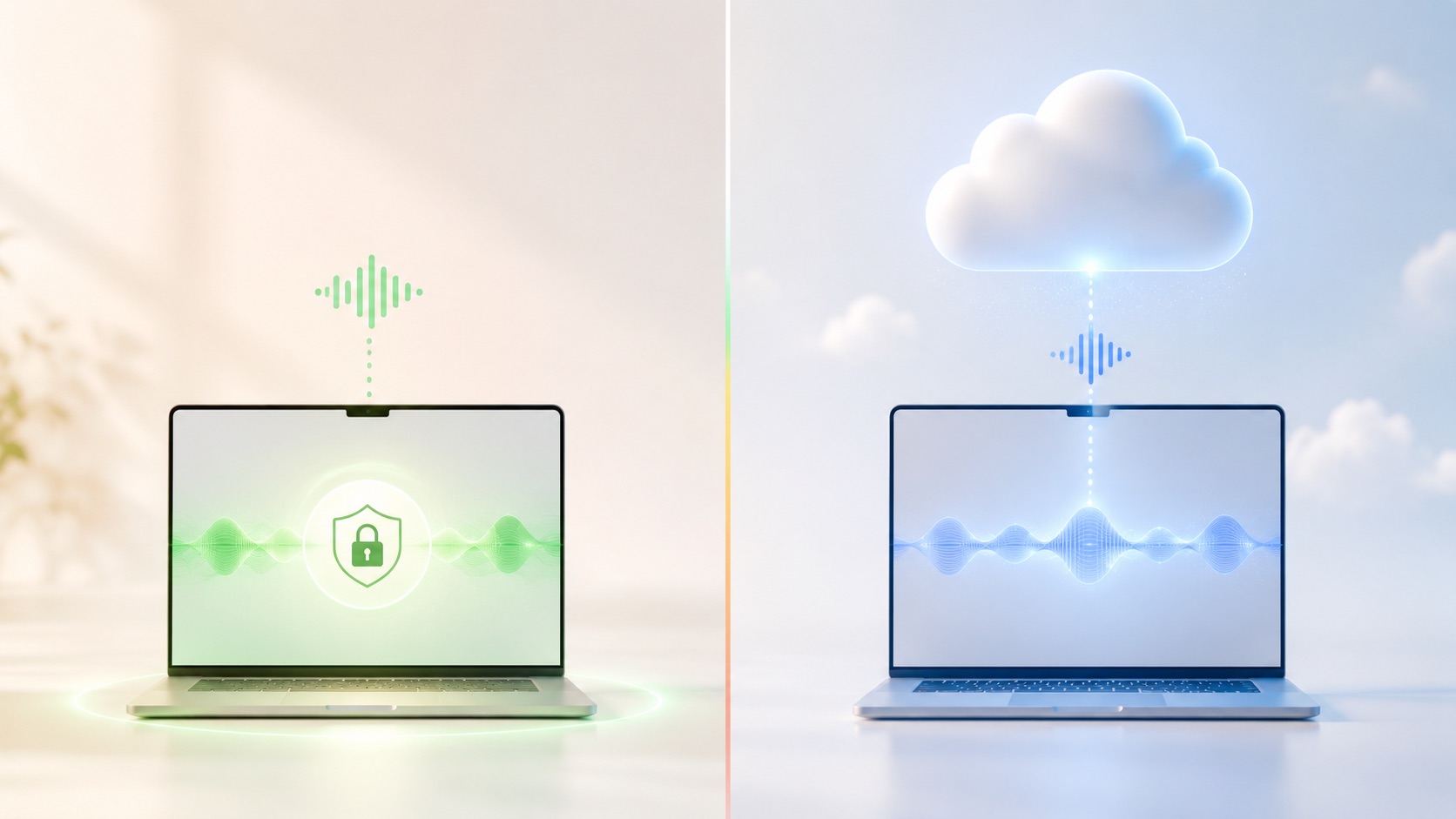
One of the most common questions is whether speech to text works offline, and the answer depends on how the tool is built.
Cloud-based ASR sends your audio to a remote server, where a powerful model transcribes it and returns the text. This usually delivers excellent accuracy and supports many languages, but it has two trade-offs: it requires an internet connection, and your voice data leaves your device.
On-device (local) ASR runs the model directly on your computer. Nothing is uploaded; transcription happens locally. The benefits are obvious for anyone handling sensitive information, like confidential client work, medical or legal notes, or private messages, because the audio never leaves the machine. It also means dictation keeps working on a plane, in a dead zone, or anywhere without reliable Wi-Fi.
The catch historically was that local models were less capable than cloud ones. That gap has narrowed sharply. Modern Macs and Windows PCs are powerful enough to run high-quality speech models on-device, which is why privacy-first, offline-capable dictation has become a realistic option rather than a compromise.
If privacy or offline reliability matters to you, look specifically for a tool that states it processes audio locally on your device, since not all of them do.
Built-in tools vs. dedicated apps
You do not necessarily need to install anything to try speech to text. Every major platform ships with a basic version. The question is whether the built-in option is enough for what you want to do.
What you already have for free
- Mac: Open System Settings → Keyboard → Dictation and toggle it on. You can then dictate in any text field using the assigned shortcut.
- Windows: Press the Windows key + H in any text field to launch built-in voice typing.
- Google Docs: Tools → Voice typing dictates directly into a document in Chrome.
- Phones (iPhone/Android): Tap the microphone icon on your keyboard.
For quick notes and short messages, these are genuinely useful and cost nothing.
Where built-in tools fall short
Native dictation tends to hit a ceiling once you use it for real work:
- It often does little to remove filler words or clean up rambling, stream-of-consciousness speech.
- It struggles with proper nouns, jargon, and technical terms unless you train it manually.
- It rarely offers grammar correction, tone adjustment, or rewriting, so you get a raw transcript and nothing more.
- Support for working across languages in one flow is limited.
When a dedicated app makes sense
If you write for a living, work across multiple languages, or simply want polished text rather than a raw transcript, a dedicated speech-to-text app closes those gaps. The better tools combine accurate dictation with an AI cleanup layer that fixes grammar, adjusts tone, and can even translate, all from your voice and working across whatever app you happen to be in. On a Mac specifically, this is the difference between Apple's built-in dictation and a dedicated AI voice dictation app for Mac that turns messy speech into finished writing.
This is exactly the niche ParrotKey is built for: voice dictation, instant grammar correction, AI translation across 50+ languages, and text transformation, working system-wide on Mac and Windows. If you have outgrown built-in dictation, that is the category of tool worth exploring.
How to start using speech to text today

You can be dictating within a couple of minutes:
- Decide what you need. Quick notes? Your built-in tool is fine. Polished, multilingual, or privacy-sensitive work? Choose a dedicated app.
- Use a decent microphone. This is the single biggest accuracy lever. Even a basic headset that sits near your mouth beats a laptop's built-in mic picking up the whole room.
- Speak naturally. Counterintuitively, over-enunciating can hurt accuracy, because models are trained on natural speech. Talk as if you are explaining something to a colleague.
- Reduce background noise. You do not need silence, you need your voice to be clearly louder than everything else.
- Add custom vocabulary if your tool supports it, so names, brands, and jargon come out right.
Give it a few days. Dictation is a skill, and most people find their speed and accuracy climb noticeably once speaking-to-write stops feeling unfamiliar.
The bottom line
Speech recognition turns the most natural thing humans do, talking, into one of the fastest ways to get words onto a screen. What began in 1952 as a machine that could recognize ten spoken digits is now a deep-learning technology accurate enough for professional writing, available free on every major platform, and increasingly capable of running privately on your own device.
If you only need the occasional quick note, your computer's built-in dictation will serve you well. If you want clean, polished, multilingual text from your voice, without copying and pasting between apps or cleaning up raw transcripts by hand, a dedicated tool like ParrotKey is built for exactly that.
The keyboard is no longer your only option. Sometimes the fastest way to write is simply to speak.

 Empieza gratis