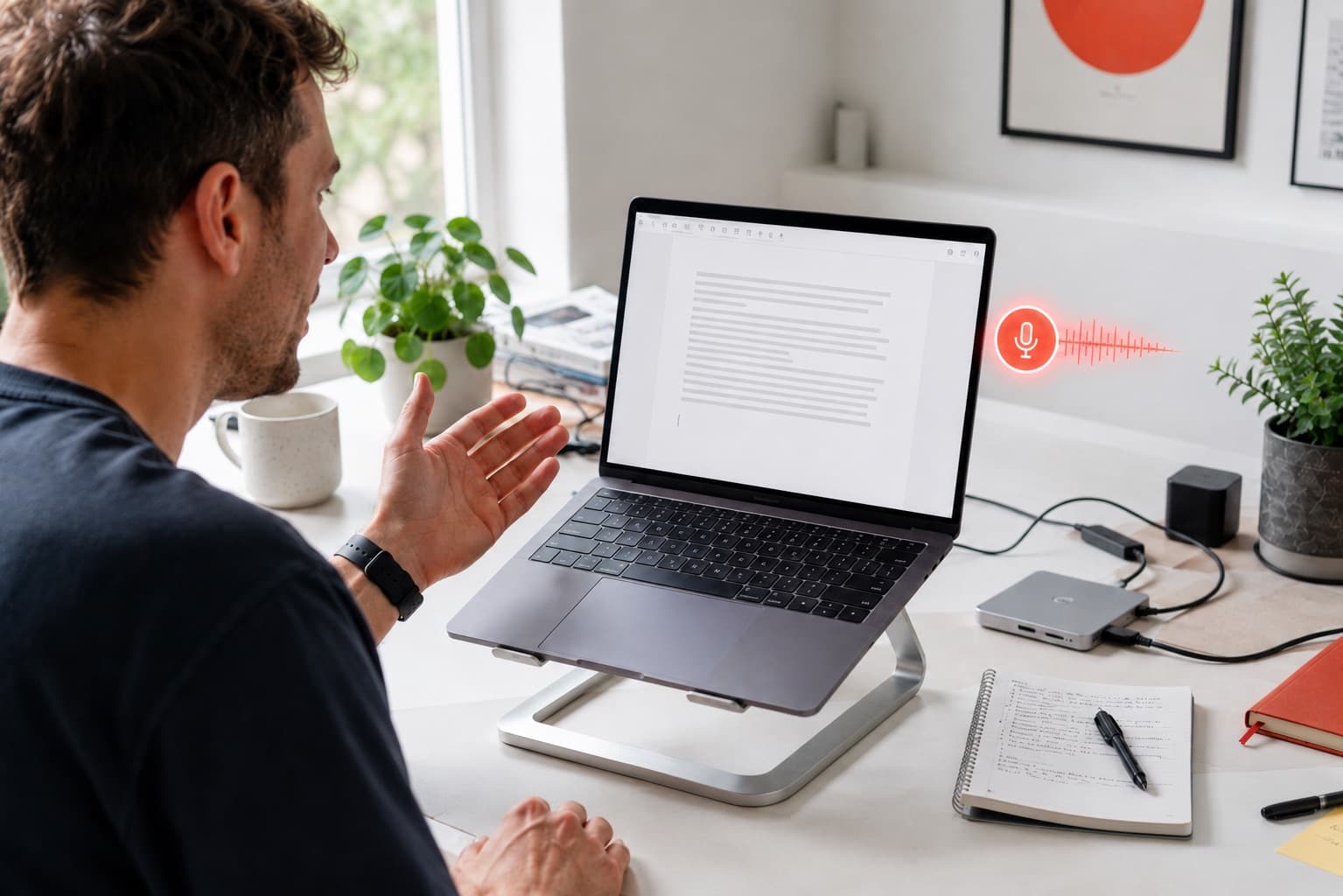


Most people meet voice typing the same way: they open a document, hunt for a microphone button, start talking, and watch the words appear. It feels like magic for about five minutes. Then the tool stops working in the app they actually need, asks for a permission it never explains, or turns "quarterly forecast" into "quarter the four cast." That is the real story of built-in voice typing. It is genuinely useful, and it is genuinely limited, because each version is locked inside one app, one browser, or one operating system.
This guide does two things. First, it shows you exactly how to turn on voice typing everywhere you already use it: Windows, Mac, Microsoft Word, Google Docs, and your phone. Second, it explains why so many people end up frustrated with those built-in tools, and what a system-wide approach looks like instead. That system-wide approach is what ParrotKey was built for: one voice dictation layer that works in every app, processes your speech on your own device, and cleans up the text as you go. You will get the full setup instructions either way. But by the end you will also know when the built-in route is enough and when it is quietly costing you time.
Key takeaways
- Voice typing is built into Windows, macOS, Microsoft Word, Google Docs, and mobile keyboards, but each version only works inside its own environment, which is why it so often "stops working" when you switch apps.
- Turning it on is usually a keyboard shortcut (Windows key + H on Windows, or the dictation shortcut on Mac) plus a one-time microphone permission.
- Most "voice typing not working" problems come from microphone permissions, an unsupported browser, or being in an app the built-in tool does not support.
- A system-wide voice dictation tool like ParrotKey works in any application, runs on your own device for privacy, and can correct grammar and translate as you speak, without the app-by-app limits.
What is voice typing?
Voice typing is a technology that converts your spoken words into written text in real time. You speak, and the words appear on screen as if you had typed them. It goes by several names: voice typing, dictation, voice-to-text, and speech-to-text all describe the same core idea of turning speech into editable text.
Voice typing matters because speaking is simply faster than typing for most people. Research into voice input has repeatedly found that dictating is several times quicker than typing on a keyboard, which is a large part of why the feature now ships inside nearly every operating system and word processor.
How does voice typing work?
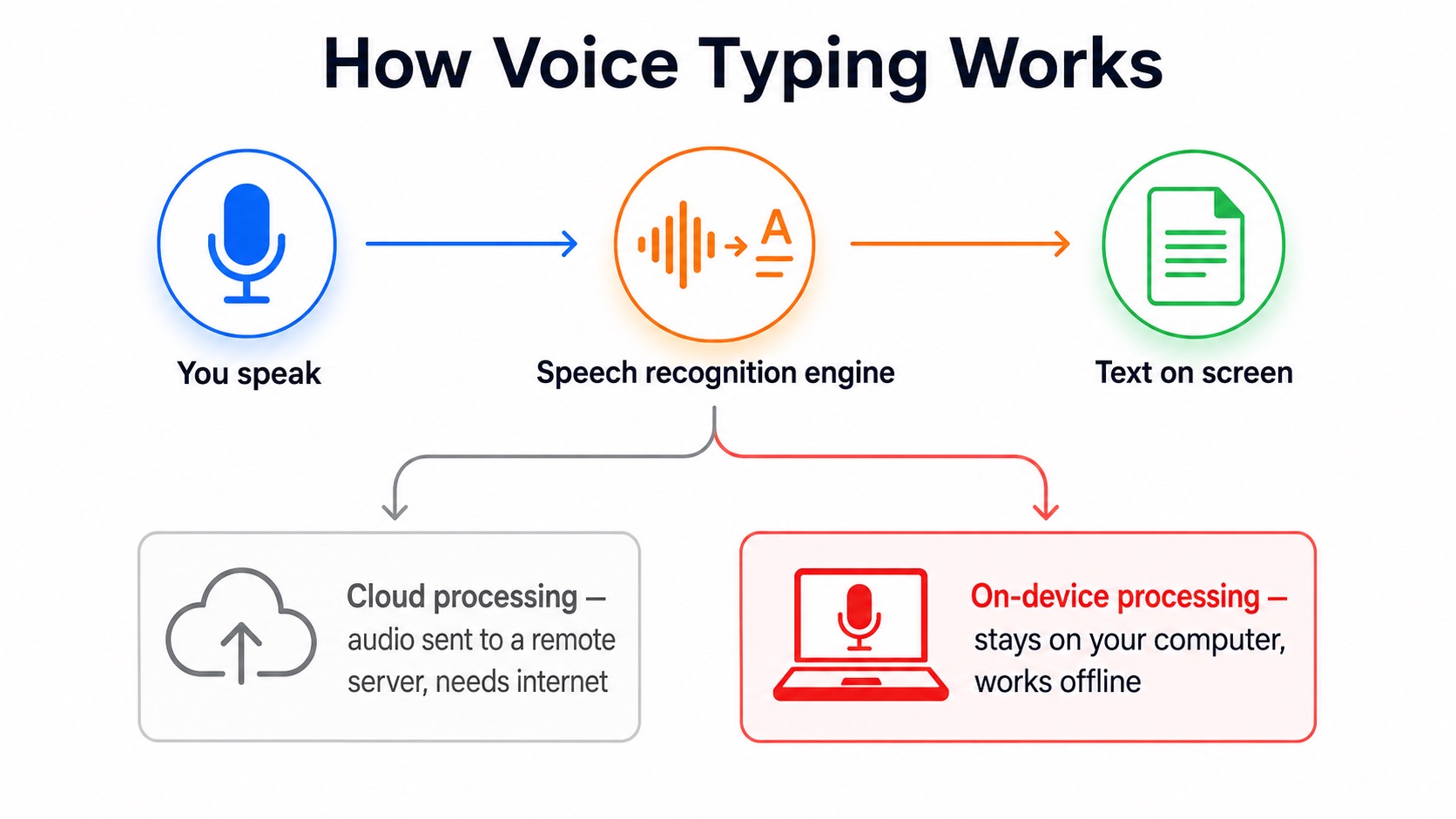
Under the hood, voice typing relies on a speech recognition engine. When you speak, your microphone captures the audio, the engine breaks that audio into small sound units, and a language model predicts the most likely words and phrases those sounds represent. Modern engines also use context, so they can tell the difference between "their," "there," and "they're" based on the surrounding sentence.
There are two broad ways this processing can happen. Cloud-based engines send your audio to a remote server, do the recognition there, and send the text back. On-device engines do all of that work locally on your own computer, so your voice never leaves the machine. The difference matters for speed, for offline use, and especially for privacy. ParrotKey uses on-device speech-to-text models, which means your dictation is processed locally and can even work without an internet connection.
How do I turn on voice typing on Windows?
Windows has a built-in dictation feature often called Voice Typing. To turn it on:
- Click into any text field where you want to type, such as a document, an email, or a search box.
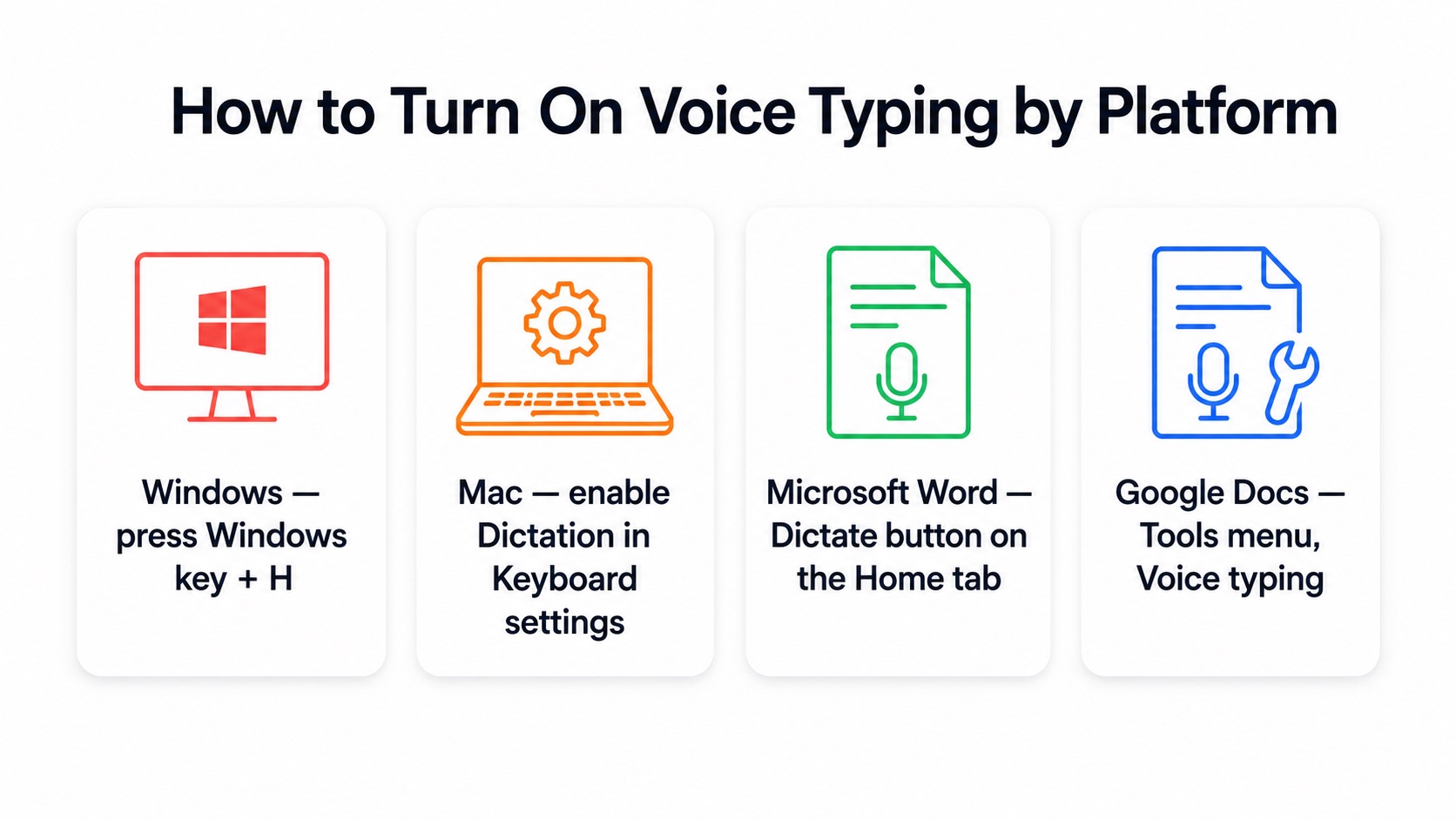
- Press the Windows key + H at the same time. This opens the voice typing toolbar.
- When the microphone indicator shows it is listening, start speaking. Your words will appear in the text field.
- Say punctuation out loud, such as "comma," "period," or "new line," to format as you go.
- Press Windows key + H again, or say "stop listening," to end the session.
The first time you use it, Windows may ask for permission to access your microphone, and you will need to allow it. Windows voice typing works across many apps on the system, but it depends on your language settings and an active connection for its best accuracy, and it does not carry your own vocabulary or corrections between apps.
How do I use voice typing on Mac?
macOS includes a built-in Dictation feature. To enable and use it:
- Open System Settings, then go to Keyboard.
- Find Dictation and switch it on. You may be prompted to download a language file the first time.
- Note the keyboard shortcut listed there. By default you can start dictation by pressing the microphone key or the shortcut shown in settings.
- Click into any text field, trigger the shortcut, and start speaking.
- Speak punctuation names to insert them, and pause or trigger the shortcut again to stop.
Apple Dictation is convenient for quick notes, but many professionals run into its limits fast: it struggles with accents, punctuation, and specialized vocabulary, and it offers little control over the final text. If you specifically want a professional-grade setup on macOS, our guide to AI voice dictation software for Mac walks through the whole workflow.
How do I use voice typing in Microsoft Word and other apps?
Microsoft Word has its own dictation feature that is separate from the operating system's. In a recent version of Word, look for the Dictate button on the Home tab of the ribbon. Click it, allow microphone access if prompted, and start speaking. Word will insert your words at the cursor and let you dictate punctuation and simple commands.
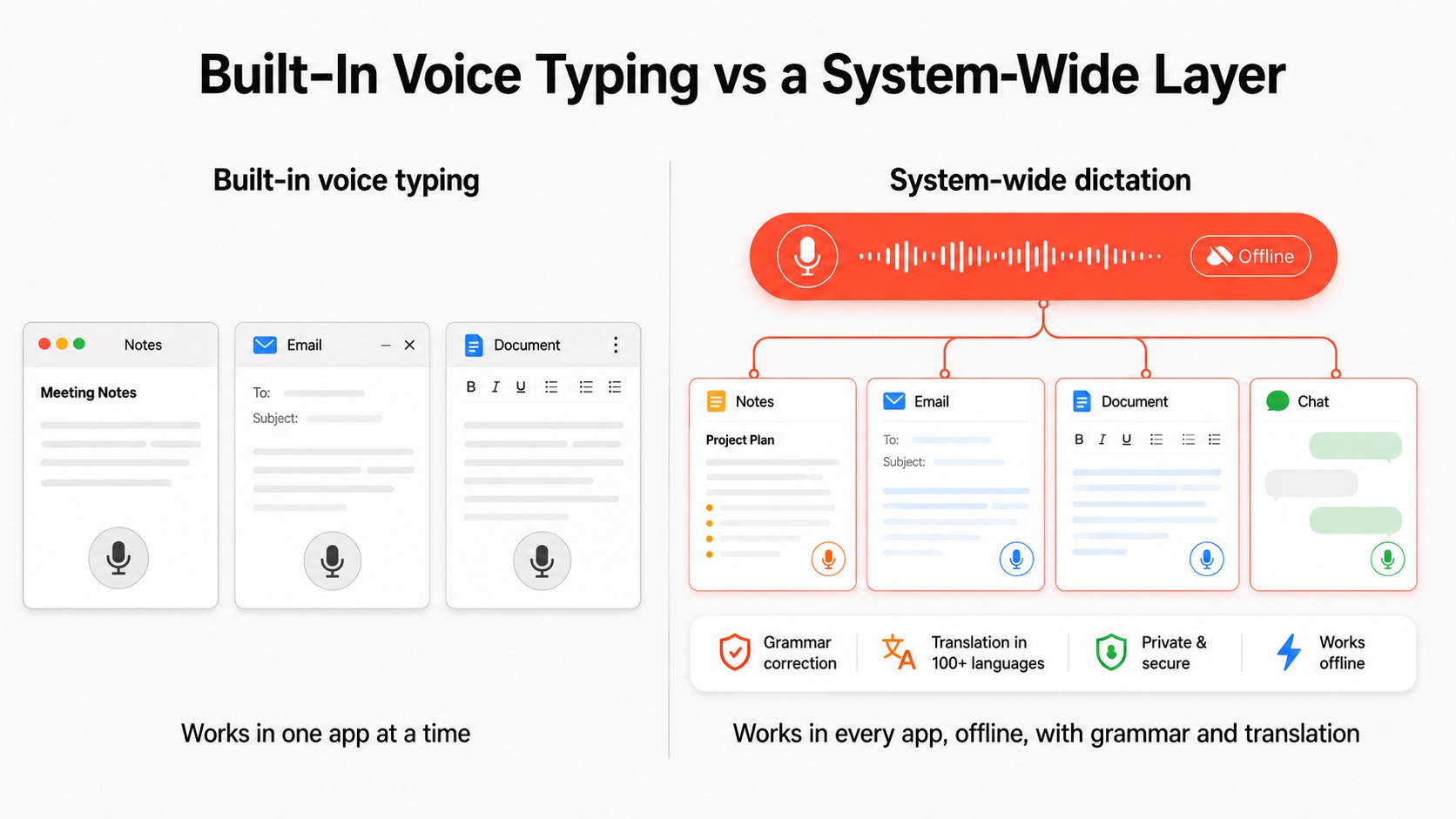
Other applications each have their own approach. Some email clients, note apps, and browsers include a built-in microphone button. Others have none at all, which is where the frustration usually begins. If you rely on the app-specific button, you have to relearn a slightly different setup in every program, and any app without one leaves you stuck. This is the core limitation of built-in voice typing: it is tied to the specific app you are in, not to you.
Can I use voice typing in Google Docs?
Yes. Google Docs has a dedicated voice typing tool. Open a document in the Chrome browser, go to the Tools menu, and choose Voice typing. A microphone box appears; click it, grant permission, and start speaking. It is one of the most popular ways people first try dictation, largely because so much work happens inside Docs.
It also comes with clear boundaries. Google Docs voice typing officially works best in Chrome, it needs an internet connection, and it only functions inside a Docs document, not across the rest of your work. Because that specific setup has so many details worth getting right, we published a complete walkthrough. For the full instructions, punctuation commands, and fixes, read our dedicated guide to speech to text in Google Docs.
Why does voice typing keep not working?
"Voice typing not working" is one of the most common searches around this topic, and the causes are usually predictable. Here are the main ones and how to address them:
- Microphone permission is blocked. The app or browser needs explicit permission to use your microphone. Check your system's privacy settings and the site or app permissions, and make sure access is allowed.
- You are in an unsupported browser or app. Google Docs voice typing is built for Chrome, and many built-in tools only support a specific set of applications. If the button is missing or greyed out, the tool likely does not support where you are trying to use it.
- No internet connection. Cloud-based voice typing needs a live connection. If yours drops, recognition stops. On-device tools avoid this problem entirely because they process locally.
- The wrong microphone is selected. If your computer is listening to the wrong input device, you will see no text. Confirm the correct microphone is chosen in your sound settings.
- Language or region mismatch. If the dictation language does not match what you are speaking, accuracy collapses. Set the recognition language to match your speech.
Notice a pattern: most of these failures come from the fact that built-in voice typing depends on a specific app, a specific browser, or a specific connection. Remove those dependencies and most of the "not working" problems simply disappear.
Voice typing vs dictation software: what is the difference?
People use these terms loosely, but there is a useful distinction. "Voice typing" usually refers to the free, built-in feature inside an operating system or app, the kind you switch on with a shortcut. "Dictation software" usually refers to a dedicated tool designed around voice as the primary way you work, with more accuracy, more control, and features that go beyond dropping raw text on the page.
The practical difference shows up in three places.
- Coverage: built-in voice typing works in its own app, while dedicated dictation software aims to work everywhere.
- Output quality: built-in tools give you a raw transcript, while dedicated tools can clean up grammar and formatting.
- Privacy: many built-in tools send audio to the cloud, while the strongest dictation software can process everything on your device. If you only dictate the occasional note, built-in voice typing is fine. If you write for a living, the gap adds up quickly.
Can I use voice typing in every app at once?
This is where a system-wide approach changes the experience. Instead of a separate button in Word, a menu item in Docs, and a shortcut in Windows, you have one voice dictation layer that works in every application on your computer, triggered the same way each time.
That is exactly what ParrotKey does. It sits above your individual apps, so you can dictate into your email client, your browser, your note app, your CRM, or your word processor with the same shortcut and the same behaviour everywhere. Because it uses on-device speech-to-text, your voice is processed locally, which keeps your dictation private and lets it work offline. And it does not stop at raw transcription. ParrotKey can correct your grammar as you speak, transform rough spoken text into polished writing, and translate between more than 50 languages, so the words that land on the page are already close to final.
There is one more capability worth calling out. Beyond live dictation, ParrotKey includes built-in file transcription: you can feed it an existing audio or video file and get a clean transcript back, processed on your own device. That means the same tool covers both talking in real time and turning recordings into text, which most built-in voice typing features cannot do at all.
How can I make voice typing more accurate?
Whichever tool you use, a few habits noticeably improve accuracy:
- Speak clearly and at a steady pace. You do not need to slow to a crawl, but rushing or mumbling forces the engine to guess.
- Use a decent microphone. A quiet room and a good mic matter more than most people expect. Built-in laptop mics work, but a headset is better.
- Dictate your punctuation. Say "comma," "period," "question mark," and "new paragraph" so the text is structured as it lands, rather than a wall of words.
- Learn the editing commands. Most tools let you select, delete, or capitalize with voice commands, which cuts down on reaching for the keyboard.
- Choose the right language setting. Match the recognition language to what you are actually speaking, including regional variants.
If the raw transcript still needs cleanup, a tool with built-in grammar correction saves the step entirely. We cover that specific workflow in our guide to a grammar checker for dictation that actually works.
Is there a voice typing app that works across languages?
For anyone who works in more than one language, the built-in tools become even more limiting, because you often have to switch the recognition language manually and still get a raw transcript in that language. A dedicated tool handles this more gracefully. ParrotKey lets you dictate in one language and produce polished text in another across more than 50 languages, which is a genuinely different capability from basic voice typing. If your work is multilingual, that ability to speak in one language and write cleanly in another can save an entire editing and translation step.
The bottom line
Built-in voice typing is a great on-ramp. It is free, it is already installed, and for a quick note in the right app it does the job. The moment you want to dictate everywhere, keep your audio private, work offline, or get text that is already clean, its app-by-app design starts to hold you back. That is the gap a system-wide tool fills.
If you want voice typing that works in every app on your Mac or Windows machine, processes your speech on your own device, and cleans up grammar and translation as you go, download ParrotKey and start dictating for free. You keep the setup instructions above for the built-in tools, and you gain a way to leave their limits behind.

 Kostenlos loslegen