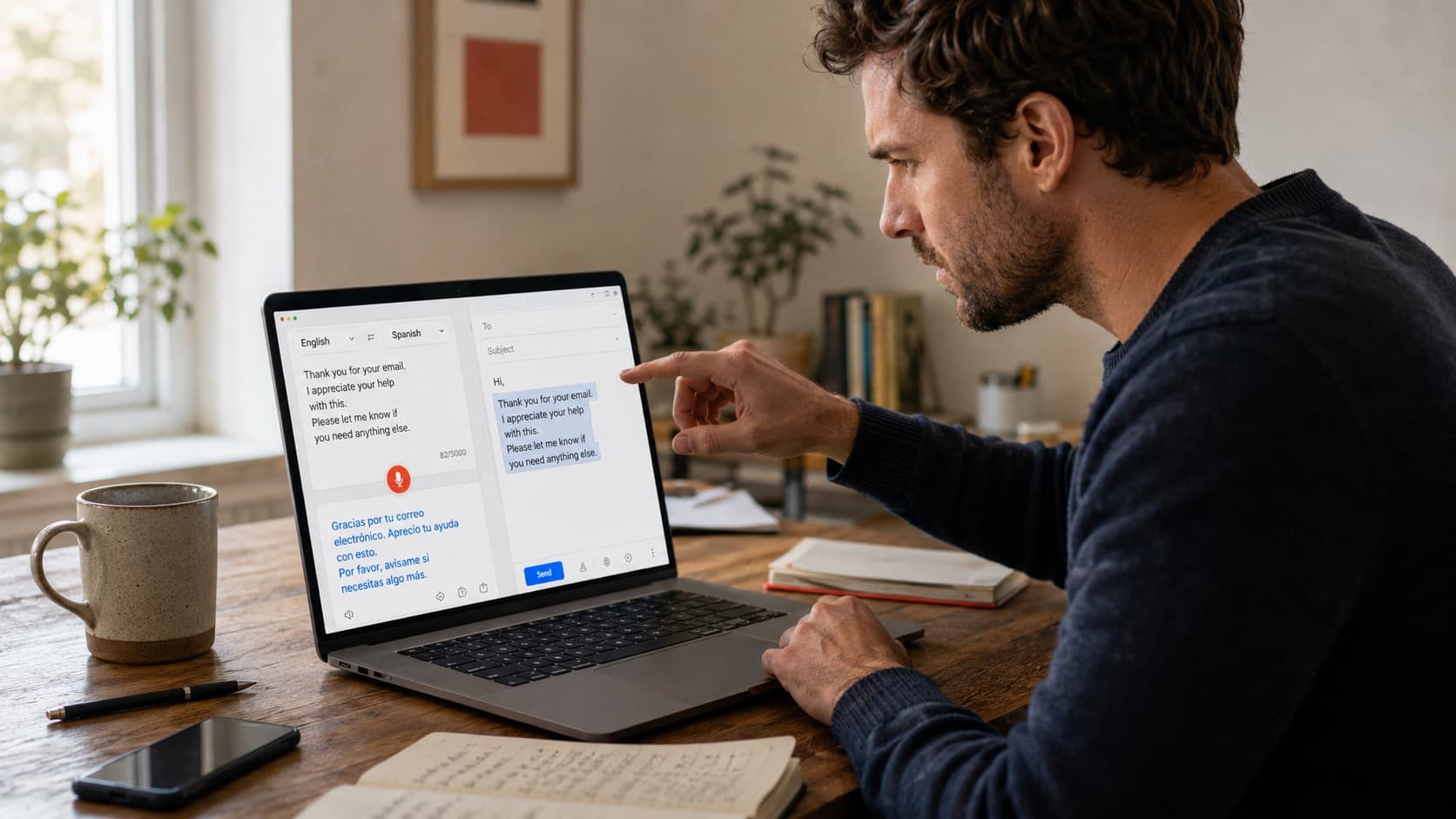


Google Translate has a microphone button. You press it, you speak, and text appears. For a few million people a day, that is the beginning and the end of the story, and it works.
Then there is the other group. The person who is trying to draft a client email in Spanish. The support agent who wants to answer a German ticket without typing. The researcher with a recorded interview sitting on their desktop. They open Google Translate, press the microphone, and within about ten minutes they discover something nobody warned them about: this feature was never designed for what they are trying to do.
That is not a criticism of Google Translate. It is a description of what it is. Google Translate is a place you go to. You visit the tab, you speak, you read the result, and you copy it somewhere else. It is a destination. Real writing, on the other hand, happens in Gmail, in Slack, in Word, in a helpdesk, in a code editor. Those are places you already are.
This guide covers all of it: how to turn on speech to text in Google Translate on every device, the exact reasons voice input fails, what the feature genuinely cannot do, and what to reach for when you need spoken language turned into finished text rather than a preview in a browser tab.
Key takeaways
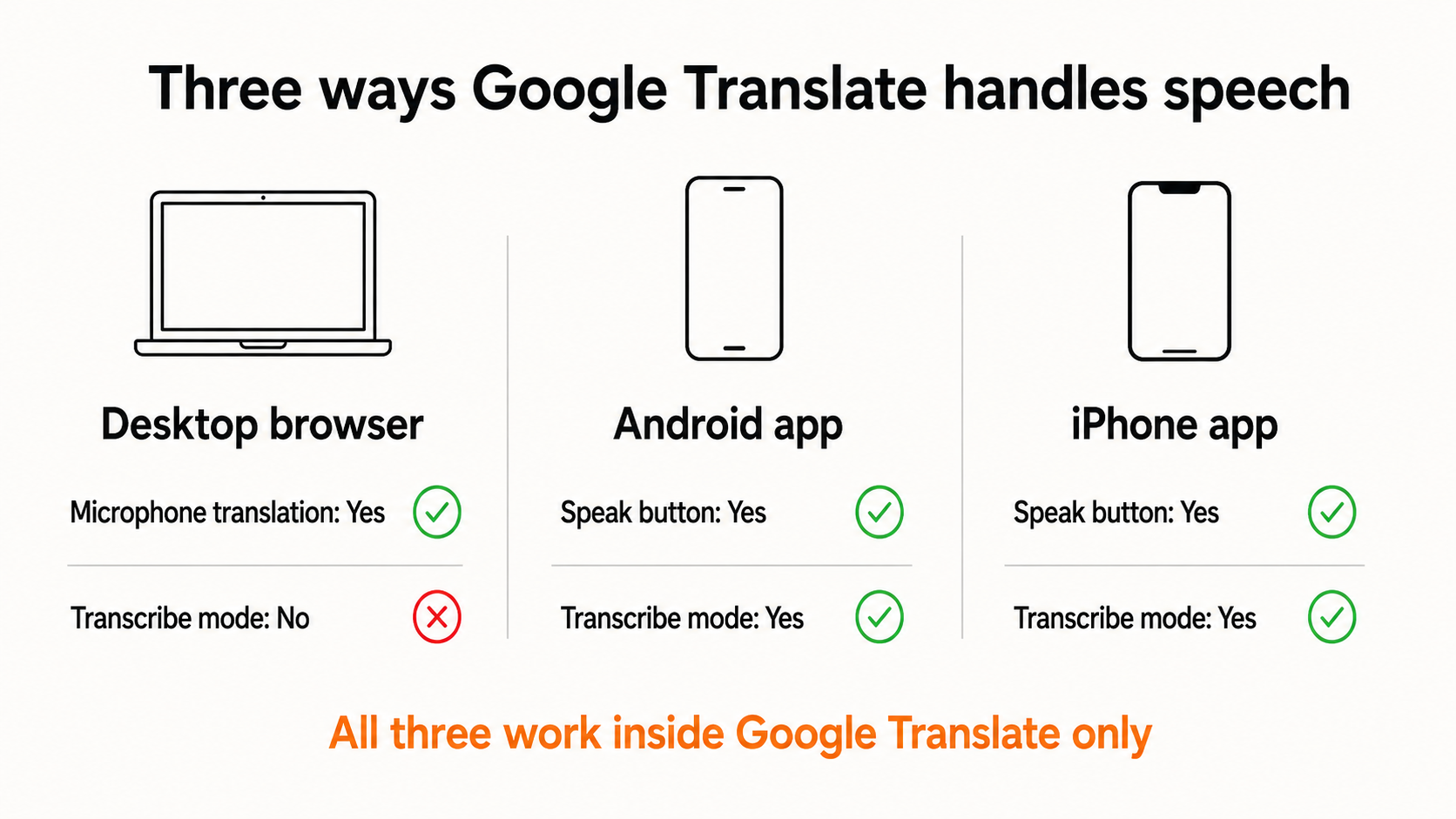
- Google Translate does have speech to text: a microphone on the desktop site, a Speak button in the mobile apps, and a separate Transcribe mode on Android and iOS for continuous speech.
- On desktop it is browser-dependent. Google states that supported languages vary by browser, that voice translation works in Chrome with limited support in Safari and Edge, and that Chrome is the only fully supported browser.
- Speech support is narrower than text support. Google Translate covers 249 languages for text, but Google notes that feature support varies by language, so dictation and transcription reach far fewer.
- The structural limit is not accuracy but location. The text appears inside Google Translate, not inside the document you were writing. A system-wide tool like ParrotKey's voice dictation puts translated speech straight where your cursor already is.
Can Google Translate do speech to text?
Yes, and it does it in three distinct ways that most guides blur together. Knowing which one you are using explains almost every problem people run into.
Microphone translation on the desktop website. You go to the Google Translate site in a browser, pick your two languages, click the microphone, and speak a word or a phrase. Google's own documentation describes this as translating spoken words and phrases, and that phrasing is deliberate. It is built for short bursts.
The Speak button in the mobile apps. On Android and iOS, the Translate app has a microphone that handles the same short-burst job, with the advantage that phone microphones and mobile speech models tend to perform better than a laptop's built-in mic in a noisy room.
Transcribe mode, mobile only. This is the one people miss. Google describes Transcribe as translating in near real time while someone speaks a different language, giving a classroom lecture as the example. It runs continuously rather than in short bursts, and it lets you save the transcript. It exists on Android and iPhone. It does not exist on the desktop site.
So the honest answer to whether Google Translate does speech to text is: yes, three times over, with different capabilities on different devices, and the version you find first on your laptop is the most limited of the three.
How to use speech to text in Google Translate
The steps differ by device. All three start with the same prerequisite: your browser or your phone needs permission to use the microphone.
On a computer
- Give your browser permission to use your microphone, and check the microphone settings in your operating system. On a Mac these live in System Settings; on Windows, in the Control Panel or Settings app.
- Open the Google Translate website.
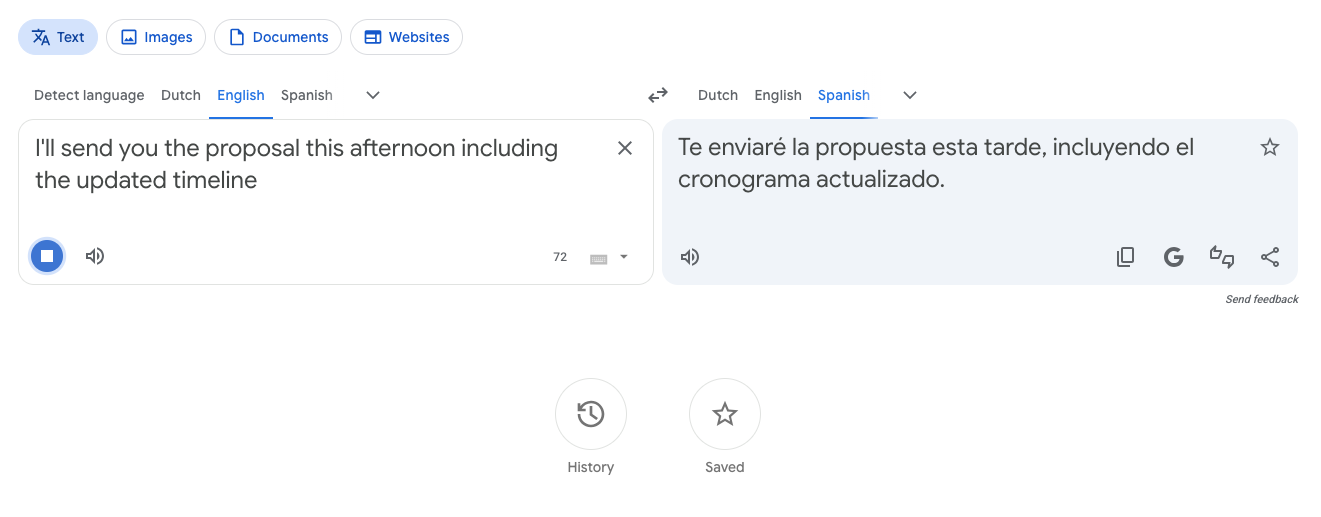
- Choose the language you will speak and the language you want it translated into. This step is not optional, and it is the one people skip. Google explicitly states that translation with a microphone will not automatically detect your language.
- Click the microphone icon at the bottom of the input box.
- Speak the word or phrase you want to translate.
- Click Stop when you are finished.
On Android
- Open the Translate app and choose your two languages, source on the bottom left, target on the bottom right.
- Tap Speak. If the button is greyed out, Google's documentation is telling you something specific: the spoken language cannot be translated. It is not a bug.
- Wait until the app says it is listening, then speak.
For continuous speech, tap Speak and then Transcribe instead, choose your languages, and let it run. You can save the transcript afterwards and find it later under Saved transcripts in the menu.
On iPhone and iPad
The flow mirrors Android. Grant microphone access to Google Translate in your privacy settings, open the app, set both languages, and tap the microphone. Transcribe mode is available here too, under the same Speak screen.
Why Google Translate voice input is not working
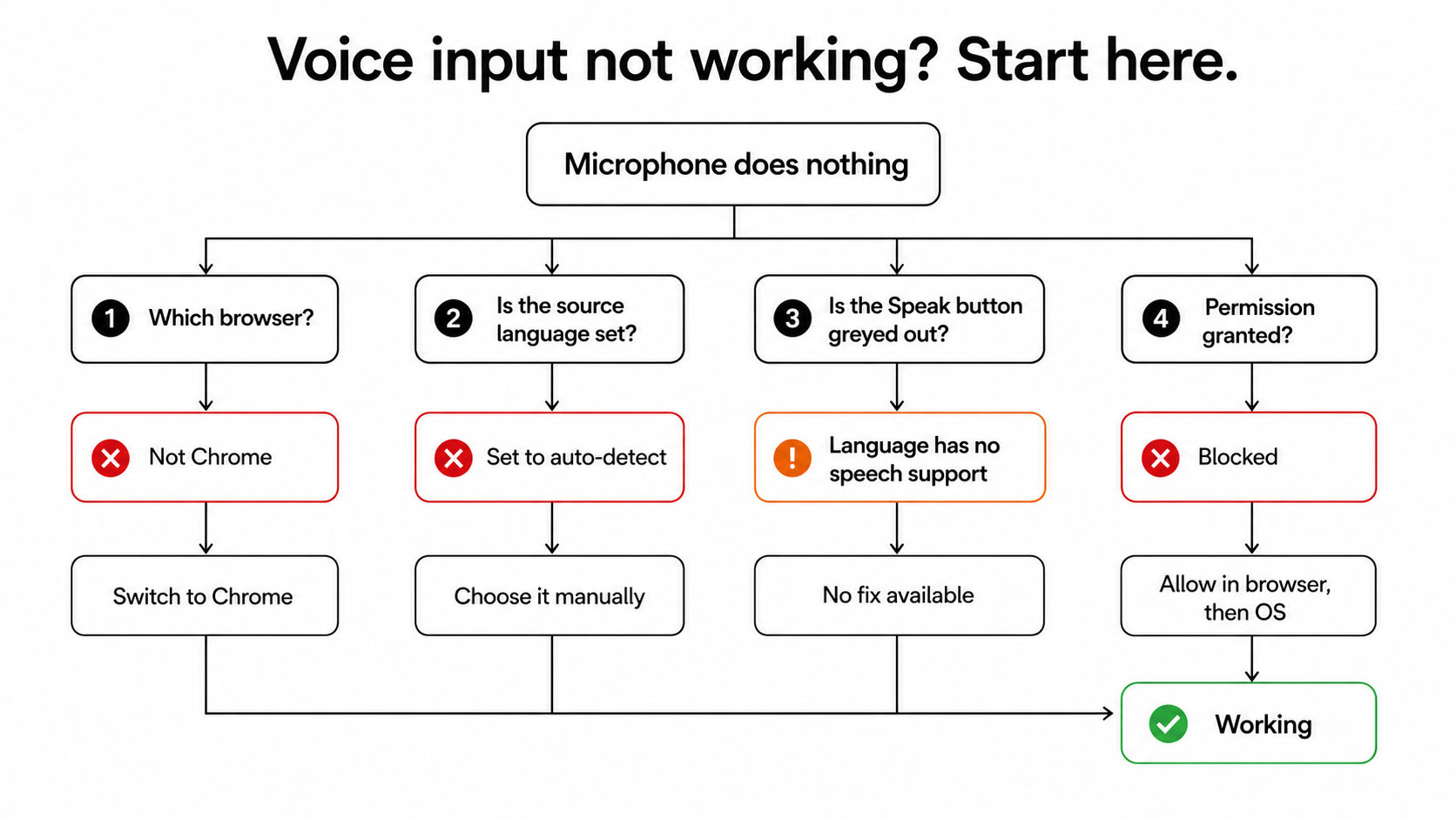
Almost every failure traces back to one of five causes. Google publishes the error messages; what follows is what each one actually means.
| What you see or experience | What is really happening | What to do |
|---|---|---|
| "Voice input isn't supported on this browser" | You are not in Chrome. Google states that Chrome is the only fully supported browser, with limited support in Safari and Edge. | Switch to Chrome, or use the mobile app. |
| "Voice input isn't available" | The feature does not exist for the language you selected. Google's documentation says exactly this. | Check whether your language pair supports speech at all. |
| "Need permission to use microphone" | A browser or operating system permission is blocking access. | Grant microphone permission in the browser, then check your OS settings. |
| The Speak button is greyed out on mobile | The spoken language is not supported for speech input. | Same cause as above, different surface. |
| It transcribes the wrong language entirely | You left the source language unset or wrong. Microphone translation does not auto-detect. | Set the source language manually before you speak. |
| "We're having trouble hearing you" | Ambient noise or a weak input signal. | Move somewhere quiet, use an external microphone, raise the input volume. |
The pattern worth noticing: three of these six are not really errors. They are the edges of the feature, surfaced as error messages.
Is Google Translate speech to text free?
Yes. There is no charge, no account required, and no cap on how many times you can press the microphone. That is a real advantage and it is the reason the feature is so widely used.
The costs are elsewhere.
The copy-paste tax. The text lands inside Google Translate. To use it, you select it, copy it, switch windows, and paste it. Then you fix the formatting. Then you go back for the next sentence. Across a working day, this is a heavier cost than most people realise, which is why we looked at the copy-paste translation workflow as a productivity problem in its own right.
Your words go to Google's servers. Browser-based speech recognition sends audio off your machine to be processed. For a menu on holiday this is irrelevant. For a client's confidential terms, a patient's history, or an unreleased product name, it is a question worth asking before you press the button.
No offline path on the desktop. The mobile app offers downloadable language packs for text translation, and Google's app listing lists offline as a feature whose support varies by language. Browser microphone translation has no equivalent. No connection, no speech.
The limits nobody mentions
Beyond the error messages, there are four boundaries that the documentation states plainly but that almost nobody reads.
Speech support is much narrower than text support. Google Translate handles 249 languages for typed text. Google's own app listing then adds a caveat that feature support varies by language, and lists Text, Offline, Camera, Dictation, Conversations and Transcribe as separate capabilities. Dictation and Transcribe reach a fraction of that 249. The number in the marketing is a text number.
You cannot upload an audio file. This surprises people more than anything else. Google Translate has no file upload for audio. If you have a recorded interview, a voice memo, or a meeting recording, your only route is to play it out loud into your microphone and hope the room is quiet. It is a workaround, not a feature.
There is no speaker separation. Transcribe mode runs continuously, but it does not label who said what. For a lecture with one speaker, fine. For a four-person meeting, the transcript becomes a wall of undifferentiated text.
It lives in one tab. This is the limit that swallows all the others. Every word Google Translate produces appears inside Google Translate. It cannot type into your email. It cannot correct a sentence you already wrote in Word. It cannot follow you into Slack.
That last one is not a missing feature. It is the design. A destination cannot also be a layer.
Can Google Translate transcribe a recorded audio file?
No. This is worth stating on its own because it is one of the most common expectations people bring to the tool, and it fails silently: the microphone works, so people assume the audio input works too.
Playing a recording into your laptop microphone means the speech engine hears your speakers, your room, your desk, and the recording, all at once. Accuracy collapses. Anything with two speakers, background noise, or technical vocabulary produces something you will spend longer fixing than you would have spent typing.
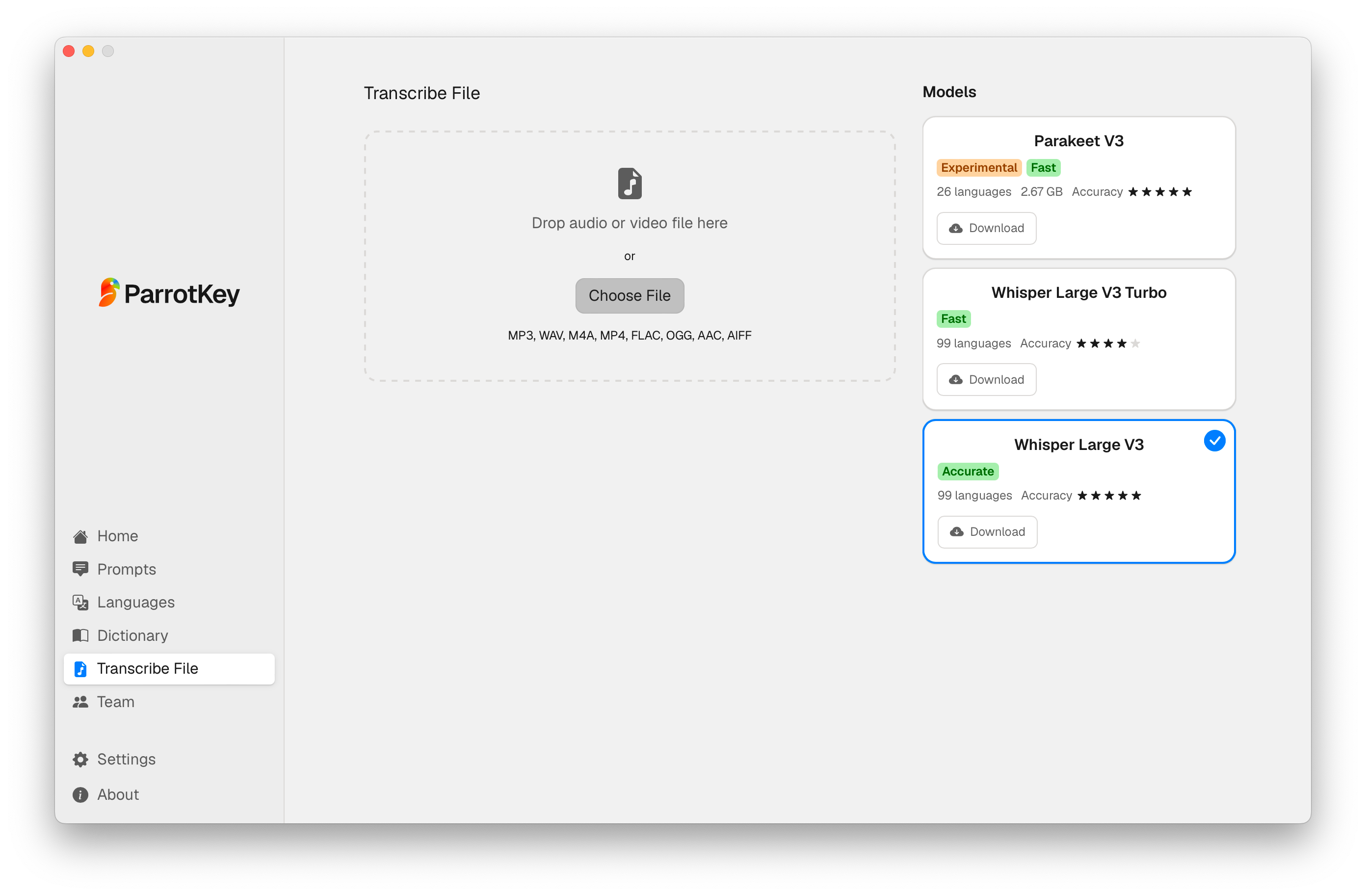
This is where the distinction between live speech and recorded audio becomes a practical fork in the road. ParrotKey handles both, and handles them separately. Live dictation turns what you say into text as you speak it. The built-in Transcribe File function takes an actual file, MP3, WAV, M4A, MP4, FLAC, OGG, AAC or AIFF, and processes it with an on-device model. No microphone in the loop. No recording played out loud into a quiet room.
Because that processing happens locally, the audio never leaves your machine. For anyone handling client recordings, interviews, or internal meetings, that is not a nice-to-have.
Speech to text translation for real work
Look at what people are actually trying to do when they reach for a translation tool with a microphone. Answer a support ticket in the customer's language. Send a proposal to a client in Paris. Take notes from a bilingual conversation. Write a Slack message to a colleague in Warsaw.
Not one of those tasks happens inside Google Translate. Every one of them happens somewhere else, and Google Translate is a detour on the way there.
The alternative is not a better translation site. It is moving the translation into the place where you already write. That is the difference between a destination and a layer.
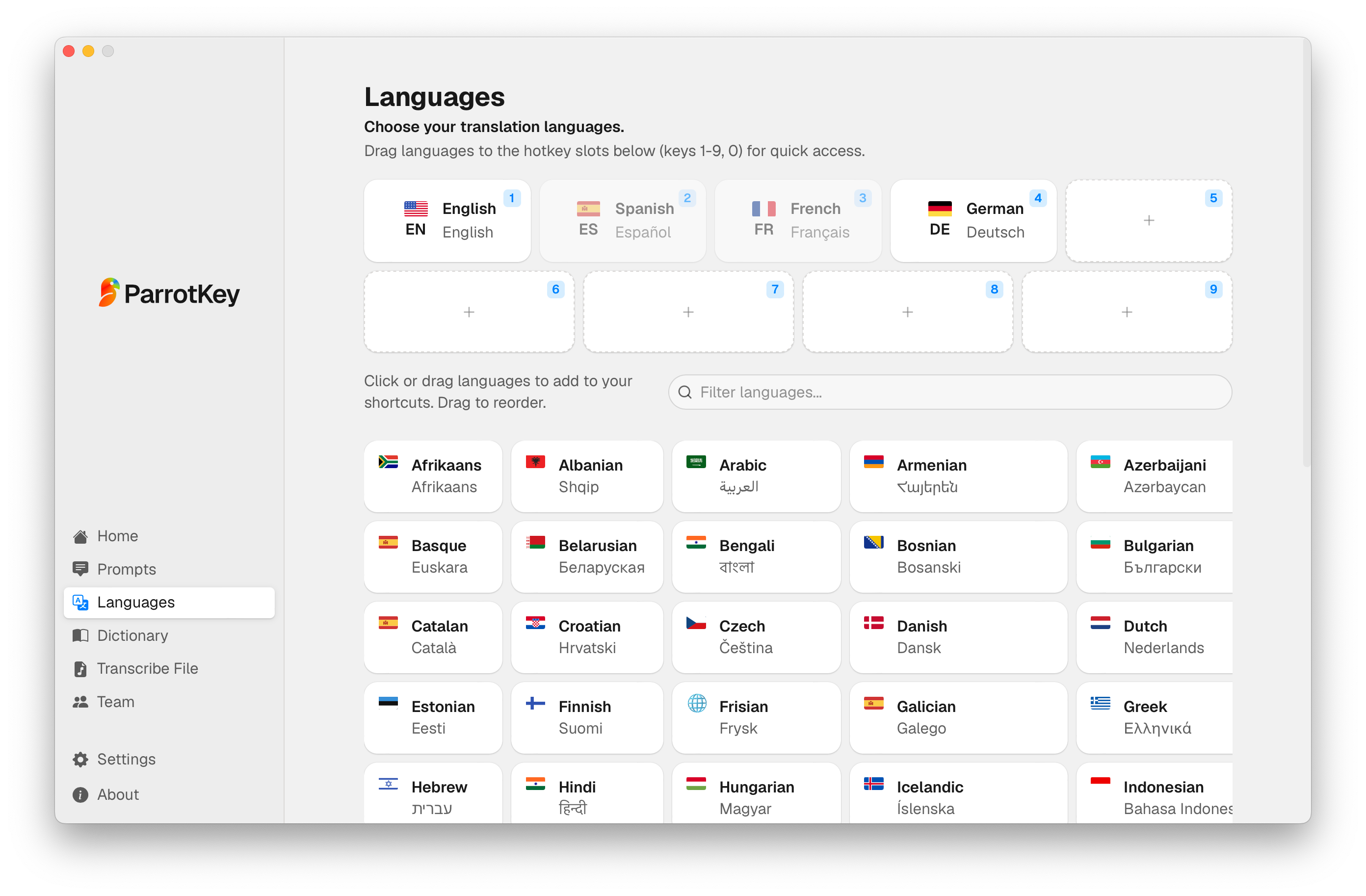
With ParrotKey you hold a key, speak in your language, and finished text in the target language appears where your cursor already is. In Gmail. In the helpdesk. In Word. There is no tab to open and nothing to copy. Punctuation is added as you speak, filler words are cleaned up, and the result is text you can send rather than a transcript you have to edit. You can translate your speech into more than 50 languages this way, and it works the same in every application on macOS and Windows.
For teams, that changes the arithmetic entirely. A support agent answering tickets in six languages is no longer switching windows fifty times a day, which is why this workflow suits multilingual teams more than any individual feature comparison suggests.
Google Translate speech to text versus a system-wide tool
| Google Translate | ParrotKey | |
|---|---|---|
| Where the text appears | Inside the Translate tab or app | Wherever your cursor is, in any application |
| Live speech to text | Yes, short bursts on desktop; continuous via Transcribe on mobile | Yes, system-wide, continuous |
| Recorded audio files | Not supported | Supported, processed on-device |
| Browser dependency | Chrome fully supported; limited in Safari and Edge | None, it is a desktop application |
| Automatic punctuation | No | Yes |
| Offline speech processing | No, on the desktop site | Yes, with local models |
| Where your audio goes | Google's servers | Stays on your machine with local processing |
| Platforms | Web, Android, iOS | macOS and Windows |
| Cost | Free | Free plan, with paid tiers for more |
The table is not an argument that Google Translate is bad. It is an argument that the two tools sit in different places in your day. If your speech to text need is a sentence at a time in a browser tab, the free tool is the right tool and you should stop reading here.
How to choose
Stay with Google Translate if you are translating short phrases, you are on your phone, you are travelling, you are in a conversation rather than at a keyboard, or you simply need to understand something rather than produce something. It is free, it is instant, and for that job nothing beats it.
Move to a system-wide tool if your spoken words need to end up as finished text in a document, an email, or a ticket. If you work across more than one application. If you have recorded audio to transcribe. If your language pair is not in Google's speech list. If confidential audio should not leave your machine. Or if you have simply noticed how much of your day is spent moving text between two windows.
If you are still weighing the underlying translation engines rather than the workflow around them, our comparison of DeepL vs Google Translate vs ChatGPT covers the quality question directly, and our guide to voice to text translation language support goes deeper on which language pairs hold up in practice.
Conclusion
Google Translate's microphone is a genuinely good feature that has been asked to do a job it was never built for. It translates spoken phrases, in Chrome, in supported languages, inside its own tab. Held to that description, it is excellent. Held to the standard of professional writing, it strains at every seam: the browser dependency, the missing languages, the absent file upload, the endless copy and paste.
The fix is not a better translation website. It is putting translated speech directly into the place you were already writing, so there is nothing to copy and nowhere to switch to. Speak in your language, and the right words land where your cursor is, in whichever application you happen to be working in.
Try ParrotKey for free on macOS or Windows, and see what your writing looks like when the translation stops living in a separate tab.

 Empieza gratis