


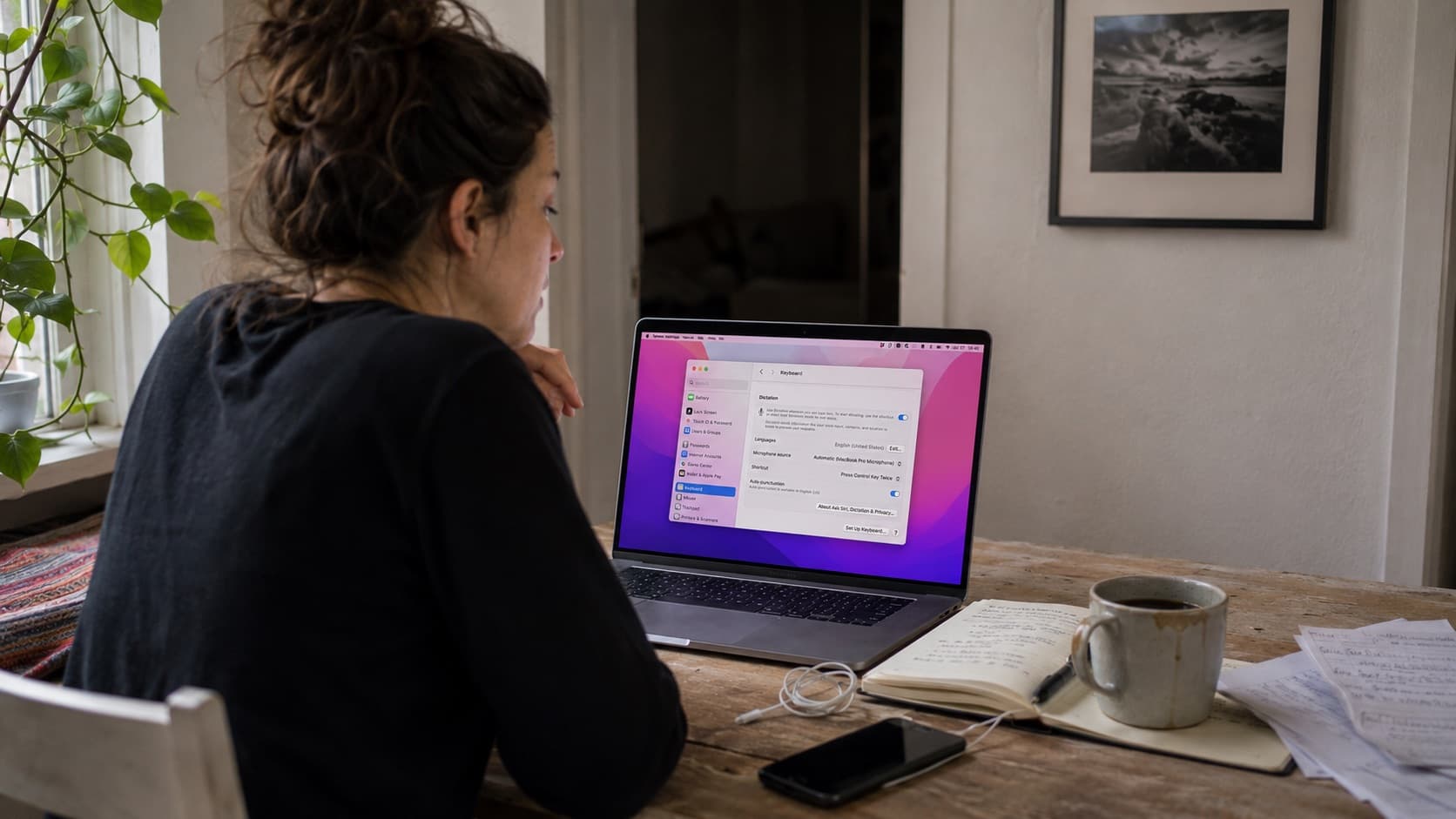
Apple Dictation is one of the most quietly useful features on a Mac or iPhone. It is free, it is built in, it works in any text field, and on the right hardware in the right language it runs entirely on your device without sending a word to anyone. If you want to fire off a message without touching the keyboard, it is already there and it already works.
That is the honest starting point, and it matters, because a lot of what gets written about Apple Dictation is out of date. Older guides describe a feature that timed out after a short burst, sent everything to Apple's servers, and made you say "period" out loud. Apple's own documentation now says you can dictate text of any length without a timeout, and that it inserts punctuation for you in supported languages. Whether that applies to you turns out to depend on things Apple does not put in front of you.
What is still true is that Apple built Dictation to do one job: turn speech into text. It does that job well within a set of boundaries that Apple documents publicly. This guide walks through what those boundaries actually are, verified against Apple's own support pages and feature availability lists, and where you run into them if you write for a living.
Key takeaways
- Apple Dictation is free and built into macOS, iOS, and iPadOS. On a Mac you turn it on in System Settings, Keyboard, Dictation, then start it with a shortcut such as pressing the Fn key twice.
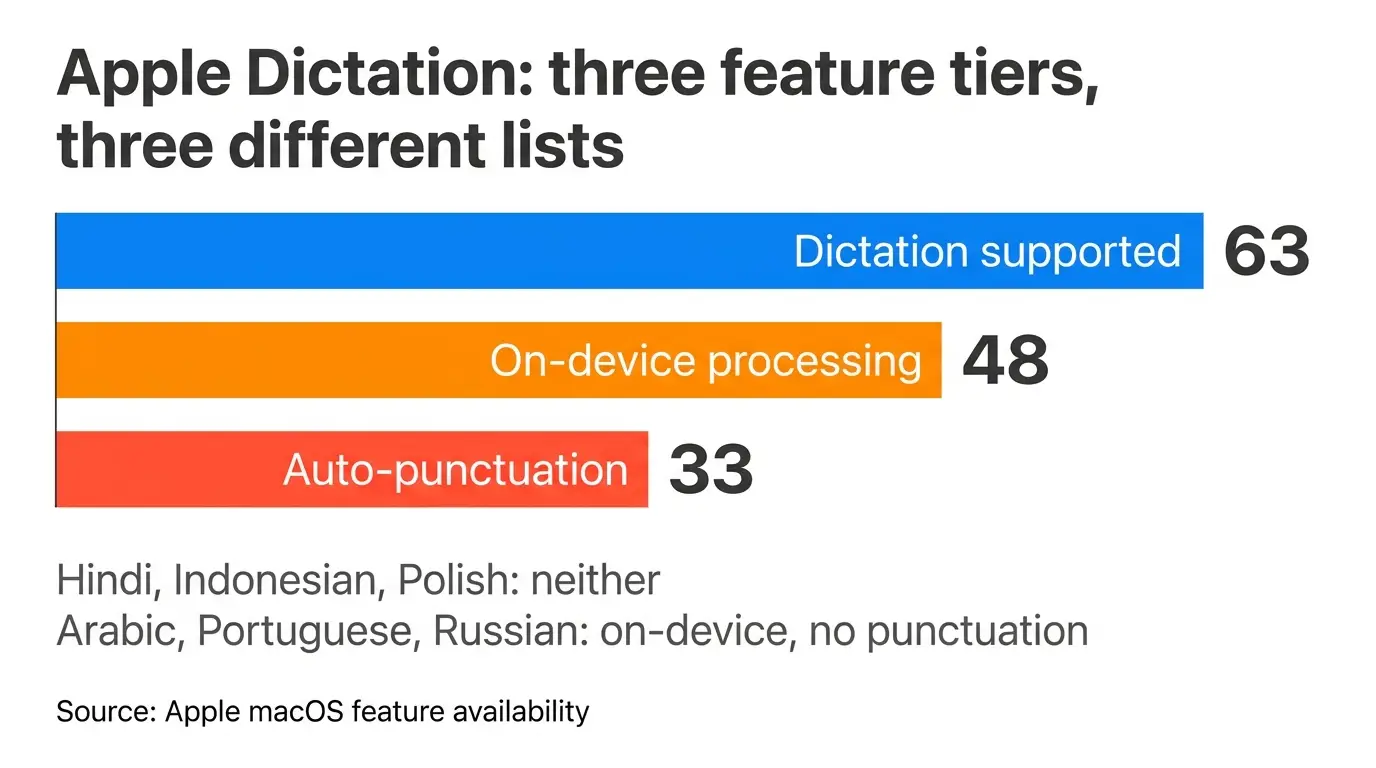
- Apple documents Dictation support in 63 language and region combinations, on-device processing in 48, and automatic punctuation in only 33. These three lists do not overlap, so what you get depends on which language you dictate in and which hardware you dictate on.
- Apple documents no time limit on a dictation session, and modern Apple Dictation adds commas, periods, and question marks for you in supported languages.
- The real boundary is scope. Dictation transcribes and stops there. It does not rewrite, translate, correct grammar, learn your vocabulary, transcribe recorded audio files, or exist on Windows.
- When your writing needs any of those, a dedicated tool like ParrotKey's voice dictation sits on top of the same hands-free workflow and covers the parts Apple left out.
What is Apple Dictation and how does it work?
Apple Dictation is the built-in speech to text feature across macOS, iOS, and iPadOS. It converts spoken words into text anywhere you can normally type, whether that is Mail, Messages, Pages, Safari, Slack, or a third-party app. There is nothing to install and no account to create.
On a Mac with Apple silicon, general text dictation can run on the device itself. Apple states that your device shows in Keyboard settings whether your voice inputs and transcripts are processed on your device rather than being sent to Siri servers. Where on-device processing applies, your speech never leaves the machine and no internet connection is required. For on-device dictation you are required to download speech models.
It is worth separating Dictation from two neighbours that get confused with it. Voice Control is a different accessibility feature for operating your Mac entirely by voice, and when it is switched on, standard Dictation is not available. Siri is a different thing again. Dictation is specifically the speech to text engine, nothing more.
That narrowness is the whole story. Everything Apple Dictation does well and everything it does not do follows from the decision to build a transcription engine rather than a writing tool.
How to turn on dictation on Mac
Setup takes under a minute.
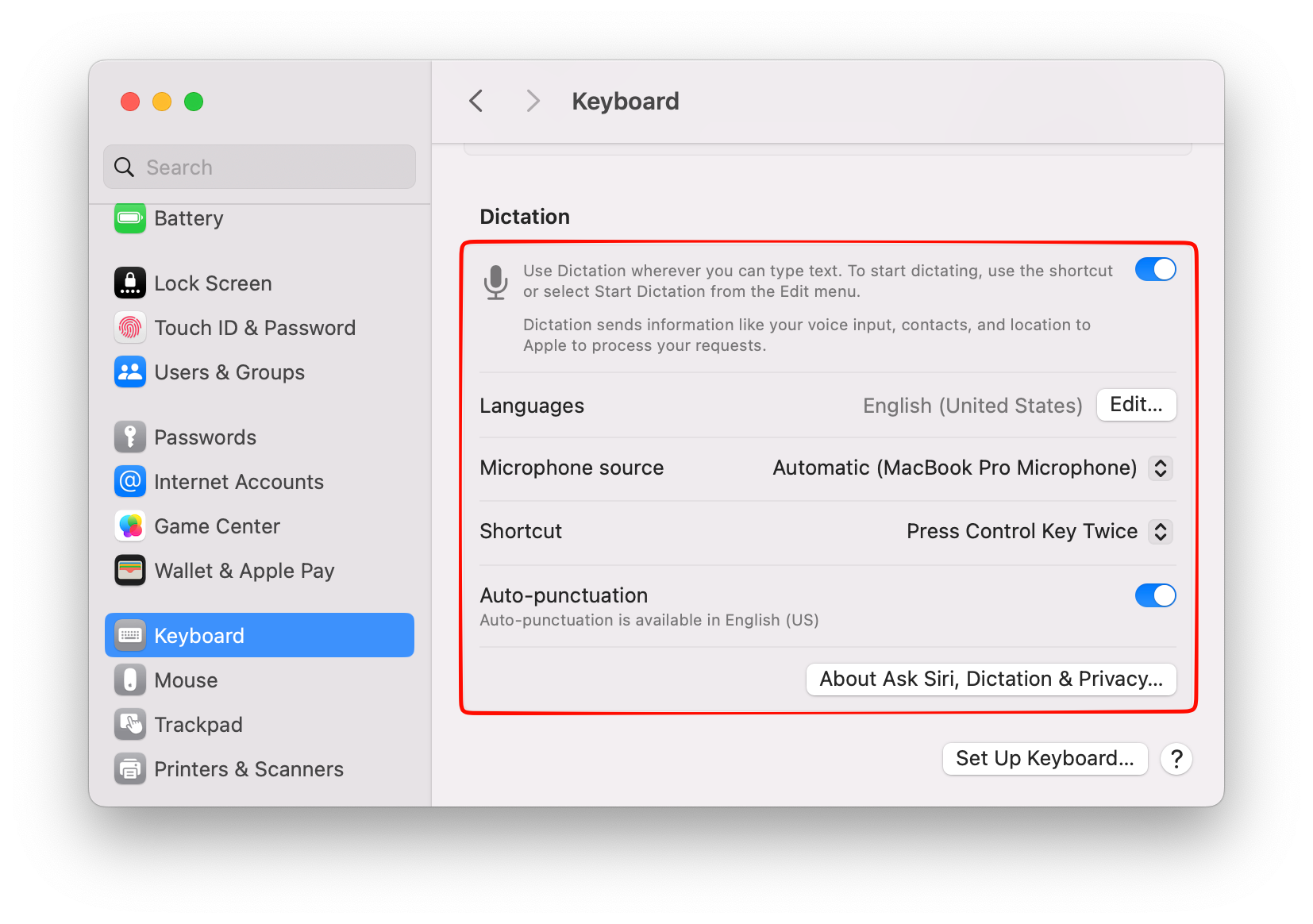
- Open the Apple menu, choose System Settings, then click Keyboard in the sidebar. You may need to scroll down.
- Find Dictation and switch it on. Click Enable when prompted.
- Apple asks whether you want to help improve Siri and Dictation by sharing audio recordings. You can click Not Now. This is the setting that controls whether Apple stores audio samples for review, and you can change it later under Privacy and Security, Analytics and Improvements.
- Place your cursor in any text field, press the Microphone key in the function row or your chosen shortcut, wait for the tone, and speak.
The mac dictation shortcut is configurable. In the same Dictation panel, click the Shortcut menu and pick an option such as pressing the Fn key twice, or choose Customize and press your own key combination. If your Mac has a Microphone key in the function row, pressing it once starts Dictation; press and hold and you get Siri instead, which is a common source of confusion.
Two details worth knowing: First, you can dictate text of any length with no timeout. Dictation stops on its own only after thirty seconds of silence. Second, on Apple silicon you can keep typing while you dictate without stopping the session.
How to use speech to text on iPhone and iPad
On iPhone and iPad there is no separate app to open. Dictation lives on the keyboard itself.
- Go to Settings, General, Keyboard, and switch on Enable Dictation.
- In any app, tap into a text field to bring up the keyboard, then tap the microphone icon on the keyboard.
- Speak. The text appears as you go, and you can tap the keyboard to type mid-dictation without stopping.
The engine and the boundaries are the same as on Mac. Apple states that Dictation requests are processed on your device in many languages with no internet connection required, with one documented exception worth knowing: when you dictate into a search box, the text may be sent to the search provider to process the search. The practical difference on a phone is that the keyboard microphone is the same button you reach for inside any other app, including apps like Google Docs that have no dictation feature of their own on mobile. If that particular gap is your situation, our guide to speech to text in Google Docs covers how the two fit together.
Is Apple Dictation processed on-device or in the cloud?
Both, depending on your hardware and your language, and this is the part most articles get wrong in one direction or the other.
Apple's privacy documentation is direct about the mechanism. Your device tells you in Keyboard settings whether audio and transcripts are processed on the device and not sent to Apple servers. If that condition is not met, what you dictate is sent to and processed on Apple's servers, though it is not stored unless you have opted in to Improve Siri and Dictation. Audio data is not stored by Apple unless you opt in.
So the useful question is not "does Apple spy on my dictation," it is "does my specific setup qualify for on-device processing." Three things decide it:
- Your chip. On-device dictation needs Apple silicon on a Mac. Intel Macs route to the server.
- Your language. This is the one people miss, and we cover it in the next section.
- Your settings. Improve Siri and Dictation is a separate opt-in that governs audio sample collection for human review. Turning it off is a distinct action from processing location.
These stack rather than substitute. A supported language on unsupported hardware still goes to the server, so being on Apple's on-device language list tells you nothing on its own. On an Intel Mac the option to download a language model for offline dictation is greyed out entirely, and the privacy line under the Dictation toggle tells you plainly that your voice input goes to Apple.
For most people writing in English on an M-series Mac, dictation is genuinely local and genuinely private. That is a real strength and it deserves to be stated plainly rather than argued away.
The catch is that "local" is not the same as "private for everyone in the room." If you handle regulated client data, the question your compliance officer will ask is not whether Apple processes locally by default, it is whether you can prove it for every language, every device, and every session in your organisation. Apple provides a settings panel, not an audit trail.
The 6 things Apple Dictation still can't do
Here is where the boundaries actually sit. Each of these is verifiable against Apple's own documentation rather than a matter of opinion.
1. Give you the same features in every language
This is the least known limit and the most consequential one. Apple publishes three separate lists on its feature availability page, and they are not the same list.
| Apple Dictation capability | Language and region combinations Apple lists |
|---|---|
| Dictation at all | 63 |
| On-device and modeless dictation | 48 |
| Auto-punctuation | 33 |
| Dictate emoji | 33 |
Dictating in Hindi, Indonesian, Polish, Greek, Czech, Hungarian, Romanian, or Ukrainian means no on-device processing and no automatic punctuation. Your audio goes to Apple's servers, and you say "comma" out loud. Dictating in Arabic, Portuguese, Russian, Turkish, or Vietnamese gets you on-device processing but still no automatic punctuation.
Put that against speaker counts and the shape of it becomes clear. Hindi has roughly 600 million speakers and sits in the bottom tier. Arabic has around 400 million and Portuguese around 260 million, and neither gets punctuation handled for it. Meanwhile Spanish, French, German, Japanese, Korean, and Italian have every tier.
The headline "Apple Dictation is on-device and adds punctuation for you" is true if you speak English. For a large share of the world's most-spoken languages it is partly or wholly false, and nothing in the interface warns you which tier you are in. The Dictation panel reports only on the language you have active: it will tell you that auto-punctuation is available in English, and say nothing at all about the language you were thinking of adding. To find out what you get, you have to add the language and look.
2. Switch languages without switching modes
Apple does let you set up Dictation for more than one language and swap between them, either by clicking the language indicator next to the cursor or pressing the Globe key. That is more than older articles give it credit for.
What it does not do is follow you mid-sentence. Each switch is a deliberate action you take between thoughts, not something the engine detects. If you write the way many multilingual professionals actually write, dropping a Spanish or Hindi term into an English sentence because it is the precise word, you are stopping to press a key each time. The feature exists; the fluency does not.
3. Do anything with the text once it exists
Apple Dictation transcribes. That is the entire product surface.
It will not shorten your draft, make it more formal, translate it, fix the grammar of your dictated fragments, or turn a stream of consciousness into a paragraph. If you dictate a rambling three sentences with two false starts, you get a rambling three sentences with two false starts, spelled correctly.
This is not a defect. It is the design. But it means that for professional writing, dictation is the first of two steps, and Apple only ships the first one. Most people fill the gap by re-reading and rewriting by hand, which is exactly where the time savings from speaking go. Our piece on using a grammar checker for dictation breaks down why the cleanup step matters more than raw transcription accuracy.
4. Learn your vocabulary
There is no custom dictionary in Apple Dictation. No place to teach it your company name, your product names, your clients, or the jargon of your field.
The failure is more specific than "it gets the word wrong." Dictation matches what it hears against the dictionary of the language you have selected, so a term that does not exist in that dictionary gets reconstructed phonetically from the nearest words that do. An English product name dictated inside a Spanish or Portuguese sentence does not come back misspelled; it comes back as two or three unrelated words in that language that happen to sound similar. The output is grammatically clean nonsense, which is harder to spot when you scan back through a draft than an obvious typo would be.
That is the daily reality for anyone whose working vocabulary crosses languages, which describes most professionals outside the English-speaking world. Product names, client names, and industry jargon are exactly the words a general-purpose dictionary does not contain.
When it hits an ambiguous word, macOS underlines it in blue and lets you click for alternatives, which is a genuinely nice touch. But the correction does not stick. The same term will be reconstructed the same wrong way tomorrow, and the day after. Every specialist vocabulary problem is a permanent one.
5. Transcribe an audio file you already have
Apple Dictation is live only. It listens to a microphone in real time and types what it hears.
If you have a recorded interview, a downloaded meeting, a voice memo, or a video whose audio you need as text, Dictation has no answer for you. There is no import, no file picker, no batch mode. This surprises people because both jobs feel like "speech to text," and they are two different products almost everywhere. ParrotKey is one of the exceptions, with a built-in Transcribe File function that handles uploaded audio and video files alongside live dictation, so one app covers both jobs.
6. Exist on Windows
Worth saying plainly because it decides the question for a large group of people. Apple Dictation is macOS, iOS, and iPadOS. If you use a Mac at home and a Windows machine at the office, or your team is mixed, Apple Dictation cannot be your dictation workflow. It can only be half of one.
Apple Dictation vs dedicated dictation software
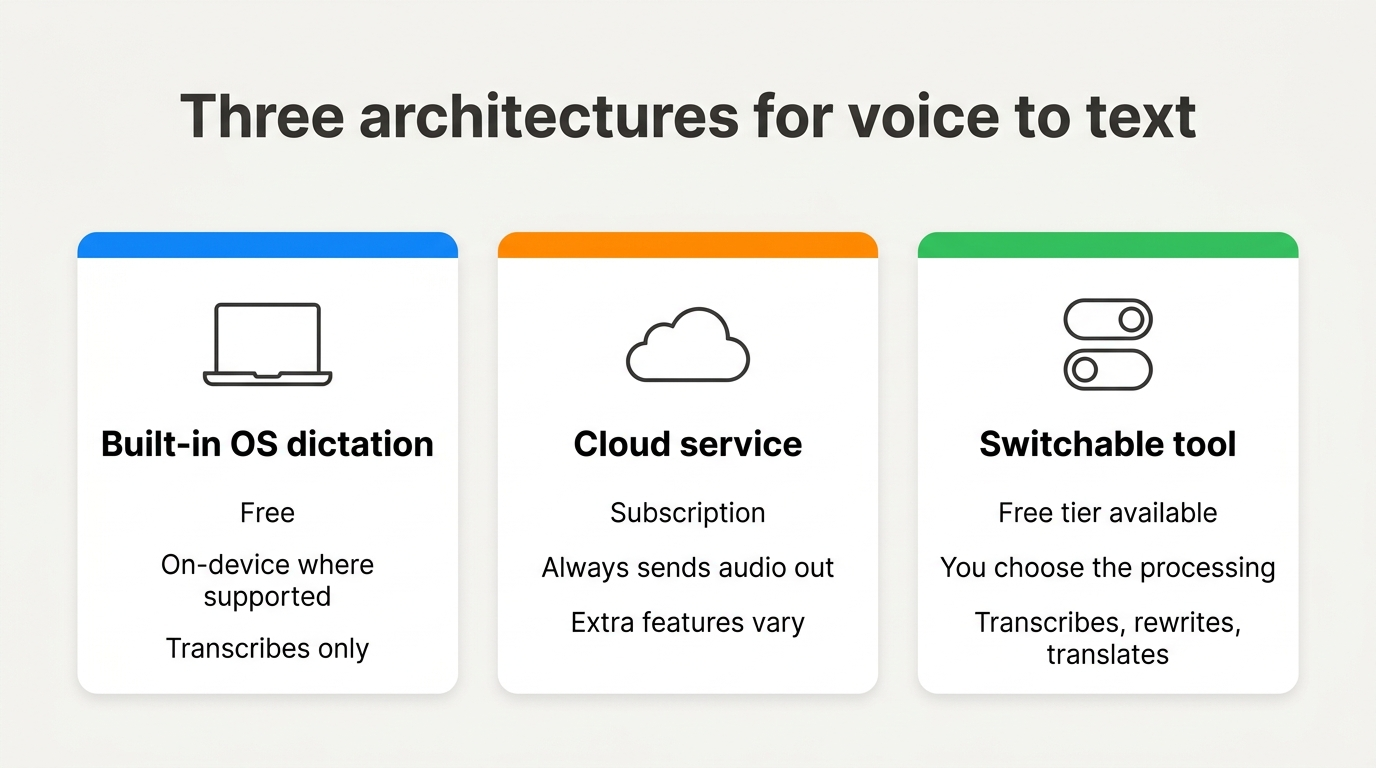
Rather than compare named products whose features change every quarter, it is more durable to compare architectures. Voice to text tools fall into three structural categories, and the category determines what you get.
| Built-in OS dictation | Cloud dictation service | Switchable tool (bring your own key) | |
|---|---|---|---|
| Cost | Free with the OS | Subscription | Free tier, paid plans for more |
| Where audio is processed | On-device where supported, otherwise the vendor's servers | Vendor's servers, always | Your choice, via the provider and key you select |
| Works offline | Where on-device applies | No | Depends on the mode you choose |
| Rewrites and reshapes text | No | Sometimes | Yes |
| Translates as you speak | No | Sometimes | Yes, 50+ languages |
| Grammar correction | No | Sometimes | Yes |
| Custom vocabulary | No | Sometimes | Yes |
| Transcribes recorded files | No | Sometimes | Yes |
| Runs on both macOS and Windows | No | Usually | Yes |
| Feature parity across languages | No, three separate tiers | Varies | Consistent |
The pattern is that built-in dictation optimises for zero friction and zero cost, cloud services optimise for features at the price of sending everything off your machine, and switchable tools try to keep both. ParrotKey sits in the third column. None of the three is universally right. What is right depends on which row of that table you actually care about.
Which should you use? A decision guide
The honest version of this decision comes down to four questions.
Stick with Apple Dictation if you write in English or another well-supported language, you are on Apple silicon, your dictation is mostly short messages and notes, you never need the text changed after it lands, and you only work on Apple hardware. Under those conditions it is free, private, fast, and already installed. Reaching for anything else would be overkill.
Look at dictation software for mac and Windows if any of these is true: you write in a language that sits outside Apple's on-device or auto-punctuation tiers, you switch languages inside a single sentence, you need the text cleaned up or translated rather than just transcribed, you have specialist vocabulary that never survives transcription, you have recorded audio to convert, or you work across both operating systems.
Look specifically at privacy-controllable tools if you handle client or regulated data and need to demonstrate where processing happens rather than trust a settings toggle.
Consider that you may want both. This is the outcome for most people and it is worth saying out loud. Apple Dictation is excellent for a quick reply on your phone. A dedicated tool is for the work you get paid for. Nothing about installing one removes the other.
How ParrotKey handles what Apple Dictation doesn't
ParrotKey is a voice to text app for Mac and Windows which works system-wide, in any app where you can type, which is the one thing it has in common with Apple Dictation. The differences are the six boundaries above.
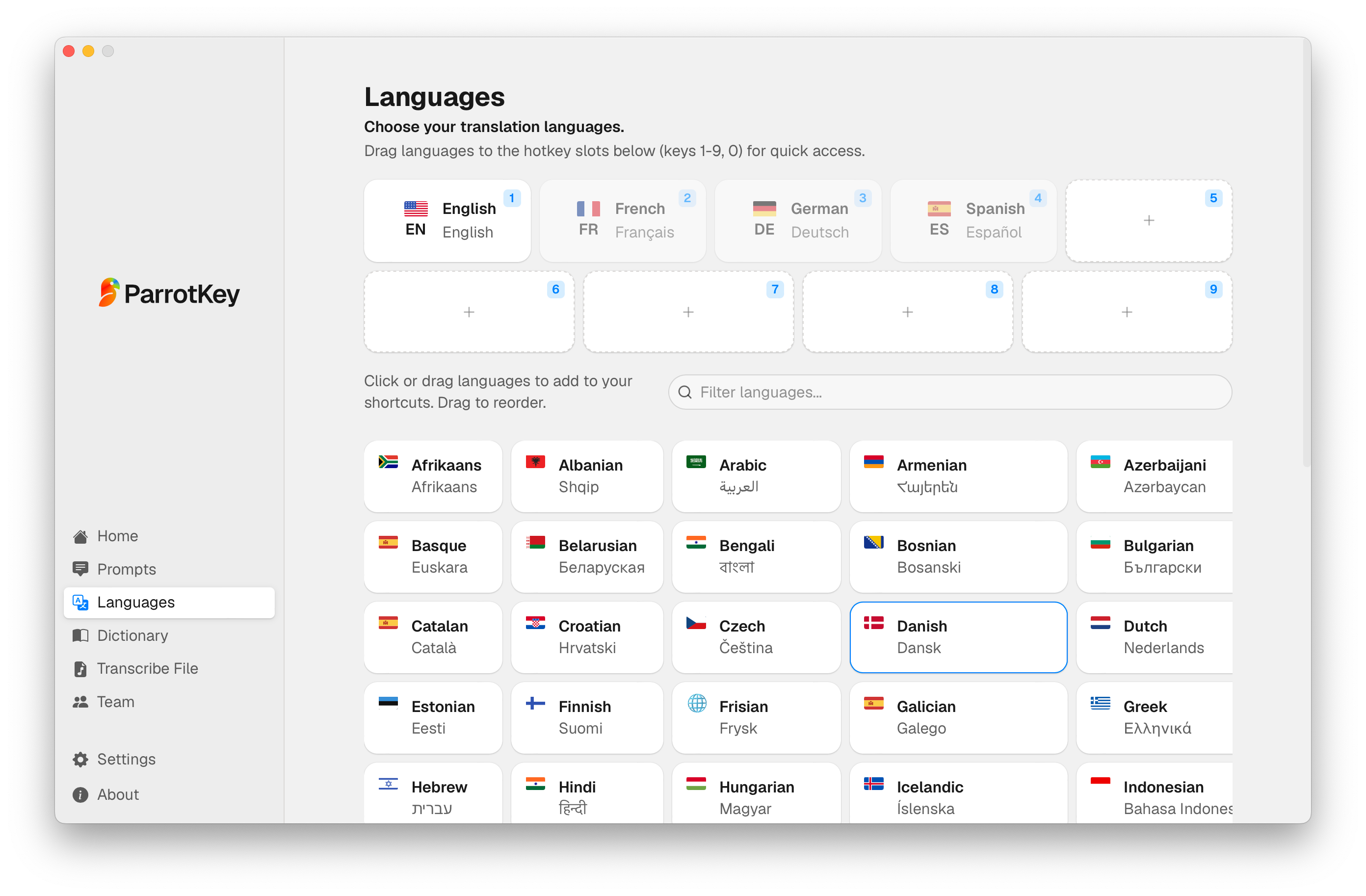
It handles AI translation across more than fifty languages as you speak, so you can dictate in Spanish and have English land at your cursor. Parrotkey corrects grammar rather than transcribing your false starts verbatim. It reshapes text with AI prompts, so a dictated ramble becomes a paragraph without you rewriting it. It has a custom dictionary for the terms that matter in your field. It transcribes uploaded audio and video files as well as live speech. And it runs on both macOS and Windows, with the same behaviour on each, which matters for mixed teams and for anyone whose work machine and home machine disagree about which company made them.
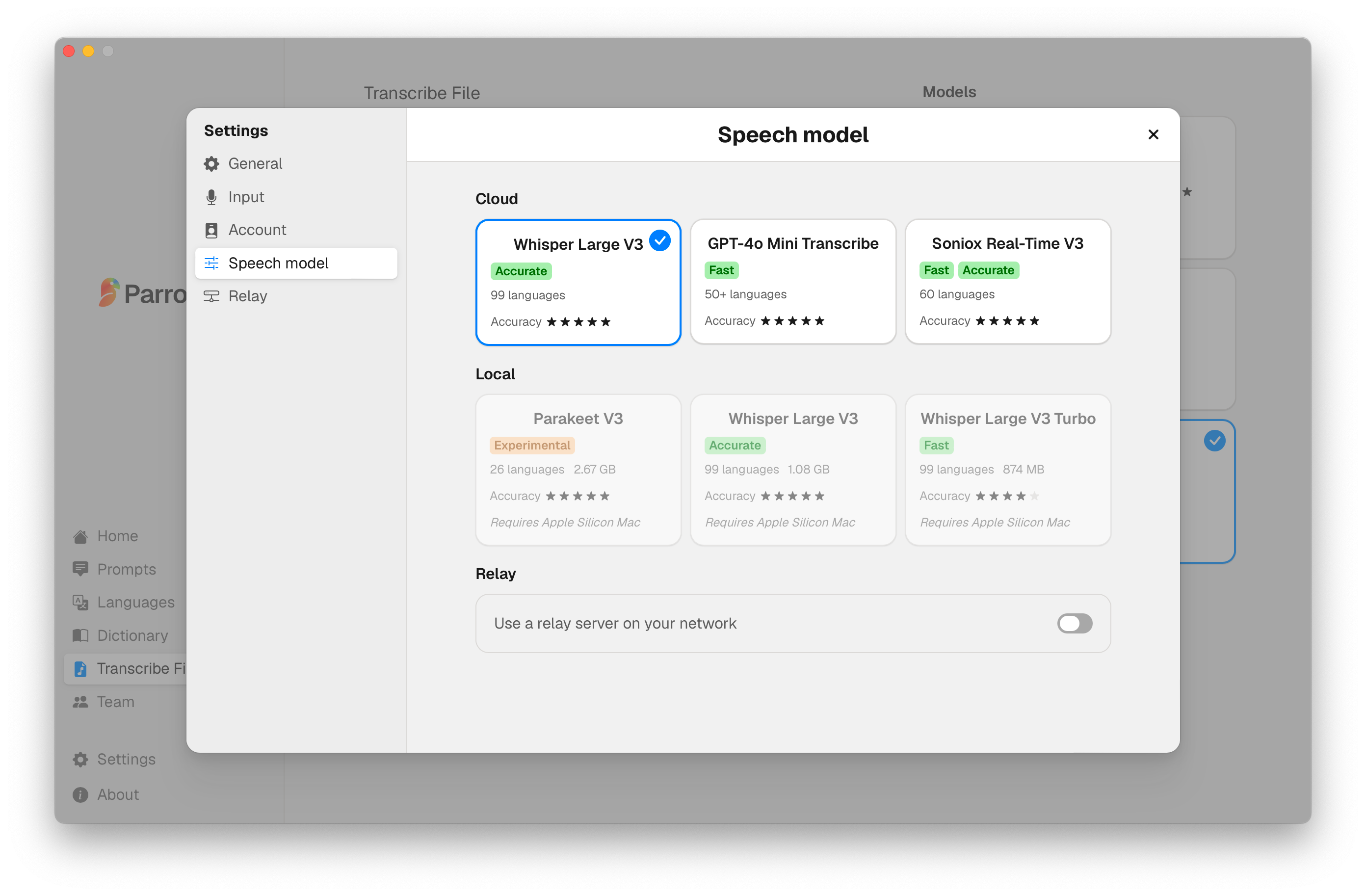
On processing, ParrotKey's answer is to give you the choice rather than to make a blanket claim. You can bring your own API key, which means you decide which provider handles your audio and under what terms. That is a different proposition from Apple's, which is on-device by default for some languages and hardware and server-side for the rest, with no lever you control.
There is a permanent free plan, so the comparison you actually care about, how it handles your voice, your accent, and your vocabulary against the built-in option you already have, is one you can run yourself this afternoon. Details of the plans are on the ParrotKey pricing page.
Conclusion
Apple Dictation is better than its reputation and narrower than its marketing. Apple documents no timeout, auto-punctuation is real, and on Apple silicon in a supported language your voice genuinely stays on your machine. Anyone still describing it as a broken toy is describing software from several years ago.
What has not changed is its scope. It transcribes, in one language at a time, in three uneven feature tiers, with no memory of your vocabulary, no ability to touch the text afterwards, no way to handle a recorded file, and no presence on Windows. Those six boundaries are not bugs Apple forgot to fix. They are the edge of what Apple decided to build.
If your writing lives inside those edges, you already have what you need. If it does not, the gap is specific enough to name, and a tool built for the other side of it will save you the rewriting you are currently doing by hand. ParrotKey is free to try on both Mac and Windows, and one afternoon with your own work is worth more than any comparison table.

 Commencez gratuitement