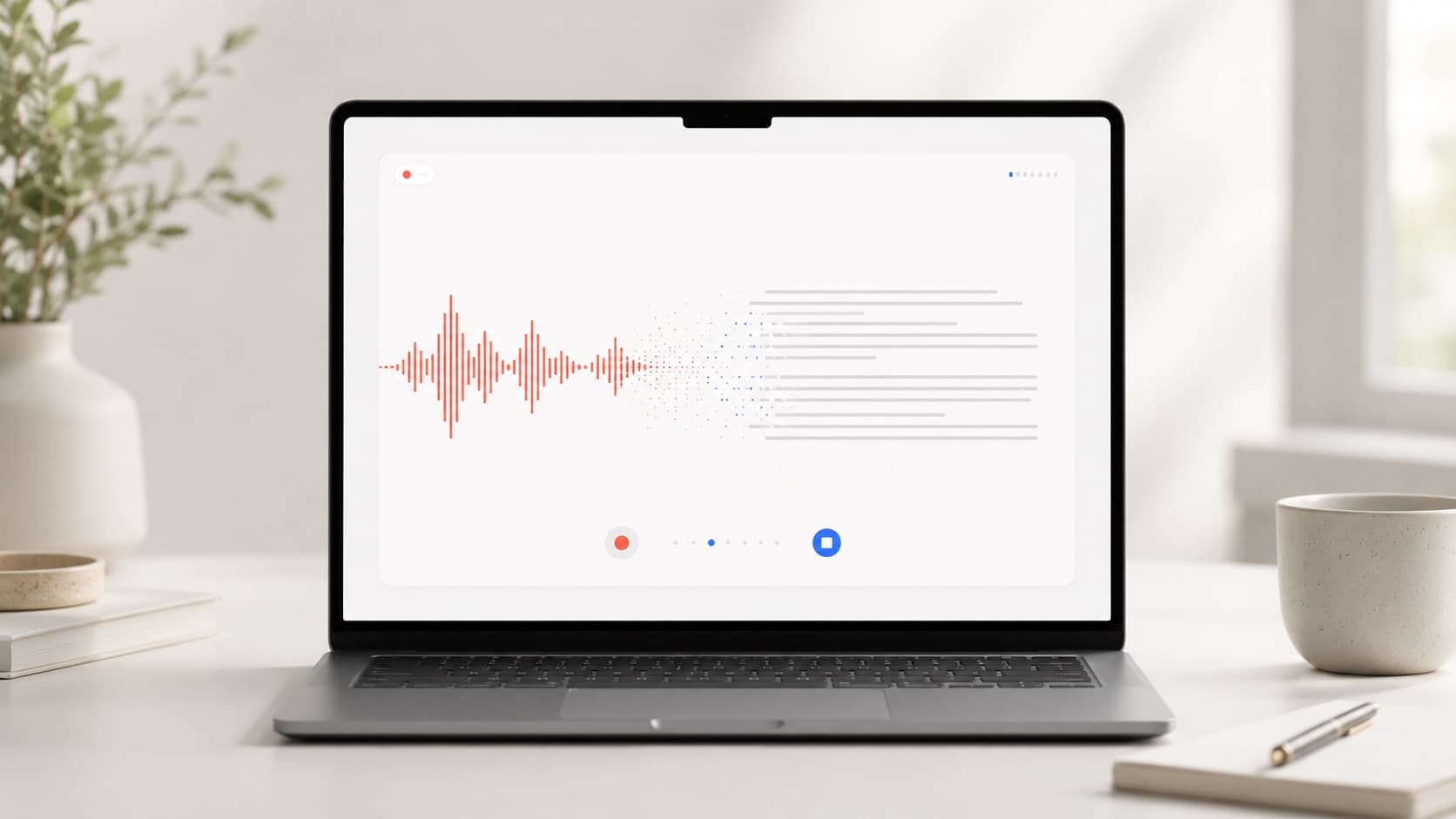


You have audio, and you need it as text. Maybe it is an hour-long interview sitting in your voice memos. Maybe it is a lecture you recorded, a client call, or a podcast episode you want to repurpose. Or maybe there is no recording at all yet, and what you really want is to write by speaking instead of typing.
Those are two different jobs, and almost every "audio to text" article online only tells you about one of them. Worse, most of them funnel you toward a cloud service that asks you to upload your audio to someone else's servers, charges by the minute, and wants you to make an account before you can paste in a single file.
This guide does it differently. It covers both jobs honestly, helps you figure out which one you actually need, and shows you how to get from sound to text quickly, accurately, and without handing your recordings to a stranger's cloud. Let's get into it.
Key takeaways
- "Audio to text" really splits into two tasks: transcribing an existing recording (file transcription) and writing by speaking in real time (dictation). Knowing which one you need saves you a lot of wasted effort.
- The accuracy gap between cloud tools and on-device tools has largely closed for clean English and major European languages, so in 2026 the real trade-off is convenience versus privacy and cost, not quality.
- General AI assistants like ChatGPT and Copilot can help with text but are clumsy at turning a raw audio file into a clean transcript, with tight file limits and missing features.
- A desktop app that handles both file transcription and live dictation locally gives you one tool for every audio-to-text situation, with no uploads, no per-minute meter.
What does "audio to text" actually mean?
At its simplest, audio to text is the process of turning spoken words into written words automatically. The technology behind it is called automatic speech recognition, sometimes shortened to ASR or just speech to text. A model listens to the sound, predicts the most likely sequence of words, and writes them out for you.
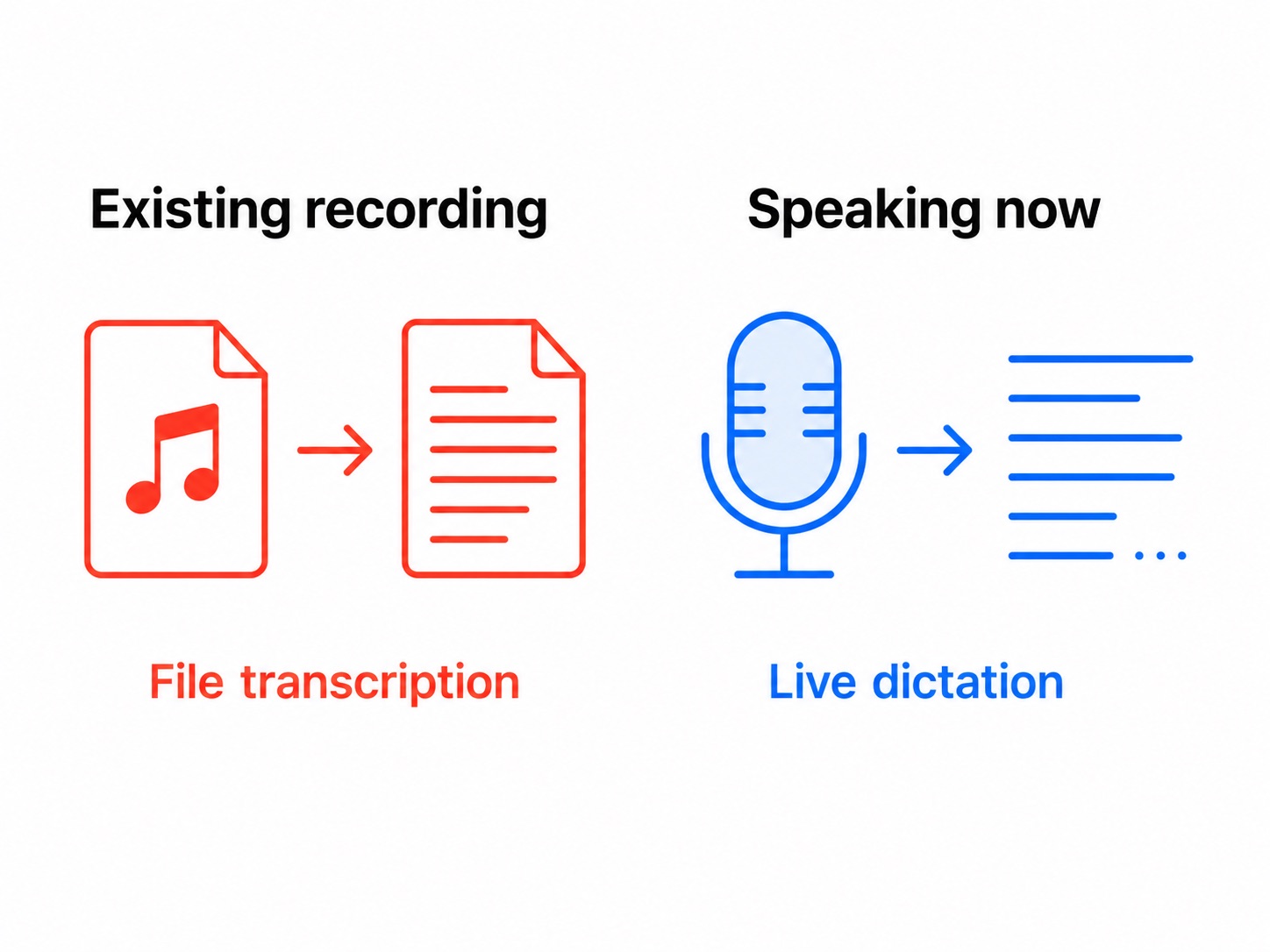
But the phrase hides an important fork in the road. When people search for a way to get from audio to text, they almost always have one of two situations in mind, and the right approach is completely different depending on which one you are in.
The first situation is that a recording already exists. You have a file, and you want a transcript of what is in it. This is file transcription, and it is the heavier of the two jobs because the audio can be long, the quality can vary, and there can be multiple speakers.
The second situation is that nothing is recorded yet. You want to produce text by talking, so the words appear on screen as you speak. This is dictation, or live voice to text, and it is built for composing in the moment rather than processing something after the fact.
Most tools are good at only one of these. A few rare ones do both. Knowing which job is yours is the single most useful thing you can sort out before you pick a tool, so the next two sections walk through each path in turn.
Path 1: turning an existing recording into text (file transcription)
This is the high-demand version of audio to text. People searching for an audio to text converter, an audio to text transcribe tool, or audio to text transcription almost always have a file in hand and a deadline behind it.
How file transcription works
You take a recording, hand it to a speech recognition model, and get back a block of text. Modern models are trained on hundreds of thousands of hours of speech, which is why they handle accents, background noise, and natural conversational rhythm far better than the clunky voice tools of a decade ago. In 2026 the accuracy gap between local and cloud transcription has narrowed to the point where the trade-off is no longer accuracy versus privacy, it is convenience versus control.
The formats you will run into are the usual suspects: MP3, WAV, M4A, and MP4 for audio, plus a handful of others. A good file transcription tool accepts the common ones without making you convert anything first.
Where most file transcription tools quietly cost you
Here is the catch that the typical roundup article skips over. The mainstream way to transcribe a file is to upload it to a cloud service. That introduces three frictions that add up fast.
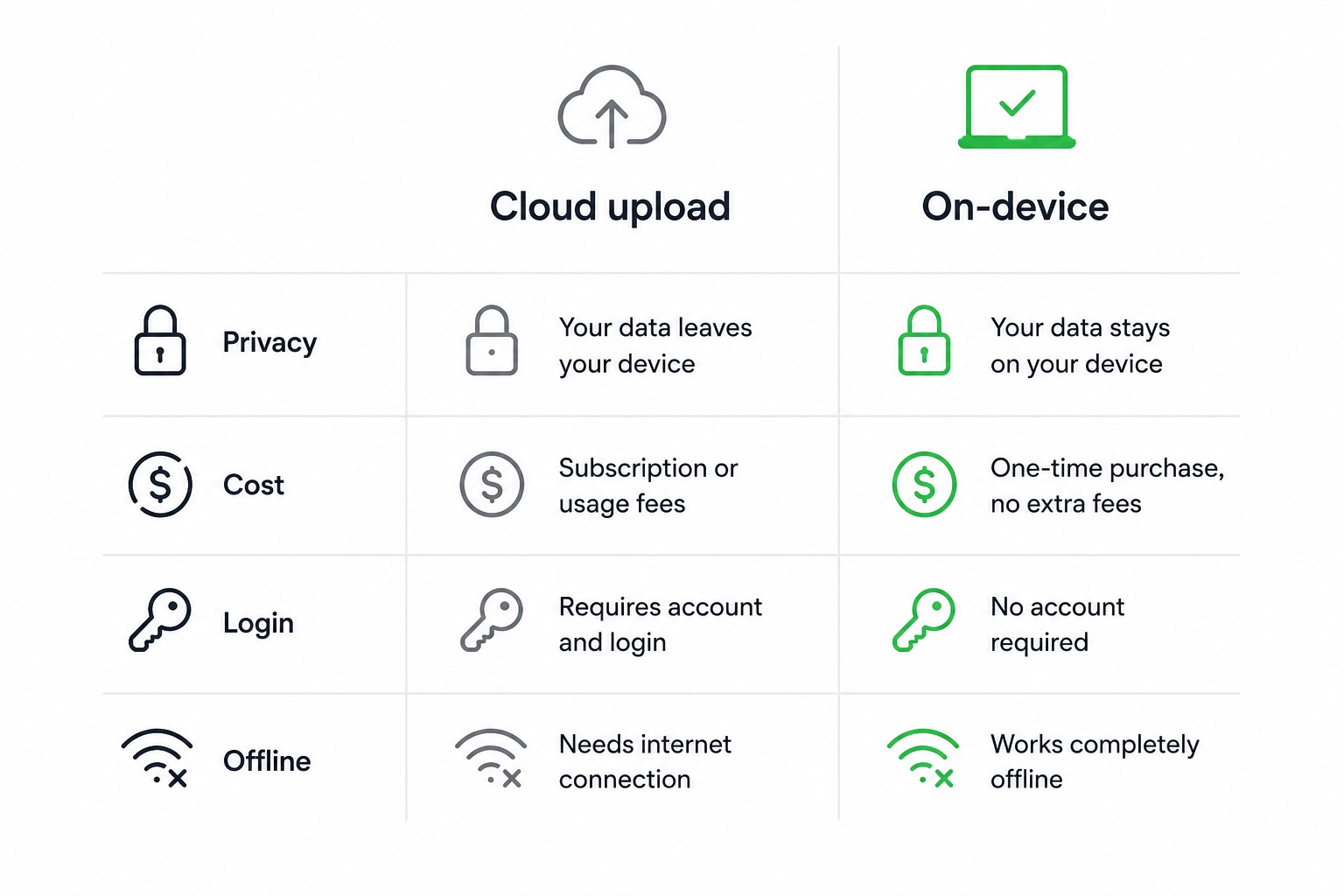
The first is privacy. When you upload audio to a cloud service, that recording now lives on someone else's server, governed by their retention policy rather than yours. For anyone handling sensitive conversations in legal, medical, financial, or proprietary contexts, audio leaving your machine is not a feature.
The second is cost. AI transcription typically runs between $0.05 and $0.25 per minute of audio, and monthly subscription tools generally land in the $10 to $60 range depending on the tier. A few long interviews and you are paying real money, or watching a free meter run out.
The third is the login wall. Plenty of "free" converters will not let you near the transcribe button until you have handed over an email address.
None of these have anything to do with whether the transcript is good. They are business-model frictions, not technical ones. And they are exactly where a local approach changes the math, which we will come back to.
Path 2: writing by speaking (live dictation)
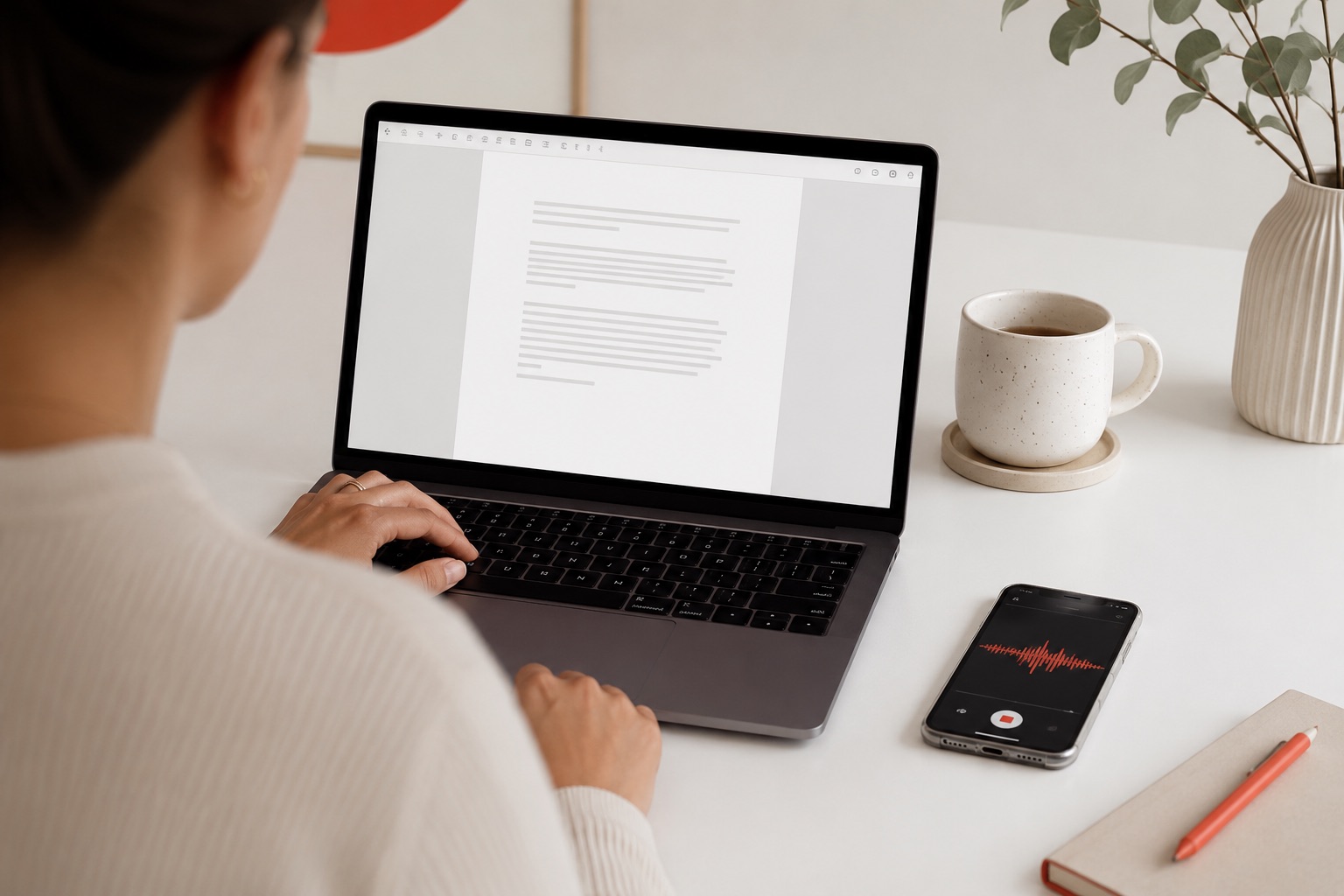
The other half of audio to text is not about processing a recording at all. It is about replacing your keyboard with your voice. You search for an audio to text app or wonder is voice to text AI any good now, because you would rather talk out a draft, an email, or a set of notes than type it.
Dictation is a genuinely different tool from file transcription, even though both turn speech into text. It runs continuously and in real time, the words land on screen as you talk, and it is tuned for the back-and-forth of composing rather than the one-shot processing of a finished file. Good dictation also handles spoken punctuation, fixes spacing and capitalization on the fly, and ideally lets you clean up or reshape what you said afterward.
The appeal is speed. Most people speak far faster than they type, so for first drafts, long emails, and capturing ideas before they evaporate, dictating is often the quickest route from thought to text.
The frustration with most dictation comes from the built-in tools. Apple Dictation and Windows Voice Typing are fine for a quick sentence, but they stop short of what serious writing-by-voice needs: no custom vocabulary for names and jargon, limited or no offline mode, and no AI cleanup of the raw transcript. A dedicated voice dictation tool is built to clear exactly those walls.
How to convert audio to text, step by step
Whichever path you are on, the actual process is short once you have the right tool. Here is the general flow for each.
Converting a recording to text
- Open your transcription tool and choose the "transcribe file" option.
- Select or drag in your audio or video file. Common formats like MP3, WAV, M4A, and MP4 should work without conversion.
- Pick the language if the tool does not detect it automatically.
- Start the transcription and wait. On-device tools process at several times real time, so a one-hour file is usually done in a handful of minutes.
- Review and lightly edit the text. Even excellent transcripts benefit from a quick read-through for names and technical terms.
Dictating text with your voice
- Open the app you want to write in, anywhere on your system.
- Press your dictation hotkey to start listening.
- Speak naturally, saying punctuation like "comma" or "new paragraph" where you need it.
- Stop dictation, then tidy up or run an AI cleanup pass if your tool offers one.
The reason this matters: the best setup is one where both flows live in the same app, so you are not juggling a cloud uploader for files and a separate dictation utility for live writing.
Can ChatGPT or Copilot convert audio to text?
This question comes up constantly, so it is worth answering plainly. First, a distinction that trips people up: ChatGPT does have a working dictation feature. Tap the microphone in the message box and your speech becomes text you can edit before sending. That is genuinely useful, but it is the live-dictation job from earlier, and it only works inside ChatGPT's own window. The question most people are really asking is the other job: can these assistants turn an existing recording into a clean transcript? There the short version is that they can touch audio, but they are awkward at it.
ChatGPT can take an audio file, because it runs OpenAI's Whisper model underneath. But the limits bite quickly. There are no speaker labels, no timestamps, an accuracy ceiling around 86%, a 25 MB file cap, and no batch processing. Files longer than about ten minutes often come back incomplete, and a 25 MB cap means a normal hour-long interview is over the ceiling before you even start.
Microsoft Copilot is even more indirect. Copilot does not currently support transcribing an audio file directly. It works from a transcript that another app, such as Word or Teams, has already created. In other words, Copilot is the layer that summarizes a transcript, not the thing that makes one.
The honest takeaway: these assistants are great at doing things with text once you have it, like summarizing or reformatting. They are not built to be your audio to text converter. For that you want a dedicated tool, and ideally one that does not route your recording through a chat window in the cloud.
Free vs paid: what you really get
"Audio to text free" is one of the most common searches in this space, and the honest answer is that free options exist but almost always come with a catch. Free tiers typically carry significant feature or usage restrictions, such as monthly minute caps and limits on what you can export. The fully free, no-limits options tend to be open-source models that require command-line setup and a capable computer, which is not realistic for most people.
So the practical question is not "free or paid" but "where is the limit, and does it hit me?" A free meter measured in minutes per month runs out fast if you transcribe regularly. A free tool that caps file length blocks your long recordings. And a free converter that demands a login is not really friction-free at all.
This is where the local model genuinely changes things. When transcription runs on your own machine instead of someone's cloud, there is no per-minute server cost to pass on to you, which is why a local-first tool can offer a real free plan rather than a teaser. For the current details on what each plan includes, the pricing page always has the up-to-date specifics rather than a number that goes stale in a blog post.
Accuracy, languages, and privacy
Three things decide whether an audio to text tool is actually good for your situation. Here is how to think about each.
Accuracy
For clean audio, modern models are strong across the board. Whisper large-v3 matches or exceeds the accuracy of cloud services on clean English audio, and for the majority of knowledge workers transcribing meetings, calls, and voice notes in English or major European languages, local tools deliver equivalent results. Cloud services still have a slight edge on very noisy audio or uncommon languages, but for everyday recordings that gap is small.
Languages
If you work across languages, check coverage before you commit. Some tools handle only a handful; others stretch across dozens. ParrotKey's translation feature covering 50+ languages means audio to text does not stop at transcription. You can turn a recording into text and then move it across languages in the same place, which matters if you search for things like audio to text spanish or audio to text chinese.
Privacy
This is the dimension most articles ignore and most professionals care about most. The simplest privacy guarantee is also the strongest: if your audio never leaves your device, there is no server retention policy to read, no upload to worry about, and nothing to leak. On-device processing means your recording and its transcript stay on your machine, full stop. For sensitive interviews, client calls, or anything under a confidentiality obligation, that is the difference between a tool you can use and one you cannot.
Audio to text on Mac and Windows
Because the strongest audio to text tools are desktop apps, where you work matters. Both major platforms have built-in options, and both have clear ceilings.
On Mac
Apple's built-in Dictation is convenient for short bursts but is built for quick voice input rather than serious transcription, and it has no built-in way to drop in a recorded file and get a transcript back. For Mac users who want both jobs handled well, a dedicated local app fills the gap, giving you file transcription and dictation in one place without Apple Dictation's limits.
On Windows
Windows has Voice Typing, reachable with the Win+H shortcut, which is handy for live dictation but is cloud-based and offers no real offline mode. For converting an actual recording, Windows users are usually pushed toward Word's Transcribe feature, which requires a Microsoft 365 subscription and processes uploads in the cloud. A standalone desktop app that runs locally sidesteps both the subscription requirement and the cloud round-trip, and crucially it works the same way on Windows as it does on Mac.
The cross-platform point is worth underlining. If you switch between a Mac and a Windows machine, a single app that behaves identically on both removes a lot of friction that platform-specific built-in tools create, which is part of why it works so well for multilingual teams spread across devices and languages.
Which audio to text tool fits you?
Pulling it together, here is how the options stack up against the two jobs and the three things that actually matter.
| What you need | Cloud upload tools | ChatGPT / Copilot | Built-in OS tools | ParrotKey |
|---|---|---|---|---|
| Transcribe an existing recording | Yes, but uploads required | Limited, tight file caps | Limited or subscription-gated | Yes, on-device |
| Live dictation by voice | Rarely | Yes, but only inside their own app | Basic only | Yes, system-wide |
| Works offline / locally | No | No | Partly | Yes |
| No login to start | Often no | No | Yes | Yes |
| Per-minute or subscription cost | Common | Subscription | Subscription for files | Free plan, paid tiers for more |
The pattern is clear. Cloud tools cover file transcription but pull your audio off your machine and meter it. General AI assistants like ChatGPT can dictate, but only inside their own window, so the moment you switch to your email, a document, or Slack, that microphone is no longer there. Built-in OS tools are fine for a quick sentence and little more.
The position almost nobody else occupies is one app that does both jobs, dictates system-wide in any app rather than just one, runs locally so your audio stays private, needs no login to get going, and works the same on Mac and Windows. That is exactly where ParrotKey sits. It handles live dictation anywhere you can type when you want to write by speaking, and its built-in file transcription turns pre-recorded audio and video into text using on-device models, so a single tool covers every audio to text situation you are likely to hit.
ParrotKey does more than convert, too. Once your words are text, built-in grammar correction and AI text transformation tidy and reshape them, turning a rough spoken draft into something you can actually send.
Conclusion
Audio to text is really two jobs wearing one name. Sort out whether you have a recording to transcribe or a draft to speak, and the right tool becomes obvious. In 2026 the quality question is mostly settled for everyday audio, which moves the real decision to privacy, cost, and convenience. Cloud uploaders meter you and take your audio off your machine; general AI assistants are clumsy at the transcription itself; built-in tools stop at the basics.
A local desktop app that does both file transcription and live dictation, keeps everything on your device, and asks nothing of you to get started covers all of it in one place. If that is what you are after, you can download ParrotKey and start with the free plan, no email required, to see how it fits your work first.

 Comece grátis