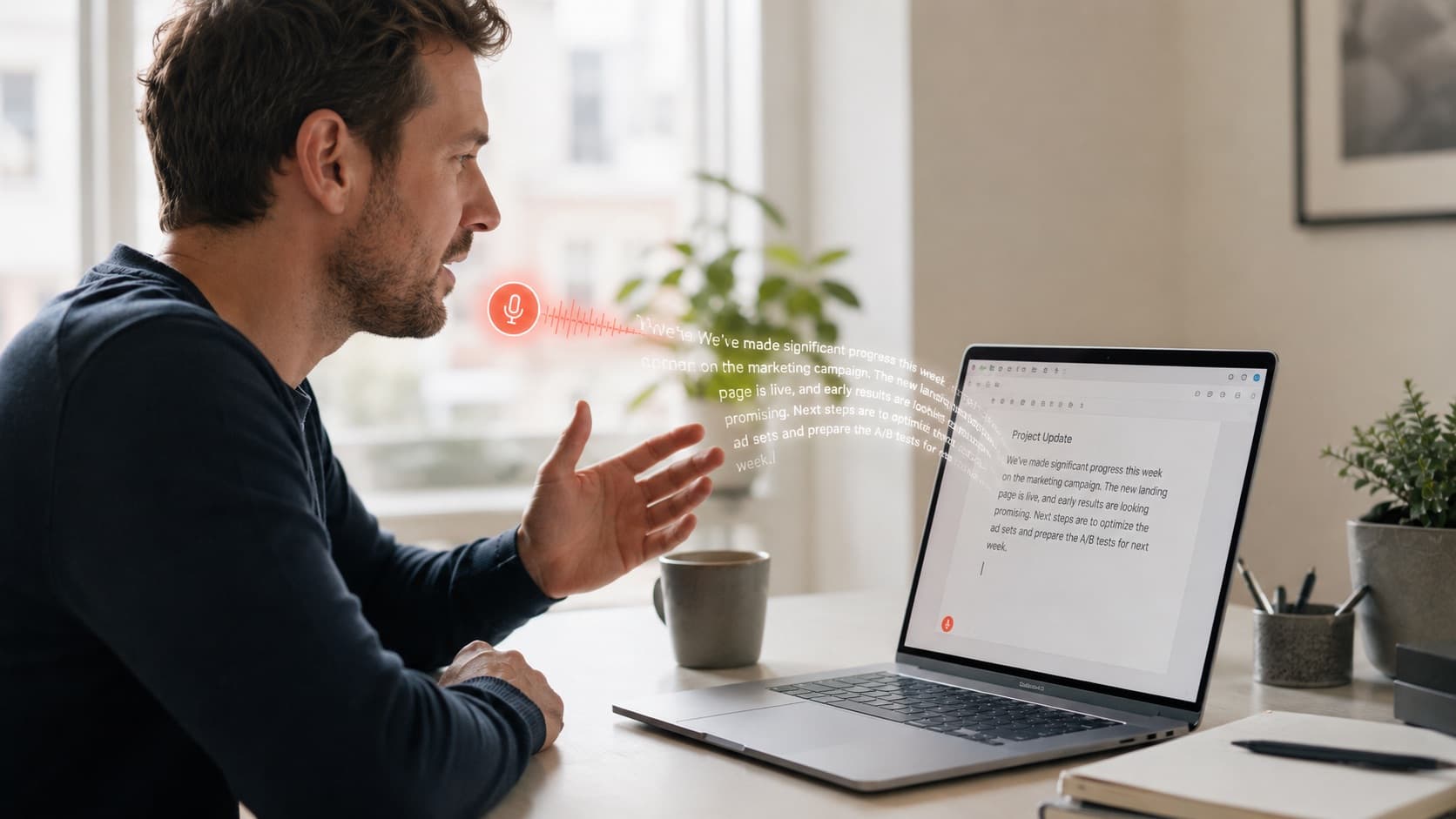


Speech to text recognition software turns the spoken word into written text, but that simple description hides three very different jobs. Some people want to talk and watch the words appear as they write an email. Others have a recording, a meeting or a voice memo, and need it turned into a clean transcript. And a growing group wants both, plus the software to fix the punctuation, correct the grammar and even translate the result before it ever reaches a colleague.
That is the quiet problem with the phrase. It sounds like one product. In practice it covers three separate jobs, and most tools are genuinely good at only one of them. Built-in system tools handle quick dictation but choke on a two-hour audio file. Browser tools transcribe as you speak but cannot open a recording you already have. Cloud transcription services process your files beautifully but send your voice to a server you do not control.
This guide untangles the category. It explains what speech to text recognition software actually is, how the technology works in plain terms, the three jobs to keep separate in your head, and a practical way to choose a tool based on the job you actually need done. No brand rankings, no hype, just the decision framework. And if you want the short version: tools that cover all three jobs in one place are rarer than they first appear, which is exactly the gap ParrotKey was built to fill.
Key takeaways
- Speech to text recognition software converts spoken audio into written text, and the modern category splits into three distinct jobs: live dictation, file transcription, and cleaning up the raw text afterward.
- Most tools handle one job well. Built-in operating system dictation, browser voice typing, and cloud transcription each cover a slice, not the whole workflow.
- Where your audio is processed matters as much as accuracy. Local, on-device processing keeps recordings private and works offline; cloud tools need a connection and send your voice away.
- The right choice depends on the job. Pick for how you actually work: a writer dictating drafts, a student transcribing lectures, or a professional who needs both plus grammar and translation in one place.
What is speech to text recognition software?
Speech to text recognition software is any program that listens to spoken audio and converts it into written, editable text. You will also see it called voice to text, dictation software, or automatic speech recognition (ASR). People use these terms interchangeably, and for everyday purposes they describe the same core idea: sound in, text out.
Is speech to text AI? Modern speech to text is powered by artificial intelligence, yes. Today's tools run on large neural speech models trained on enormous, diverse sets of audio, which is what lets them handle accents, natural pauses and background noise far better than the rigid systems of a decade ago. The AI does not stop at recognition either. A second layer often adds punctuation, capitalizes sentences and can reshape rambling speech into a tidy paragraph. That shift, from raw transcription to intelligent output, is the single biggest reason dictation finally feels faster than typing for many people.
It helps to separate two words that get blurred together. Speech recognition is the broad category: any system that turns sound into text or into computer commands. Speech to text is the specific outcome most people want: the words landing in a document, an email or a chat box. When someone types "speech to text recognition software" into a search bar, they almost always want that second thing, a tool that produces usable text they can keep.
The three jobs speech to text software actually does
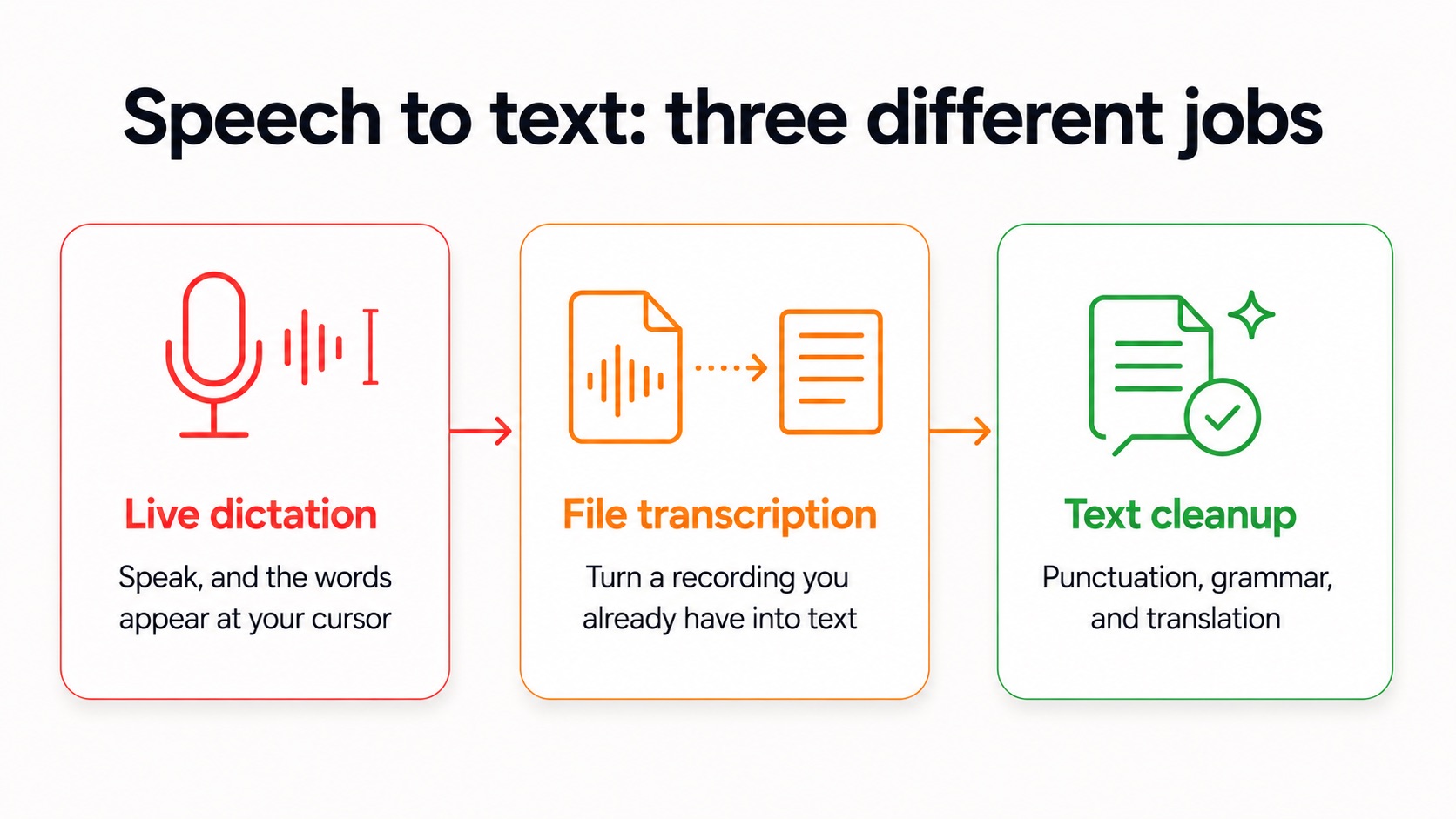
This is the section that saves you time. Once you know which of these three jobs you need, the category gets a lot smaller.
Job one: live dictation. You speak and the words appear at the cursor in real time. This is the everyday case for writing emails, notes, messages and documents by voice instead of typing. The best versions of this work system-wide, meaning they type into any application, not just one window.
Job two: file transcription. You already have a recording, an interview, a lecture, a voice memo, a meeting export, and you need it converted into text after the fact. This is a different technical task from live dictation, because the software has to process a whole file rather than a continuous microphone stream. Many popular dictation tools cannot do this at all.
Job three: cleaning up the text. Raw transcription is rarely the finished product. The words might need punctuation, grammar correction, a more professional tone, or translation into another language before you send them. Historically this was manual work you did afterward in a separate app. Increasingly, the strongest tools fold it into the same workflow, so the text that lands is already polished.
The reason this matters: a tool built purely for live dictation leaves you stuck when a recording arrives. A pure transcription service does nothing when you just want to talk through an email. And a tool that stops at raw text hands you a cleanup chore every time. The question worth asking is not "which is the best speech to text software" but "which tool covers the jobs I actually do."
ParrotKey was built to sit across all three. It handles live, system-wide voice dictation software that types into any app, includes built-in file transcription for common audio and video formats, and adds an AI layer for grammar correction, text transformation and translation, all processed locally on your Mac or Windows machine.
What decides how accurate it feels?
You do not need an engineering degree to choose well. In practice, the accuracy you experience comes down to just two things: the quality of the recognition model doing the work, and where that work happens.
On the model side, modern AI changed the game. Today's tools run on large speech models trained on huge, varied datasets, so they cope with accents and natural speech far better than the rigid systems of a decade ago. As a reference point, Whisper reached roughly 97.9% word accuracy on clean audio in MLCommons' 2025 benchmark, a level older speech APIs could not match. Your own results will vary with your microphone, accent and background noise, so a decent mic in a quiet room is the cheapest accuracy upgrade you can make.
Where the processing happens matters just as much, and it is the part buyers most often overlook. It affects your privacy, whether the tool works offline, and even the running cost. That question is worth its own section.
Which type of speech to text tool fits which job?
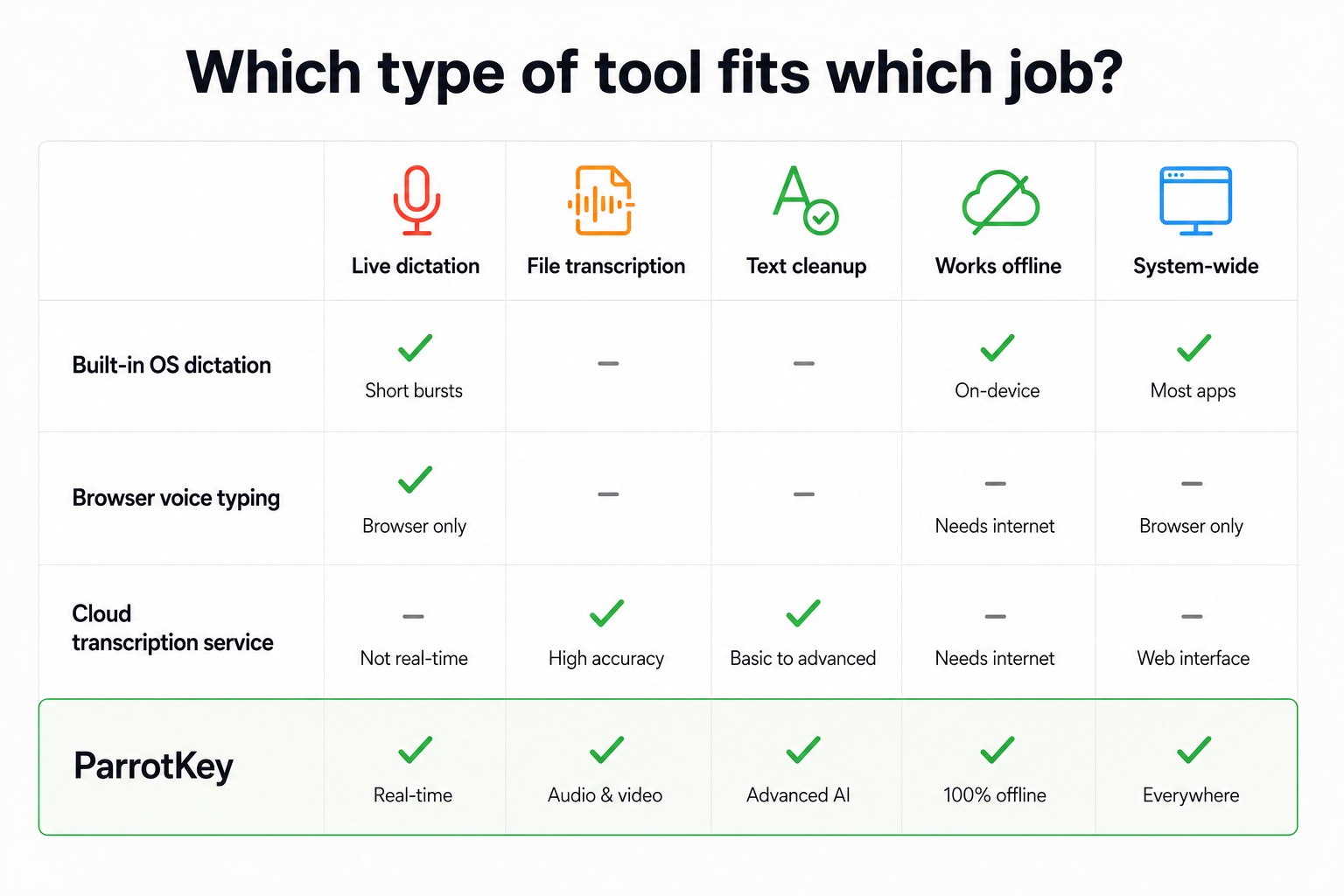
Instead of ranking brands, it is more useful to compare the categories of tool, because each category has a built-in strength and a built-in limit. Here is how they line up against the three jobs.
| Tool category | Live dictation | File transcription | Text cleanup | Works offline | Works system-wide |
|---|---|---|---|---|---|
| Built-in OS dictation | Yes, short bursts | No | Minimal | Sometimes | Yes |
| Browser voice typing | Yes, in the browser | No | Basic | No | No, browser only |
| Cloud transcription service | Rarely | Yes | Varies | No | No |
| Local desktop app | Yes | Yes | Yes | Yes | Yes |
A few things stand out when you see it laid out like this.
Built-in operating system dictation, such as the tools that ship with Windows and macOS, is free and always available, but it is tuned for short dictation and cannot open a recorded file. Browser voice typing works well while you are inside that browser tab and collapses the moment you switch to a desktop app. Cloud transcription services are strong on files but usually need a connection and route your audio through their servers. A local desktop app is the only category positioned to cover all three jobs while keeping your audio on your own machine.
None of this makes the free built-in tools useless. For a quick note or an occasional email, they are perfectly fine, and you already have them. The gap opens up when your work spans more than one job, or when the audio is sensitive enough that you would rather it never left your computer.
Speech to text software for Windows and Mac
Speech to text software for Windows specifically is worth singling out, because it exposes a real split in the market. Plenty of well-known dictation tools run on only one operating system. Some are Mac-only. Some, including certain long-standing professional dictation names, have narrowed to Windows. If you work across both, or your team is mixed, that fragmentation is a genuine headache.
Cross-platform support is worth prioritizing for exactly this reason. A tool that behaves identically on Windows and macOS means one workflow to learn, one set of habits, and no gaps when you move between a work PC and a personal Mac. ParrotKey runs natively on both, so its speech to text software works the same regardless of which machine you are on.
Does speech to text software work offline?
Whether speech to text software works offline usually comes down to one of two needs: privacy, or being able to work without a reliable connection.
Here is the honest picture. Some tools do limited on-device recognition, so they keep working with no internet. Many of the most accurate options, though, process speech in the cloud and need a connection, which means your audio travels to a remote server. For casual notes that may not bother you. For confidential material, client interviews, medical or legal recordings, or anything under a privacy policy, it is a real consideration, because cloud processing can mean your voice data is stored or analyzed elsewhere.
Local processing sidesteps that entirely. When speech to text runs on-device, the audio never leaves your computer, it works on a plane or in a dead zone, and there is no per-minute meter running in the background. ParrotKey processes both dictation and file transcription locally on your own hardware, which is what makes it a fit for anyone who cares where their audio ends up.
How to set up speech to text on your computer
If you have never dictated before, the setup is simpler than you expect. The general path looks the same across most tools.
- Pick your category first. Decide whether you mainly need live dictation, file transcription, or both. That single choice narrows your options faster than any feature list.
- Check your platform. Confirm the tool runs on your operating system, Windows, Mac, or both if you switch between them.
- Sort out your microphone. Any decent mic in a reasonably quiet space will dramatically outperform a laptop mic in a noisy room. This is the cheapest accuracy upgrade available.
- Install and grant microphone access. Desktop apps will ask for permission to use your microphone; built-in tools have it already.
- Do a short test. Dictate a paragraph, transcribe a short clip, and see how much cleanup the output needs. That five-minute test tells you more than any spec sheet.
For a system-wide desktop tool, the payoff is that once it is set up, it works everywhere you type without any further fiddling. You can download ParrotKey and run that test in a couple of minutes.
Choosing speech to text software for your use case

The last filter is who you are and what you are producing.
Writers want speech to text software that keeps up with a train of thought and produces clean drafts, so the cleanup layer matters as much as raw recognition. If most of your day is drafting, prioritize accurate dictation plus automatic punctuation and formatting. ParrotKey's fit here is covered in more depth for writers and content creators.
Students typically need to capture lectures and turn recordings into notes, which leans on file transcription more than live dictation. Offline support is a bonus for working in libraries or on the move.
Professionals often need everything: dictating emails between meetings, transcribing a recorded call, then tidying and sometimes translating the result before it goes out. This is the classic all-three-jobs profile, and it is where a single tool that does the lot saves the most friction. See how that maps to busy professionals.
Multilingual teams add translation to the mix, needing to move between languages without leaving the app. ParrotKey's built-in translation tool for 50+ languages and its grammar checker built for dictation are designed for exactly that hand-off, so the transcript that lands is already the right language and already clean.
If cost is your starting point, it is worth knowing exactly where the no-cost options stop before you commit. Our guide to free speech to text walks through what you get and where the limits bite. And if you work mostly inside Google's tools, the walkthrough on speech to text in Google Docs covers that specific workflow in detail.
The bottom line
"Speech to text recognition software" is not one product, it is a category covering three jobs: talking your words onto the screen, turning recordings into transcripts, and cleaning up the result. Most tools do one of those well. Built-in and browser tools are fine for the occasional quick job, and cloud services are strong on files if you are comfortable with your audio leaving your machine.
If your work crosses more than one of those jobs, or your recordings need to stay private, the tool worth looking at is the one that dictates system-wide, transcribes files, cleans up the text, and does it all locally on both Windows and Mac. That is the space ParrotKey was built for. See ParrotKey plans and pricing and find out how much of the workflow one app can carry.

 Get started for free