


You want to talk instead of type, and have the words appear where you were about to type them. Dozens of programs promise exactly that, and their websites all use the same four words. Fast. Accurate. Private. AI-powered.
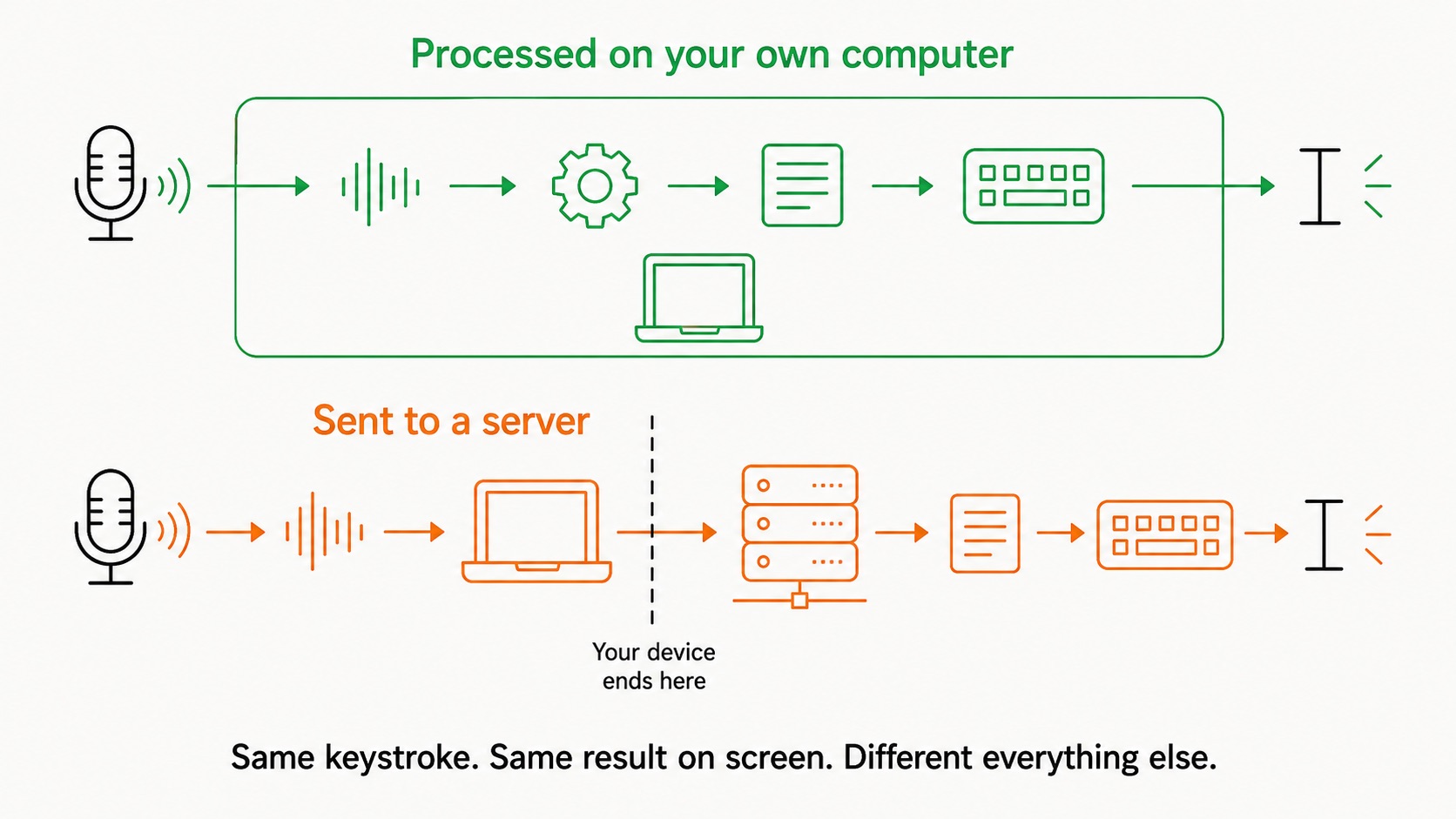
Underneath the identical marketing there is one difference that decides almost everything, and hardly anyone leads with it: some of these programs process your voice on your own computer, and some send the audio to a server. While you are using them, they feel the same. You press a key, you speak, words appear.
The local-versus-cloud difference shows up later: when your connection drops, on your bill, or when you dictate something you would not email to a stranger.
Key takeaways
- Speech to text programs are built in one of three ways: everything happens on your computer, everything happens on a server, or there is a setting that switches between them.
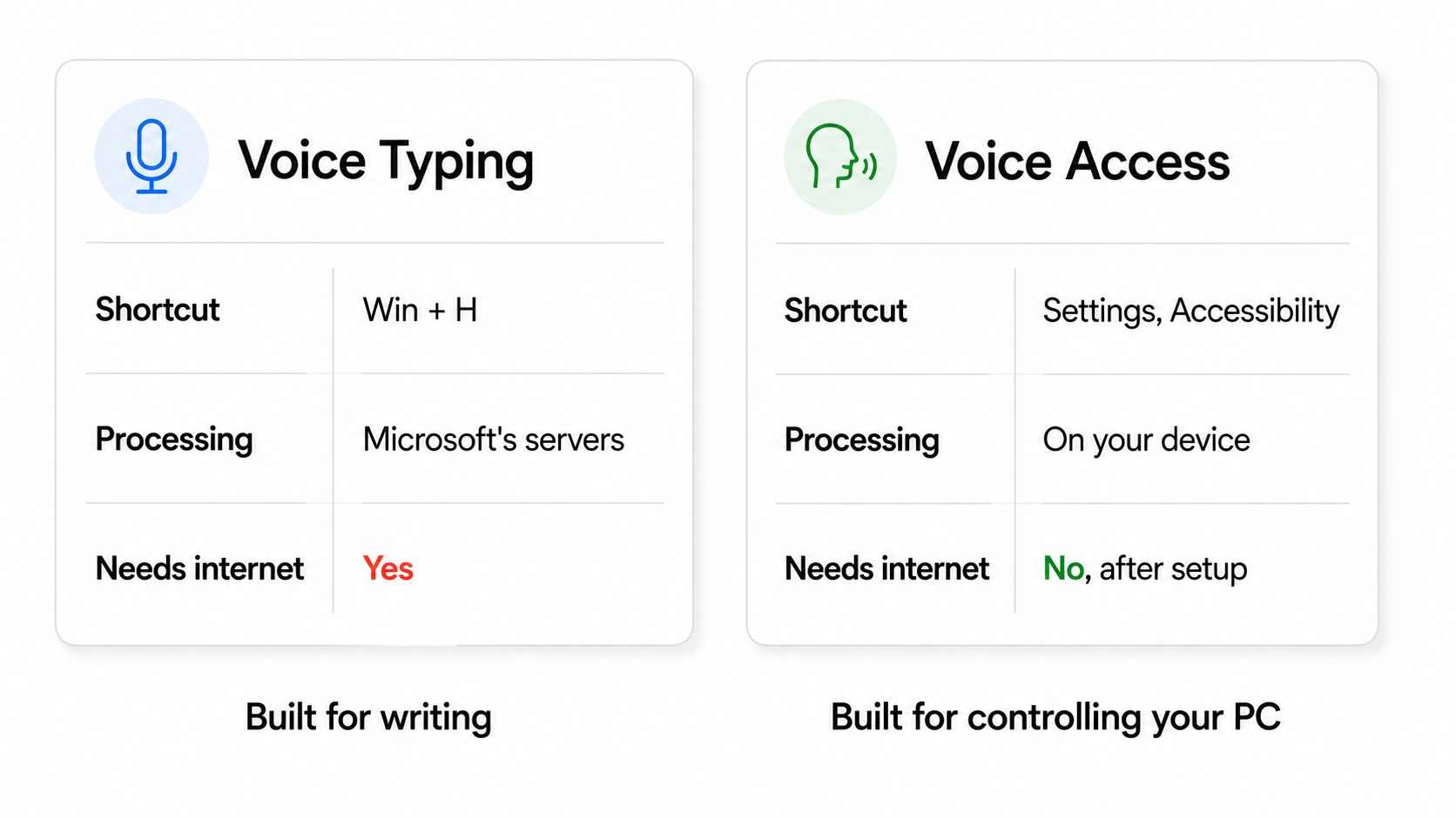
- Windows Voice Typing, the built-in Win + H tool, needs an internet connection because the recognition happens on Microsoft's servers. Voice Access, a separate feature, runs on your device.
- Apple Dictation runs on-device on Apple Silicon Macs once the language model has downloaded.
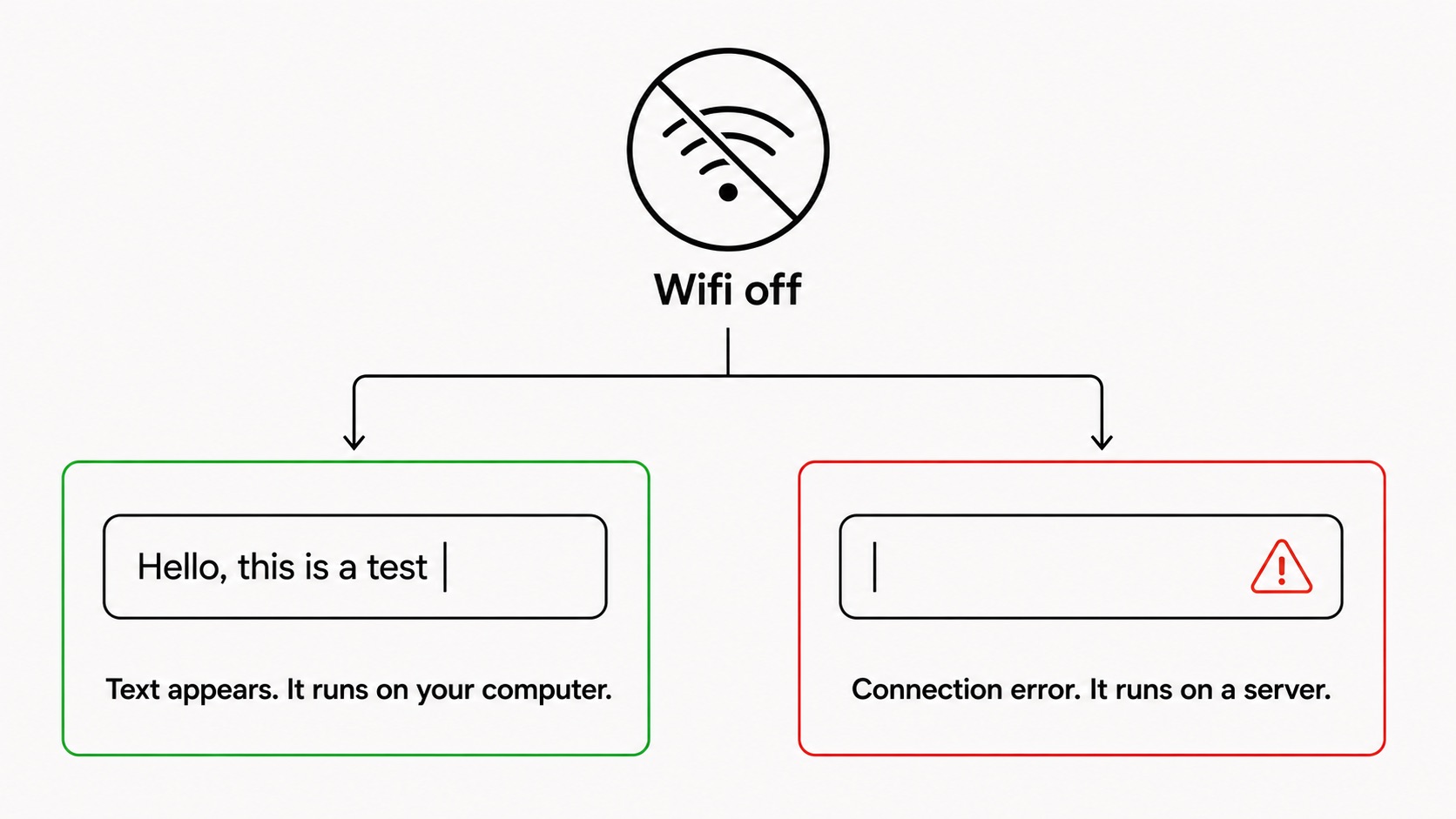
- To find out whether a speech to text program runs locally or in the cloud, turn off your wifi and try to dictate. It takes ten seconds and no marketing page can argue with the result.
The short answer
If you dictate occasionally, on one platform, about nothing sensitive, use what is already installed on your computer. Apple Dictation and Windows Voice Typing are free, they are already there, and for short emails and quick notes they are fine. Do not pay for anything.
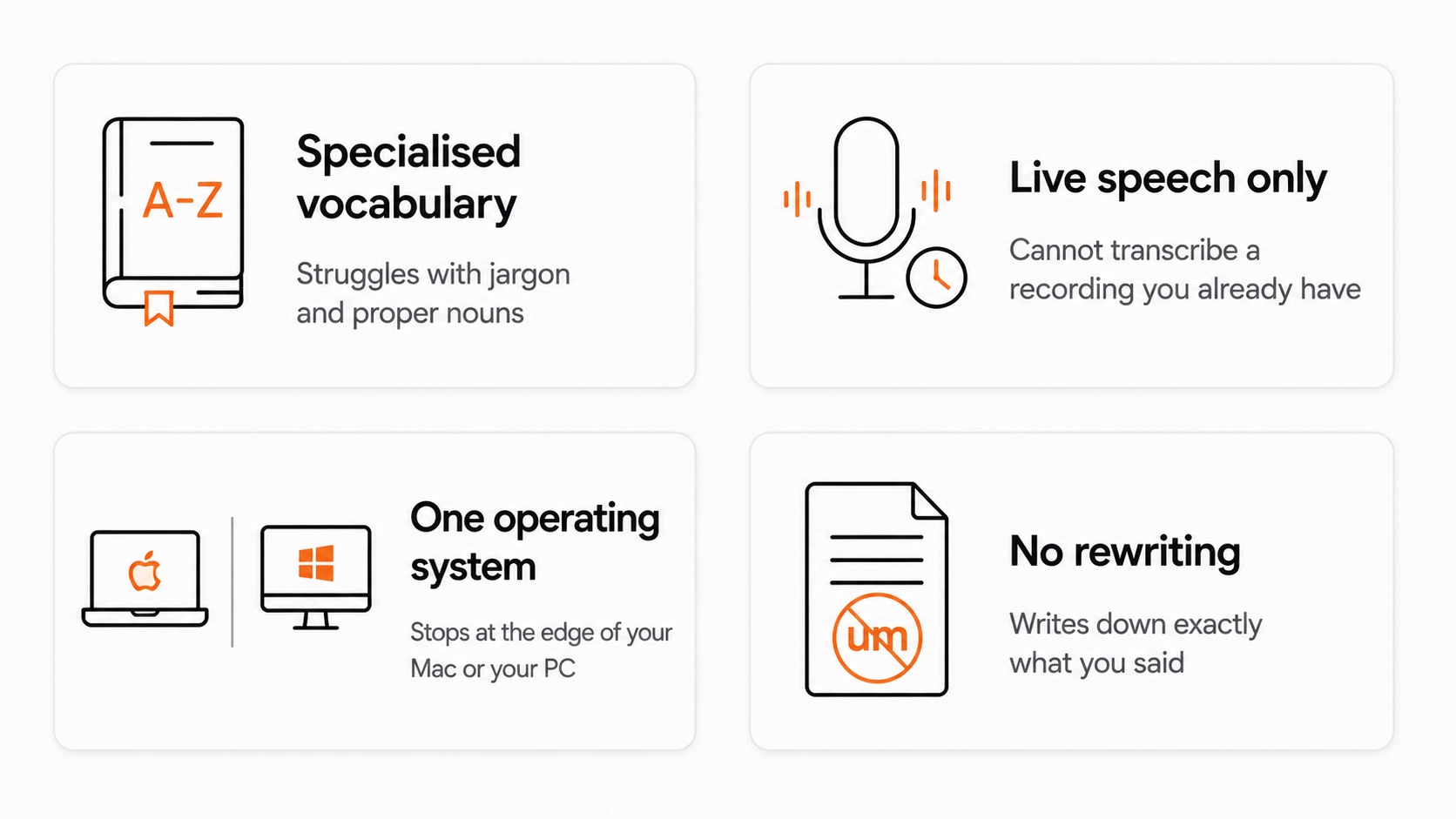
If you dictate every day, the built-in tools start to chafe. They transcribe exactly what you said, hesitations included. They stop at the edge of one operating system. They cannot reshape a spoken ramble into a sendable email. And on Windows, the free one does not work without internet.
A dedicated speech to text program earns its place when the built-in tools stop being enough. A capable dedicated program types into every application rather than trapping you in its own window. It punctuates and tidies as you speak instead of making you say "comma" out loud. It works on whichever computer you happen to be using. And it lets you decide where your voice is processed rather than deciding for you.
ParrotKey combines system-wide dictation, automatic cleanup, cross-platform support, and a choice of processing options on macOS and Windows. ParrotKey voice dictation works in any application and cleans up what you said as you say it. For processing, ParrotKey lets you choose rather than making the choice for you: connect your own API key from Gemini, Claude or ChatGPT and you pay your provider directly, so ParrotKey never touches your data. There is a permanently free plan to start with. The rest of this guide explains what to look for so you can judge that claim, and any other, for yourself.
What is a speech to text program?
A speech to text program listens through your microphone and converts what you say into written text. Speech to text programs then split on two practical questions.
Can you dictate anywhere, or only in one place?
A system-wide program types wherever your cursor already is. Email, Slack, a document, a search bar, a code editor. A confined one gives you its own text box: Speechnotes and SpeechTexter are web pages with a dictation field, and Google Docs voice typing works inside Google Docs. Both transcribe well. Then you copy and paste. For one long draft that is fine. For the forty short messages you write in a day, the copying becomes the work.
Where is your voice processed?
Processing location is the question few vendors lead with, and it is the subject of the next section.
A third category is worth naming so you do not buy it by accident: transcription services built around uploading a recording rather than speaking live. Recording-based transcription services turn an interview into a transcript; they are not designed for writing an email in real time.
Where does your voice actually go?
Installing something on your computer does not mean it processes your speech on your computer. Plenty of installed applications capture audio locally, ship it to a remote server, and paste back what the server sends. LilySpeech says so openly on its own site, explaining that the conversion happens in the cloud and therefore does not use your machine's resources. For an older laptop, that genuinely can be a benefit.
Built-in speech to text software does not necessarily process audio locally either. Windows Voice Typing, for example, is included with Windows but processes speech in Microsoft's cloud, as the Windows section below explains.
Whether speech is processed locally or in the cloud affects privacy, offline availability, perceived speed, and how the service is billed.
The three kinds of speech to text program
Every program you look at is one of these three. Once you know which, the rest of its behaviour follows.
| Runs on your computer | Runs on a server | Switches between them | |
|---|---|---|---|
| Works without internet | Yes | No | Only in the local mode |
| Where your audio goes | Nowhere | To the vendor | Depends on a setting |
| What limits accuracy | Your hardware | The vendor's model | Whichever mode is on |
| Typical pricing | One-time or subscription | Subscription or per-minute | Subscription |
Cloud processing is not the villain. Cloud models can be far larger than anything that fits on a laptop, which is why they still handle strong accents, background noise and unusual jargon well. The trade-off between local and cloud processing is real in both directions. What matters is knowing which processing model your program uses.
Hybrid speech to text programs need two extra checks. First, the local or offline mode may not exist on every operating system, because vendors often ship it on one platform before another. A program that processes locally on a Mac may still send everything to a server on Windows. Second, local processing is often switched off by default, which means a fresh install, a new laptop, or a colleague who never opened settings may be sending audio to a server without actively choosing cloud processing. Neither setup is necessarily dishonest. Both are details worth checking before you pay.
How to tell which one you are looking at
Marketing pages are unreliable here. "Private," "secure" and "encrypted" all describe cloud processing perfectly well. Encrypted in transit means the audio travels. So does a SOC 2 certificate, which audits how a vendor handles your data rather than whether they receive it.
Three checks that work:
- Read the privacy or data page, not the homepage. Vendors describe the architecture accurately where they are legally exposed. Wispr Flow's data controls page, for instance, states plainly that transcription always occurs on the cloud, even though the homepage does not lead with that.
- Look for "on-device" or "local model." Those terms describe where computation happens. The word "private" does not.
- Turn off your wifi and try it. Ten seconds, and no marketing copy survives it. If the program refuses to start or shows a connection error, you have a cloud tool. Do this before your trial ends.
Speech to text programs for Windows
Windows 11 ships with a dictation feature. Press Win + H in any text field, a small toolbar appears, and your words land at the cursor. Nothing to install, nothing to pay.
Now the part that surprises people. Microsoft's own support documentation says that to use voice typing, you need to be connected to the internet. Disconnect, press Win + H, and Windows tells you so. The free dictation tool that ships with the operating system is a cloud service.
Windows has a second, separate voice feature called Voice Access, under Settings, Accessibility, Speech. Microsoft describes Voice Access as using on-device speech recognition that works even without the internet once the language pack has downloaded. Voice Access is Windows' offline option. Voice Typing and Voice Access were built for different jobs: Voice Typing is built for writing, while Voice Access is built for controlling your PC by voice. Voice Access uses a command-and-control workflow rather than flowing dictation.
Fluid Dictation on Copilot+ PCs is a recent exception. Fluid Dictation corrects grammar, punctuation and filler words as you speak using small language models that run on your device. That is genuine local processing, limited to Copilot+ hardware and English locales.
Windows Voice Typing sends your voice to Microsoft unless you have new enough Copilot+ hardware for Fluid Dictation. Windows Voice Access runs offline but is designed primarily for controlling the PC rather than comfortable long-form dictation. For both offline processing and comfortable dictation on ordinary hardware, you need a third-party program.
Speech to text programs for Mac
macOS has Apple Dictation. Open System Settings, go to Keyboard, scroll to Dictation, switch it on. macOS downloads a language model the first time. The shortcut is the dictation key, or pressing Fn twice.
On Apple Silicon Macs, dictation runs on-device once that model has downloaded, and it works without a connection. That is a meaningfully better privacy position than the Windows equivalent, and Apple deserves credit for it. On Intel Macs the picture is messier: behaviour varies by macOS version and language, and audio can be routed to Apple's servers. The wifi test settles it in ten seconds.
Apple Dictation's ceilings are the ones every built-in tool runs into. It handles general English well and struggles with specialised vocabulary. It transcribes live speech only, not recordings you already have. It works on one operating system. And it writes down exactly what you said, with no ability to reshape a spoken ramble into something you would send.
The practical point: if you are on Apple Silicon, the free built-in option already runs locally, so the reason to install something else is capability rather than privacy.
Is there a free speech to text program?
There are three useful types of free speech to text option, and they are worth knowing before you spend anything.
Built into your OS. Apple Dictation and Windows Voice Typing cost nothing and are already installed. If the built-in tools' limits on rewriting, platform support and advanced vocabulary do not bother you, stop here.
Open source. Handy is a free, open-source program that runs speech recognition on your own computer, on Mac, Windows and Linux. Press a shortcut, speak, release, and the text appears. MIT-licensed, no paid tier, source public, so the claim that nothing leaves your machine is one you can check rather than trust. No AI cleanup, no translation, no reshaping. If your requirement is exactly "transcribe what I say, keep it on my machine, charge me nothing," take it.
Free tiers of paid programs. Most commercial programs offer one, capped by usage. Free tiers are the best way to test accuracy against your own voice and your own jargon before committing.
What the free options cost you, and where they stop being enough, is covered in our guide to free speech to text.
How to choose a speech to text program
Four questions, in the order that narrows the field fastest.
1. Does it work in every application? A program that types wherever your cursor is beats one that makes you dictate in its window and copy the result out. Look for "system-wide."
2. Where is the audio processed? Ask explicitly. Turn off the wifi and check.
3. Does it run on the computers you actually use? Many of the strongest local dictation programs are Mac-only, built on Apple Silicon's neural engine. If you move between a Mac and a PC, that narrows things considerably.
- Does it only transcribe, or does it help you write? Raw transcription gives you exactly what you said, hesitations and all. Some programs punctuate automatically, remove filler words, correct grammar, translate, and reshape a rambling paragraph into a clear one. Software that cleans, translates, or rewrites text is a different category from raw transcription. If you work across languages, read the language claims closely: "supports 100+ languages" usually means the recogniser understands you in those languages, which is not the same as translating between them. Some tools only translate into English. Check the vendor's translation direction and test it.
Why ParrotKey
ParrotKey is a desktop program for macOS and Windows. Hold a key, speak, and the text appears at your cursor in whatever application you are already in. Email, Slack, Word, a browser field, a code editor. No separate window, nothing to copy across.
ParrotKey punctuates as you speak rather than making you say "comma," and tidies filler words instead of writing down every "um." From the same keystroke, ParrotKey can transform text with built-in and custom prompts, turning a spoken ramble into a professional email or a shorter paragraph. ParrotKey can also translate what you said into more than fifty languages in whichever direction you need. Speak Dutch, send English. Speak English, send German.
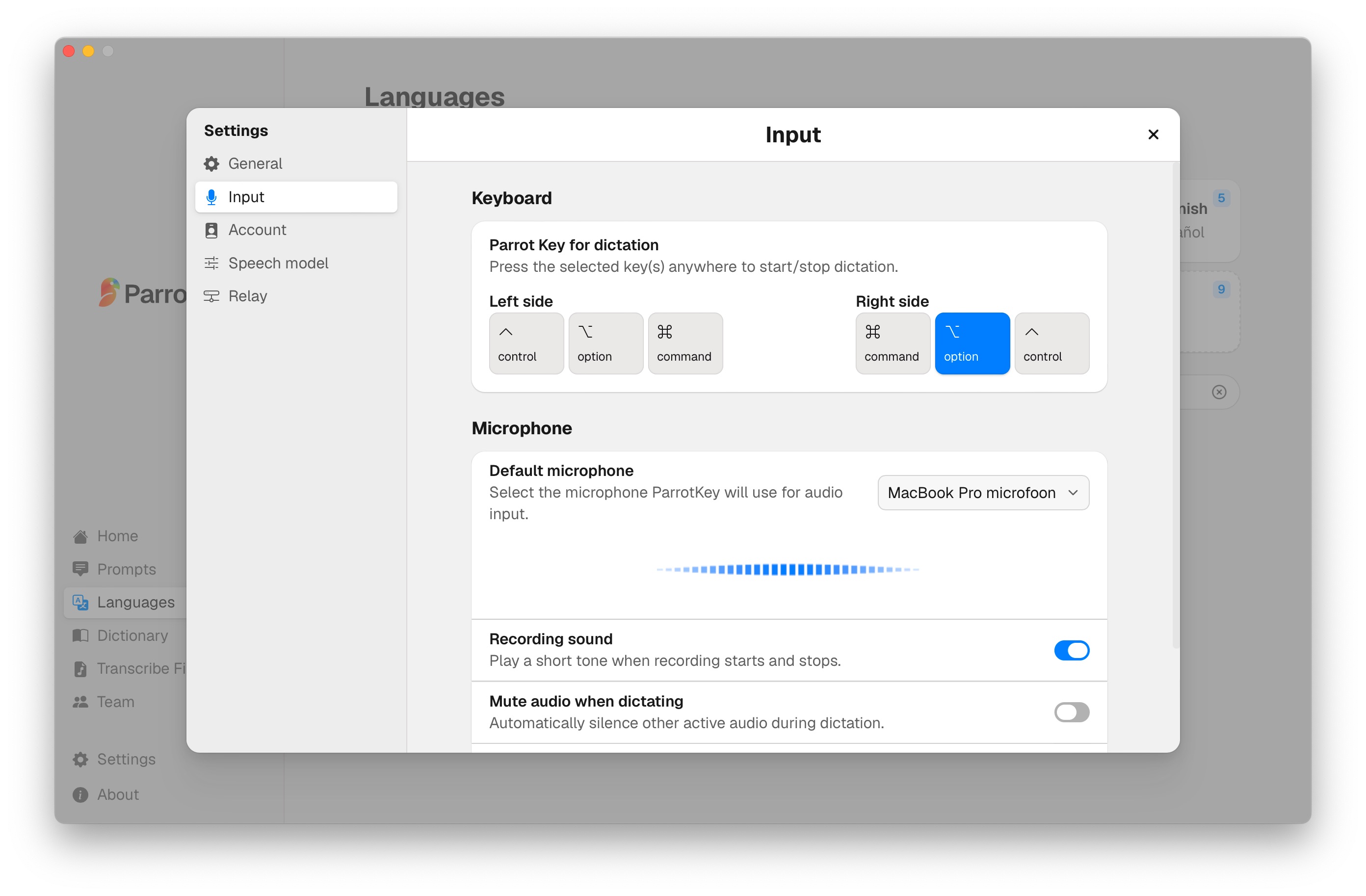
For processing, ParrotKey gives you the choice rather than making it for you. You can connect your own API key from Gemini, Claude or ChatGPT, which means you pay your provider directly and ParrotKey never touches your data. Fully local models, running on your own machine with no internet connection at all, are being built into the own it forever plan. Fully local processing needs a reasonably fast computer, and Apple Silicon Macs handle it best.
There is a permanently free plan to start with, and paid tiers unlock the rest. Start with the free plan, test it against your own voice, your own accent and your own jargon, and decide from evidence rather than a feature list.
Conclusion
Every speech to text program presents the same surface. Press a key, talk, watch the words appear. Marketing pages compete on accuracy percentages and feature lists, but few lead with the processing question that matters most: whether your voice ever leaves the room you are sitting in.
You can test a speech to text program's processing model without trusting anyone, including us. Read the data page rather than the homepage. Look for "on-device," not "private." Turn off the wifi and try.
Apply those checks to every speech to text program you consider and you will make a better-informed decision. You can download ParrotKey for macOS or Windows and start on the free plan today.

 Comece grátis